After reading this guide, you will be able to:
- Streamer Operations: Review the request queue, approve or reject guest requests with one click, and manage on-mic guests during livestreams.
- Guest Participation: Learn how to request to speak, wait in the queue, join the mic, and start speaking during a livestream.
- Handle Common Scenarios: Understand what happens when you are muted or removed, and know what actions remain available.
This guide is divided into two parts:
- Part 1 · Streamer Operations: Managing multi-guest interactions via Live Studio on desktop.
- Part 2 · Guest Participation: Covers all in-app guest operations, from requesting to join the mic to speaking during a livestream.
Part 1 · Streamer Operations
1. How to Approve Guest Requests and Manage On-Mic Guests
Before You Start
- You are livestreaming via TRTC Browser Streaming and have entered the real-time management page in Live Studio on desktop.
- The Streaming with Multi-Guests feature is enabled for the current live session.
Approving Requests
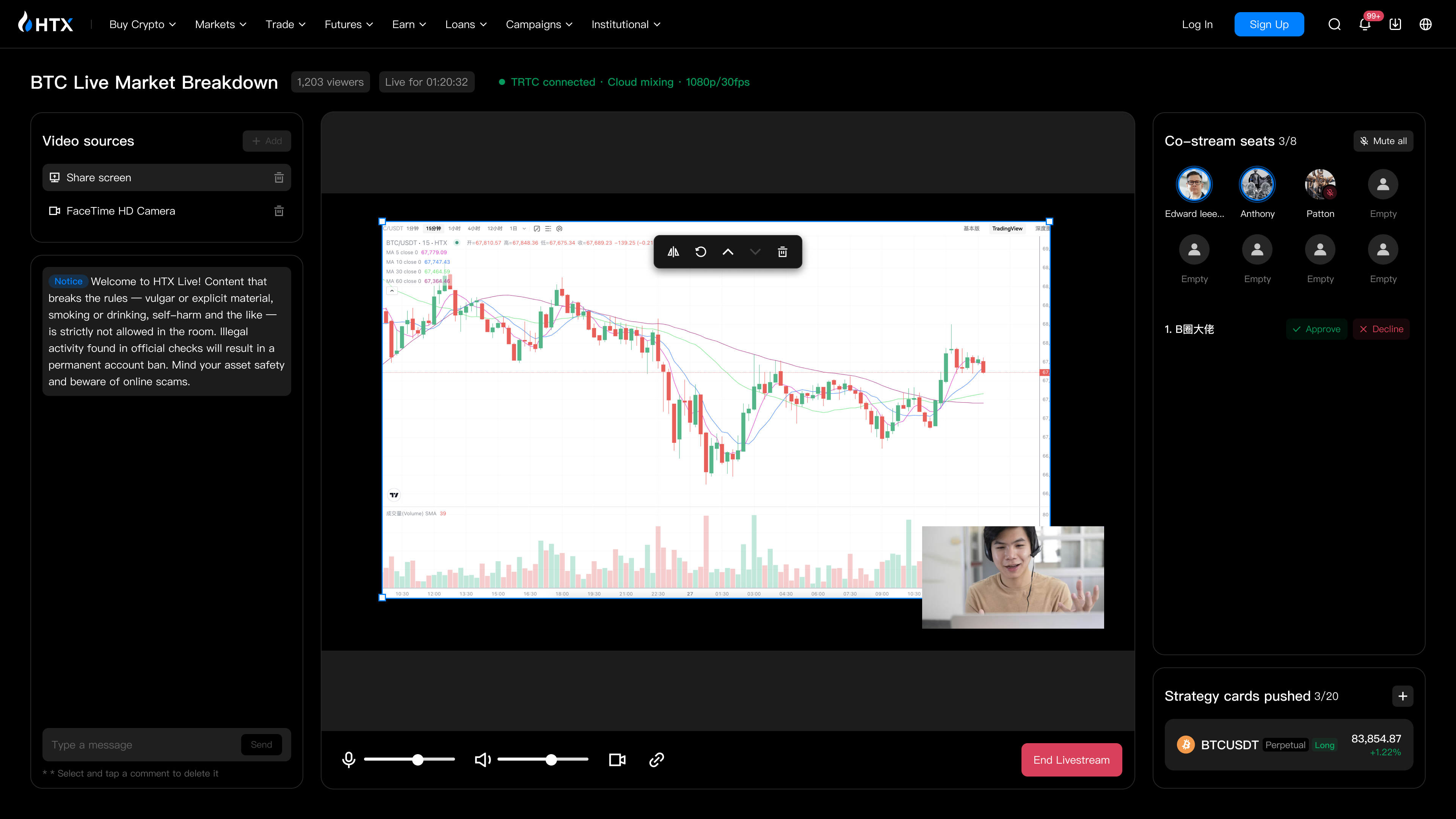
When viewers apply to join as guests, the request queue updates in real time under the Mic Seats panel on the right side of Live Studio. Requests are reviewed on a first-come, first-served basis:
- Review the pending requests in the queue. Click Approve to bring the viewer on mic, or click Reject to dismiss the request.
- When all seats are filled (8/8), the Approve button is automatically disabled. You must remove at least one on-mic guest before accepting new requests.
What to Expect
Upon approval, the viewer's avatar moves to the seating area and joins the mic in muted mode by default.
Managing On-Mic Guests
To manage a guest already on mic, click their avatar in the seating area to open the action card. Three actions are available, listed in order of severity:
| Action |
Expected Outcome |
Note |
| Unmute / Mute |
Toggles the guest's microphone status. |
Can be reversed at any time; does not remove the guest from their seat. |
| Remove (Can Rejoin) |
Removes the guest from their seat; they can apply again to join after 5 minutes. |
Least severe; no confirmation required. |
| Kick (Ban for This Session) |
Removes the guest from the mic and bans them from speaking and chatting for the rest of this session (viewing access remains). |
Highlighted in red; requires secondary confirmation; irreversible. |
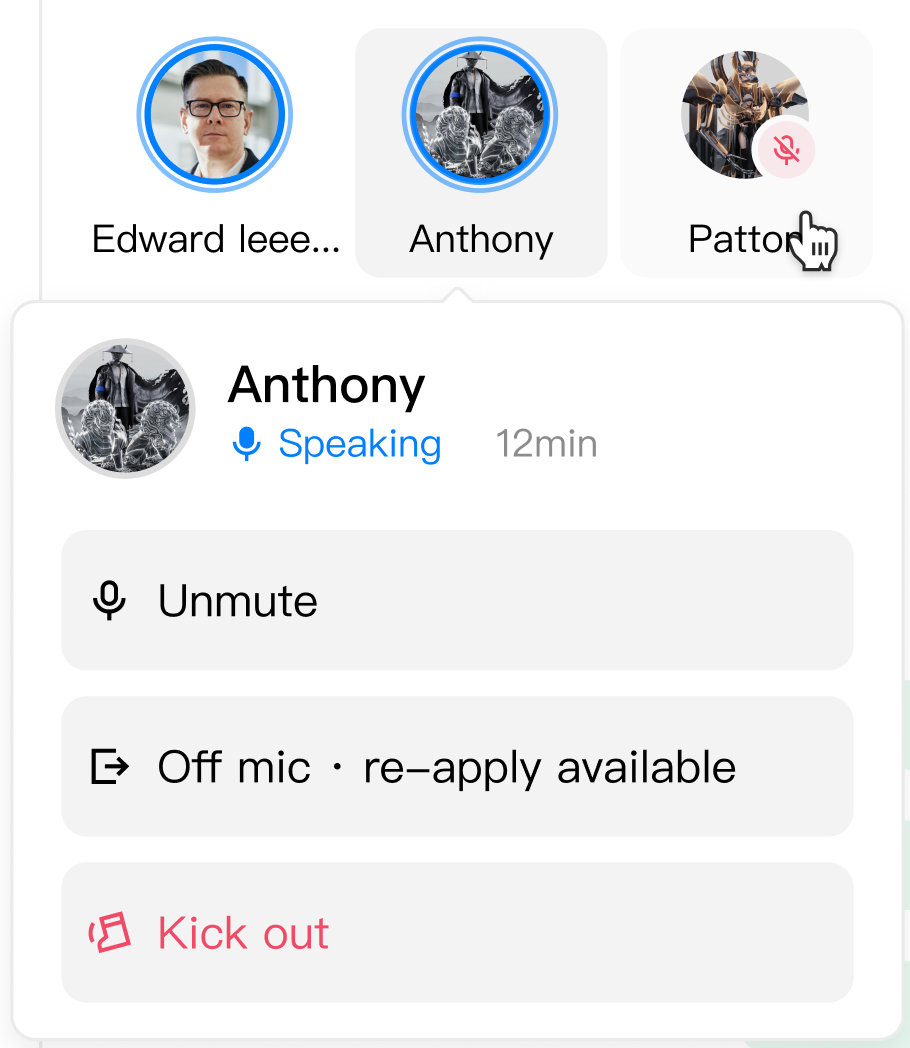
Note: Kick (Ban for This Session) triggers a confirmation pop-up. Once confirmed, the action cannot be reversed within the session. Please verify the target user before confirming.
The Mute All button in the top-right corner of the seating area instantly mutes all on-mic guests, allowing the streamer to deliver a solo explanation when needed.
Part 2 · Guest Participation
2. How to Request to Join and Speak on the Mic
Before You Start
- You have joined a livestream via the HTX App (TRTC Browser Streaming mode).
- Streaming with Multi-Guests is enabled, and seats are available.
Requesting to Speak
- Tap the Raise Hand button 🖐️ on the bottom bar, or tap an empty "+" slot in the main stage area.
- Once submitted, a prompt will appear: "Request sent. You are #N in the queue. Please wait for the host to approve."
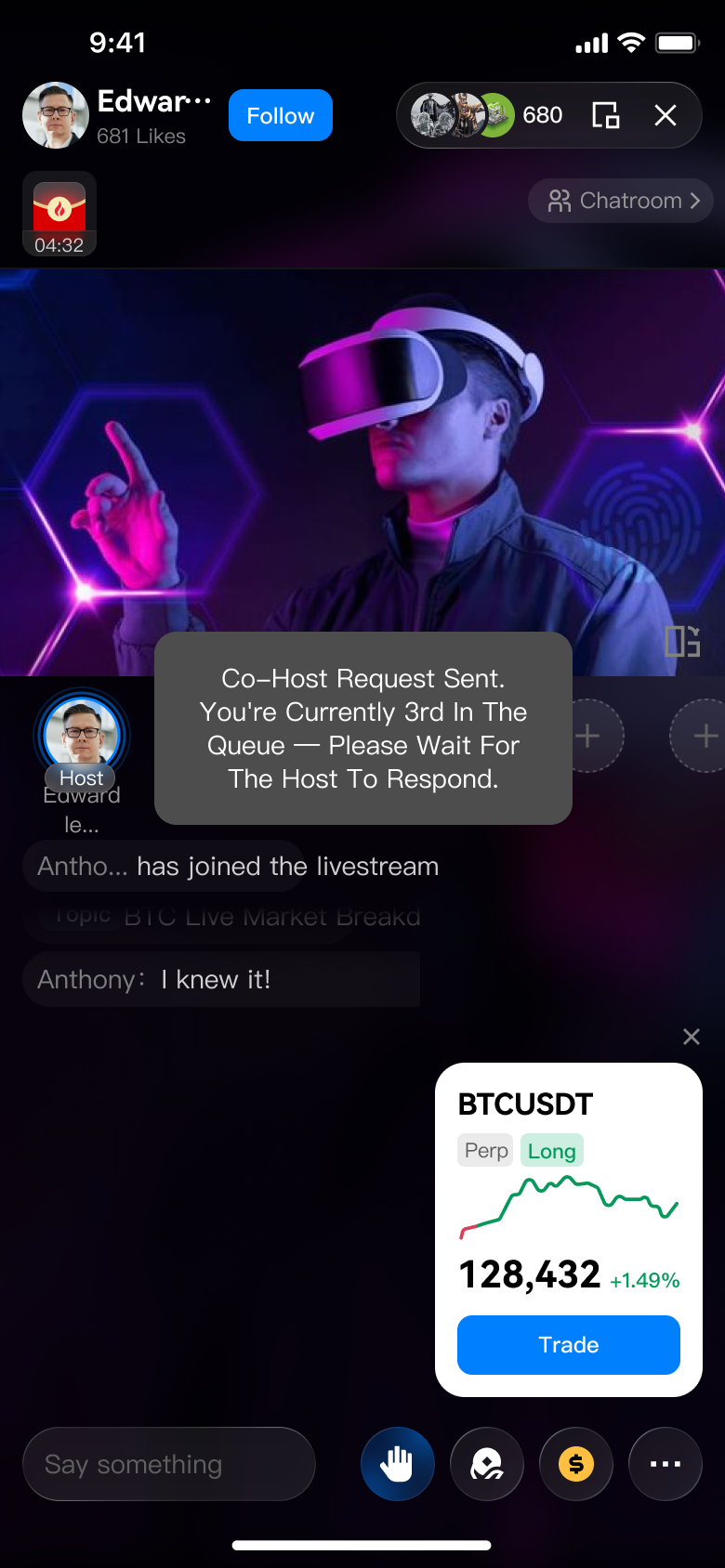
Tap the Raise Hand button again while waiting in the queue to leave the queue.
Speak on Mic
Once approved by the streamer:
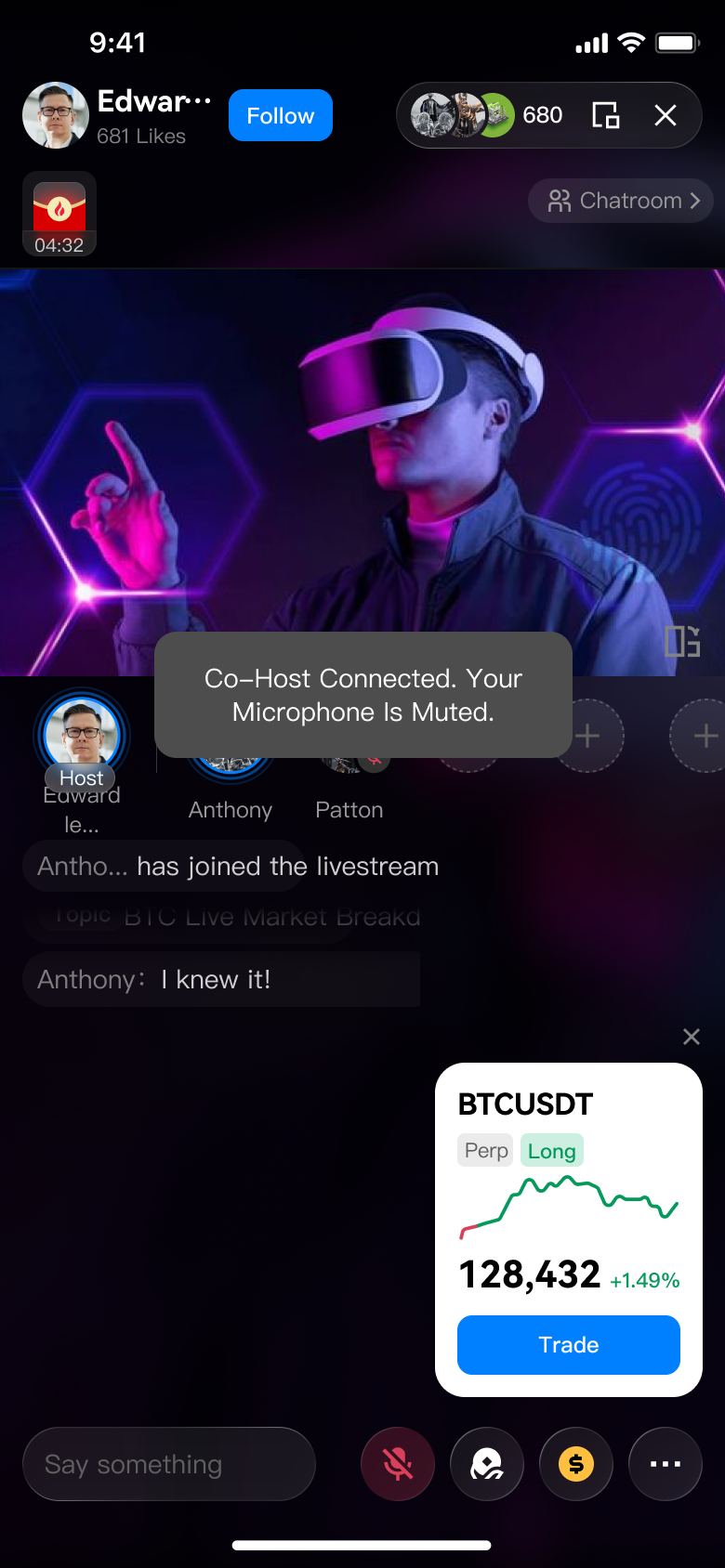
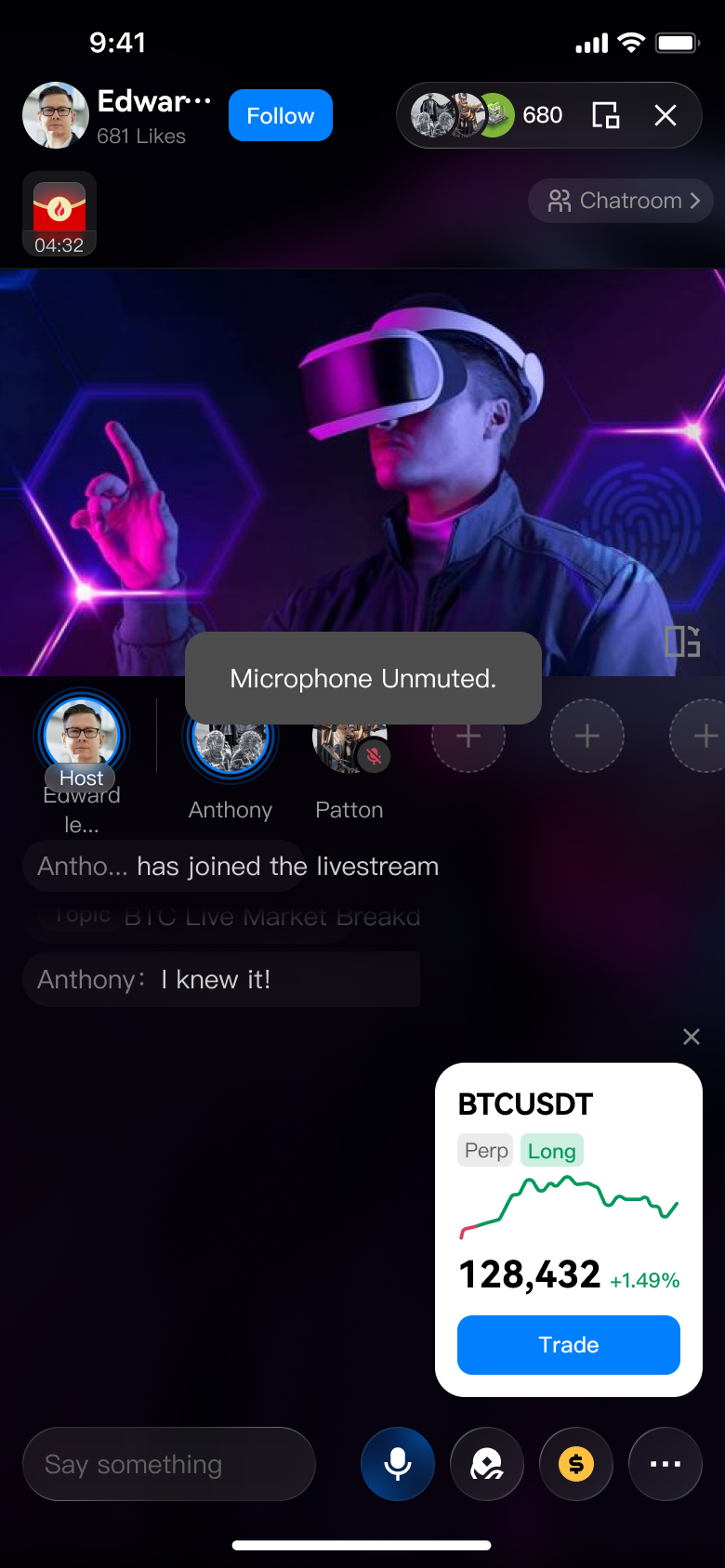
- You will receive the prompt "Joined the stage. You are muted." Your avatar appears in the seating area, muted by default.
- Tap the Microphone icon on the bottom bar to unmute and start speaking.
- When finished, tap Leave to exit the seat and return to regular viewer status.
| Joined the Mic (Muted by Default) |
Mic On and Speaking |
|
|
|
What to Expect
Once unmuted, all viewers in the livestream can hear you in real time, and your seat avatar displays a sound wave animation.
Tipping, Trading Strategy Cards, and other bottom-bar features remain fully accessible while you are on mic.
3. What to Do If Muted or Removed
If You Are Muted by Streamer (Mic Locked)
When the streamer mutes you, you will see the prompt "You have been muted by the host." The microphone button on the bottom bar will gray out, preventing you from unmuting yourself. Chatting, tipping, and viewing Trading Strategy Cards remain fully functional. Microphone controls will be automatically restored once the streamer unmutes you.
If You Are Kicked Out (Banned This Session)
If banned, you will see the prompt "You have been banned from joining as a guest in this session." You will be removed from the mic automatically, the Raise Hand button will be grayed out, and text input will be disabled for the remainder of the session. Viewing access remains unaffected.
Note: The ban applies only to the current session and does not affect your ability to join other streams or request to speak in future livestreams.
FAQs
Q: How many people can be on stage simultaneously during co-streaming?
A: Up to 9 participants simultaneously (1 Streamer + up to 8 Guests). Once all seats are occupied, the Raise Hand button grays out until a seat becomes available.
Q: How long after being removed from the mic can a viewer reapply?
A: The Raise Hand button reactivates after 5 minutes, allowing the user to submit a new request to join.
Q: Can I use the co-streaming feature with OBS Software Streaming?
A: No. Co-streaming is only supported in TRTC Browser Streaming mode. When creating a livestream, you need to select "TRTC Browser Streaming".
Q: Can the streamer reverse a session ban?
A: No, it cannot be revoked within the current session. If you wish to invite the viewer again, you may unban their account after the stream ends.
Q: What happens if my connection drops while I am on mic?
A: You will be automatically removed from the seat and the slot will be released. Once your connection is restored, you may raise your hand and request to join again.
Go On Mic, Start the Chat
By now, you know every step of livestream interaction. A great co-streaming session is more than just adding extra voices—it’s about sparking real, insightful discussions.
Attract your viewers with live content that is professional, valuable, and engaging, then use guest interaction to take the conversation deeper. We look forward to hearing more inspiring voices in your livestream!
Appendix · Glossary
| Term |
Definition |
| Mic Seats |
The area on the right side of the Live Studio that displays on-mic guest avatars, with a maximum of 8 guest seats. |
| Request Queue |
The list of viewers waiting to join the mic, processed by the streamer on a first-come, first-served basis. |
| Join the Mic |
When a viewer is approved by the streamer and enters the real-time voice channel as a guest. |
| Leave the Mic |
Exiting the real-time audio channel to return to regular viewer status. |
| Mic Locked |
A streamer action that mutes a guest, grays out their mic controls, and prevents self-unmuting. |
| Kick (Ban for This Session) |
Removes the guest from the mic and bans them from speaking for the rest of this session, but viewing access remains. |
| TRTC Browser Streaming |
A browser-based streaming method that supports co-streaming and Trading Strategy Cards, with no software installation required. |


