Welcome to HTX Live
More and more traders and creators are using livestreams to share their views and build an audience — and going live on HTX is easier than you'd expect. Whether you want to break down the market on the spur of the moment or run a scheduled deep-dive, you can create your stream on desktop or mobile, pick how you go live, and start. No need to ask operations to unlock anything for you.
By the end of this guide, you'll be able to:
- Open Anchor Studio: find where to go live and read your own session list.
- Create a livestream: go live now or schedule a time, then fill in the title, cover, and streaming method.
- Manage "My Livestreams": review the sessions you've created and jump in to go live or adjust them by status.
- Go on air: stream straight from your browser with TRTC, or push from OBS.
- Stream better: prep and content tips that make your stream look sharper and keep viewers around.
- Check your application history: track the review status of past sessions.
The guide comes in two parts:
- Part 1 · Anchor actions: every create-and-go-live step you'll want to master.
- Part 2 · What viewers see: understand the viewer's side so you can guide the interaction.
| You choose TRTC or OBS at creation — no unlock request to operations needed. |
Part 1 · Anchor actions
1. How to open Anchor Studio
The first step to going live is finding Anchor Studio: on mobile, open it from your profile; on desktop, use the top-right button. Either way you can create and manage your livestreams.
Before you start
- You've passed HTX anchor verification and are signed in to your HTX account.
Steps (mobile · Anchor Studio)
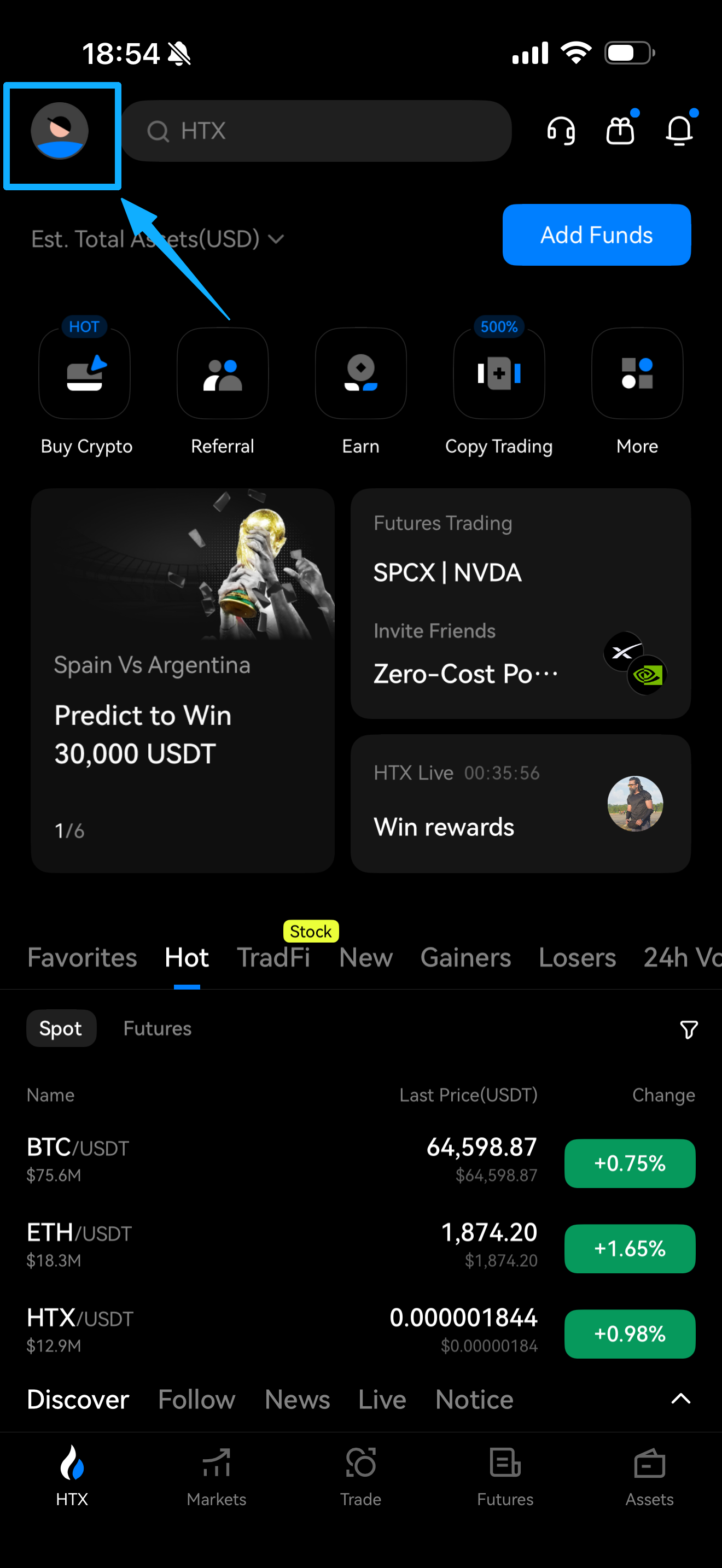
- Open the HTX App and tap your avatar in the top-left of the home screen to open your profile.
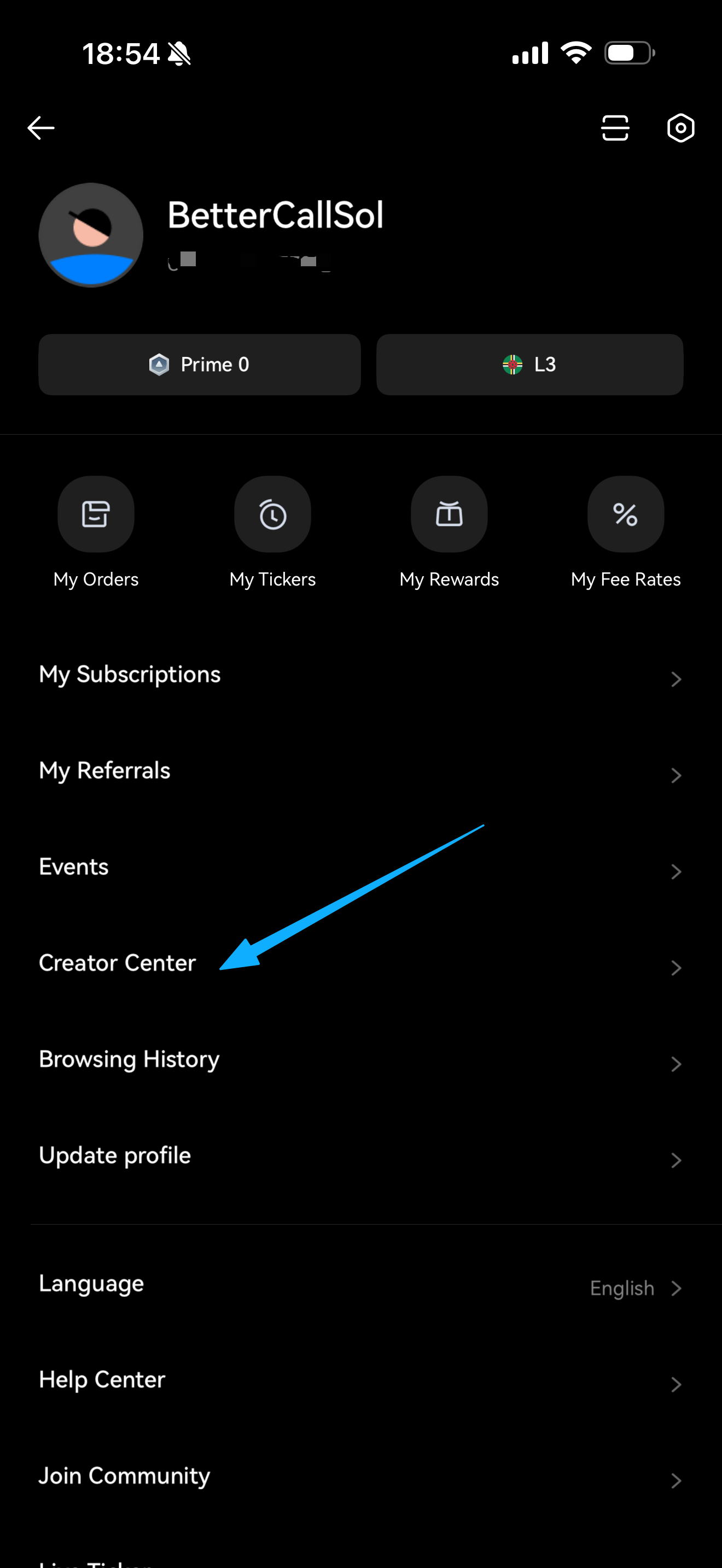
- In the profile menu, tap "Anchor Studio".
| Step 1: Tap your avatar to open your profile | Step 2: Tap "Anchor Studio" |
|---|---|
|
|
|
Steps (desktop · Anchor Studio)
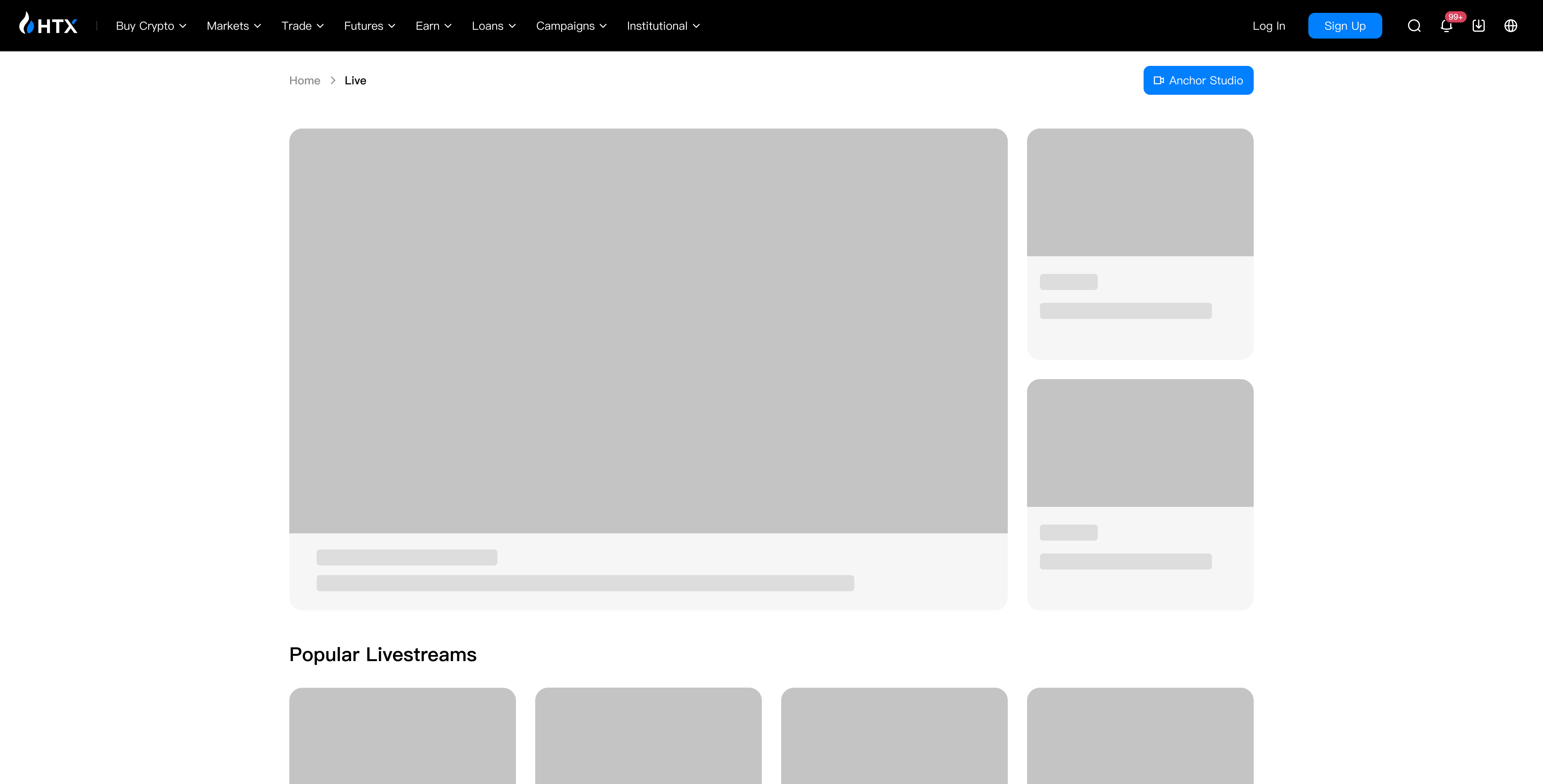
- Open the HTX Live page in your browser — Chrome 90 or later recommended.
- Click the "Anchor Studio" button in the top-right of the page.
What you'll see
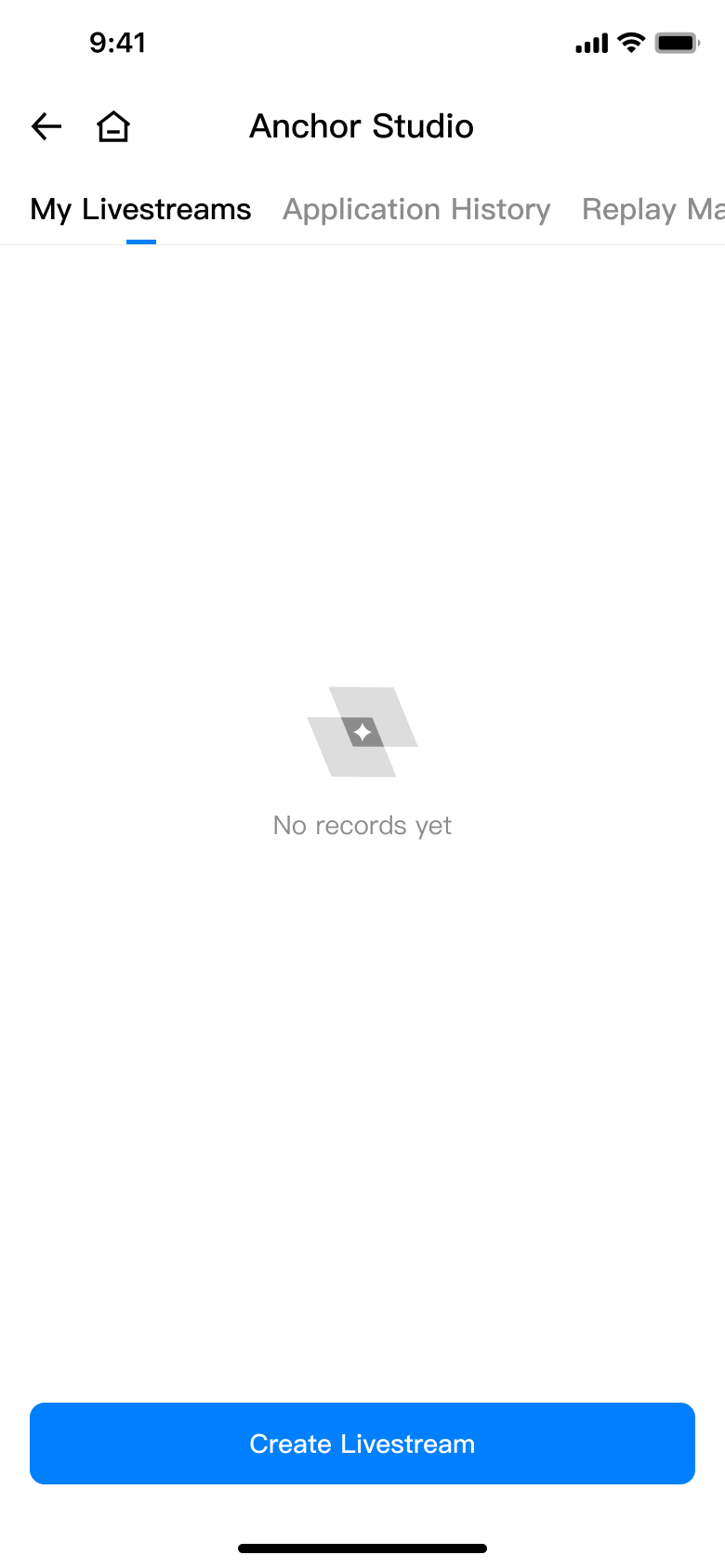
Once inside Anchor Studio, you'll see your list of livestream sessions. If you don't have any yet, the page shows an empty state prompting you to "Create Livestream".
| Verified but still nudged to apply? Sign out, sign back in, then reopen Anchor Studio. |
2. How to create a livestream on desktop
Before you start
- You're inside the desktop Anchor Studio.
- You have a cover image ready, sized to the ratio the page asks for.
Steps
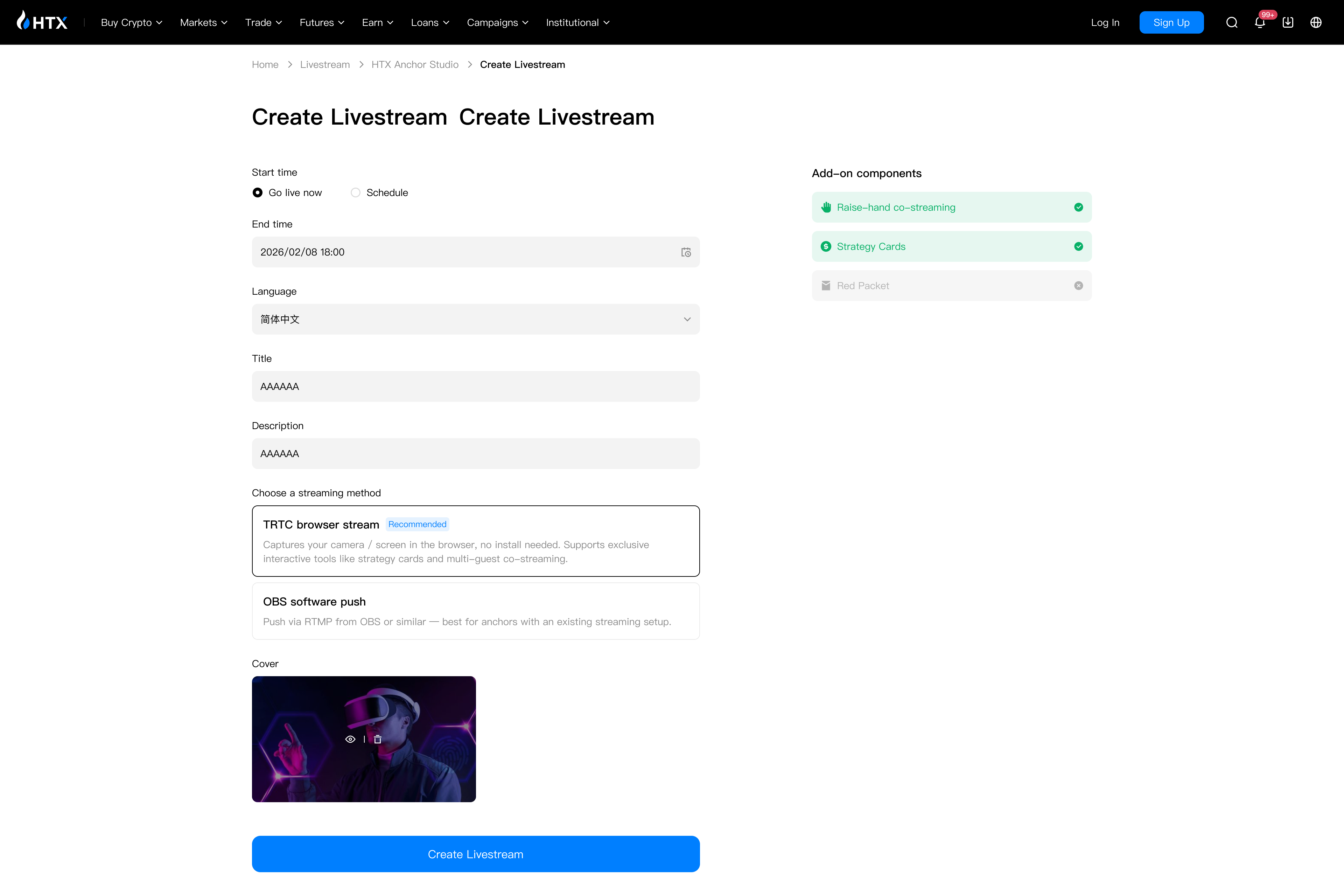
- Click "Create Livestream" in the Anchor Studio to open the create form.
- Choose "Start time": go live now, or schedule a start time.
- Fill in the language, title, and description, then upload a cover.
- Under "Streaming method", pick "TRTC browser stream (recommended)" or "OBS software push".
- Click "Create Livestream".
What you'll see
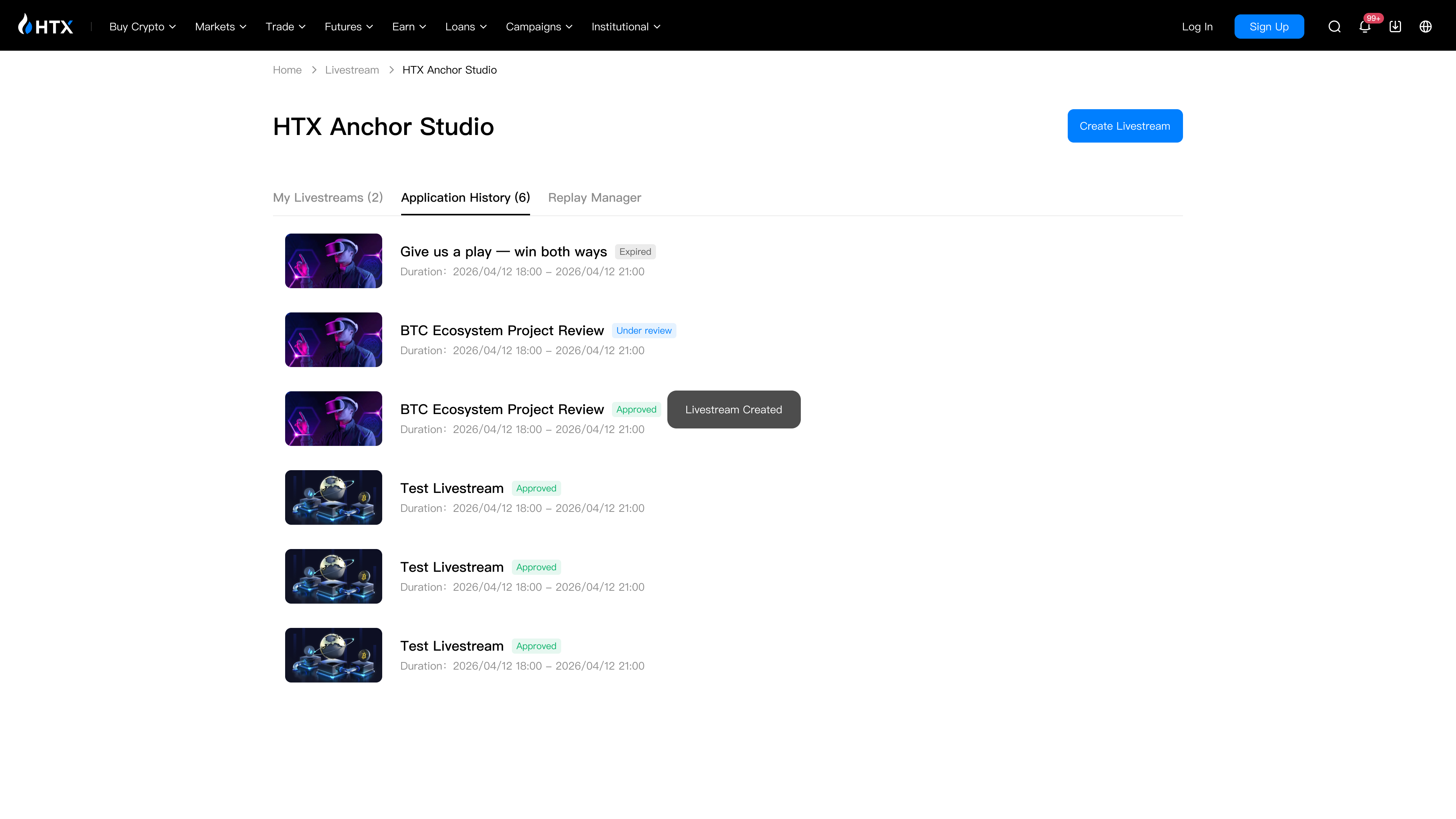
After you submit, the page confirms the stream was created and it joins your "My Livestreams" list. A go-live-now session goes straight to go-live prep; a scheduled session goes live once its time arrives.
| The streaming method locks at creation and can't be changed. To switch, create a new livestream. |
| Title and cover decide whether viewers click in — name the coin and your view, use a clear cover. |
3. How to create or schedule a livestream on mobile
Before you start
- You're inside mobile Anchor Studio.
Steps
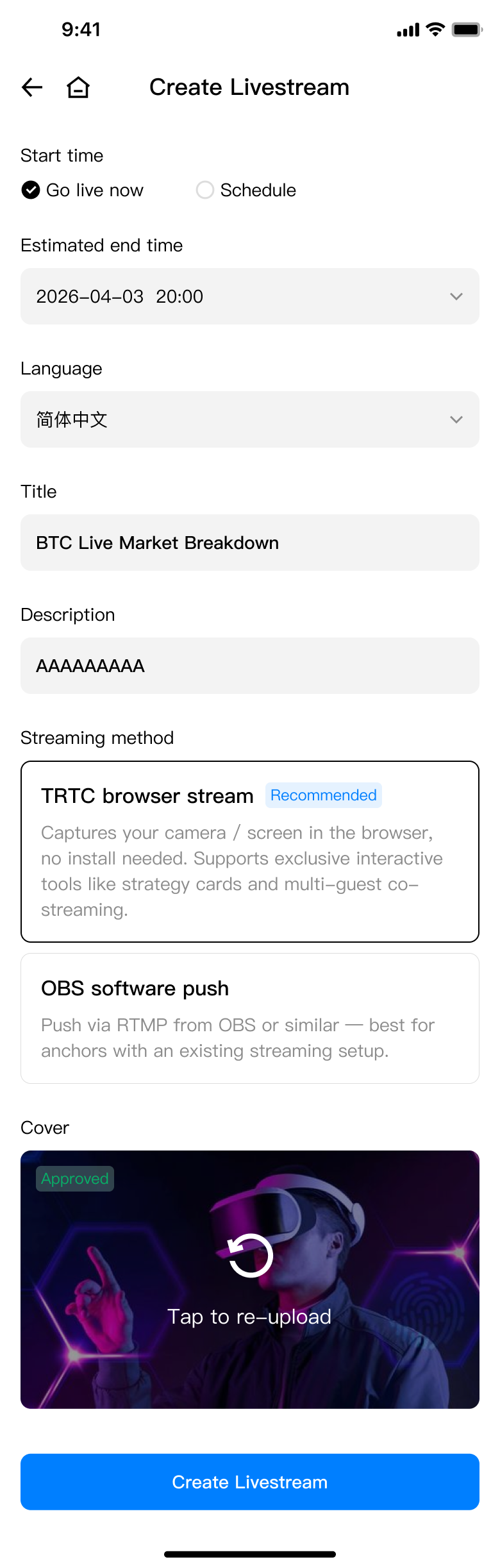
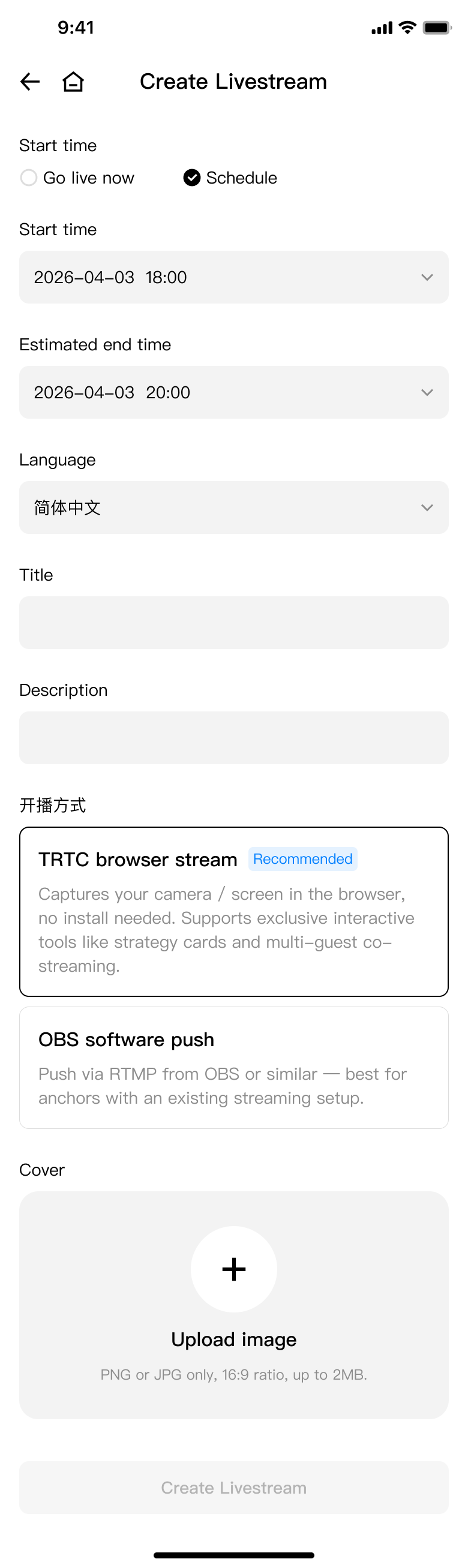
- On the "My Livestreams" page, tap "Create Livestream" at the bottom.
- Choose the start time: go live now, or schedule a time.
- Fill in the language, title, description, and cover.
- Under "Streaming method", pick TRTC browser stream or OBS software push.
- Submit to create.
| Go live now: create and stream straight away | Schedule: set a start time |
|---|---|
|
|
|
What you'll see
Once created, the session joins "My Livestreams". Go-live-now sessions head straight to go-live prep; for a scheduled session, tap "Go Live" in the list once its time arrives.
| Pick TRTC on mobile and streaming runs on desktop — copy the Studio address into a desktop browser. |
4. How to manage sessions in "My Livestreams"
Before you start
- You've created at least one livestream.
Steps
- Open "My Livestreams" in Anchor Studio.
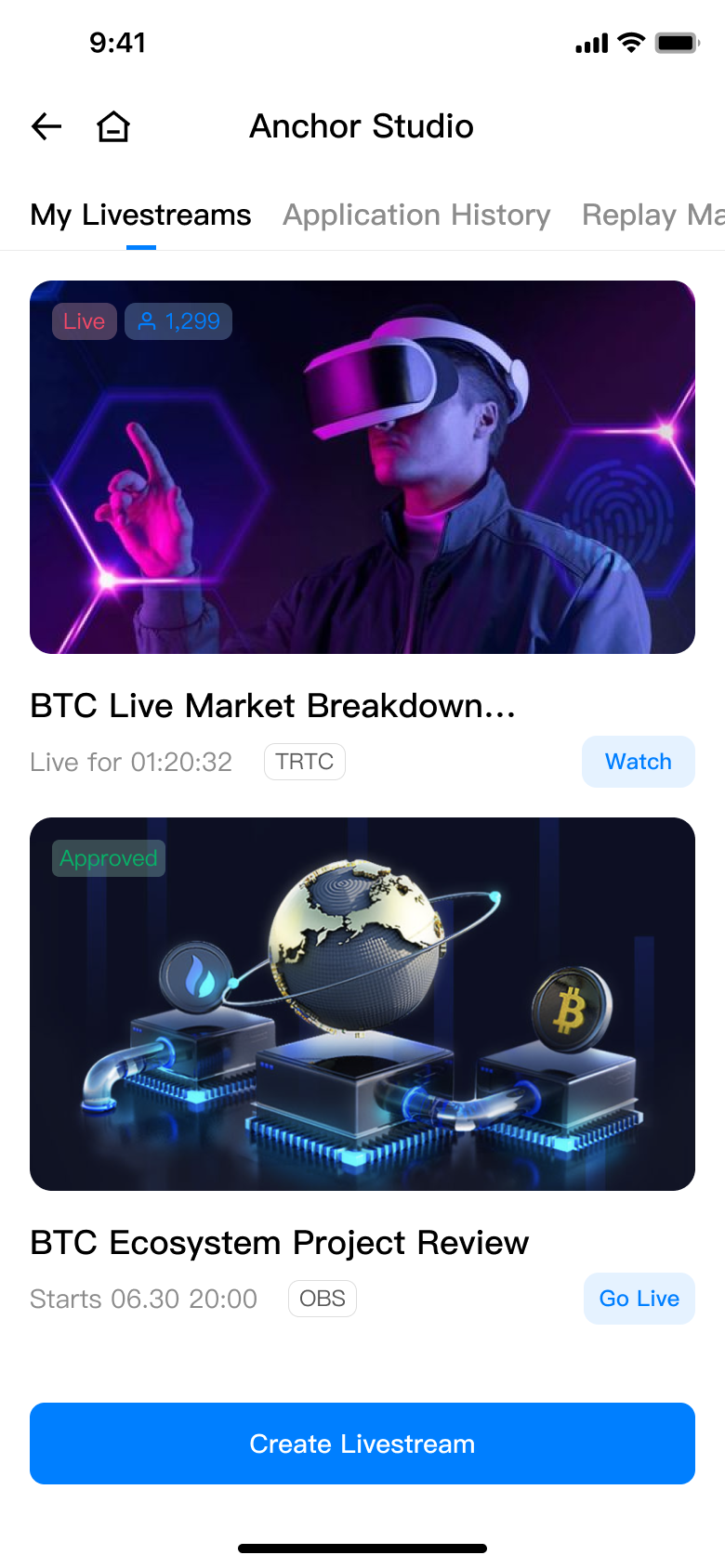
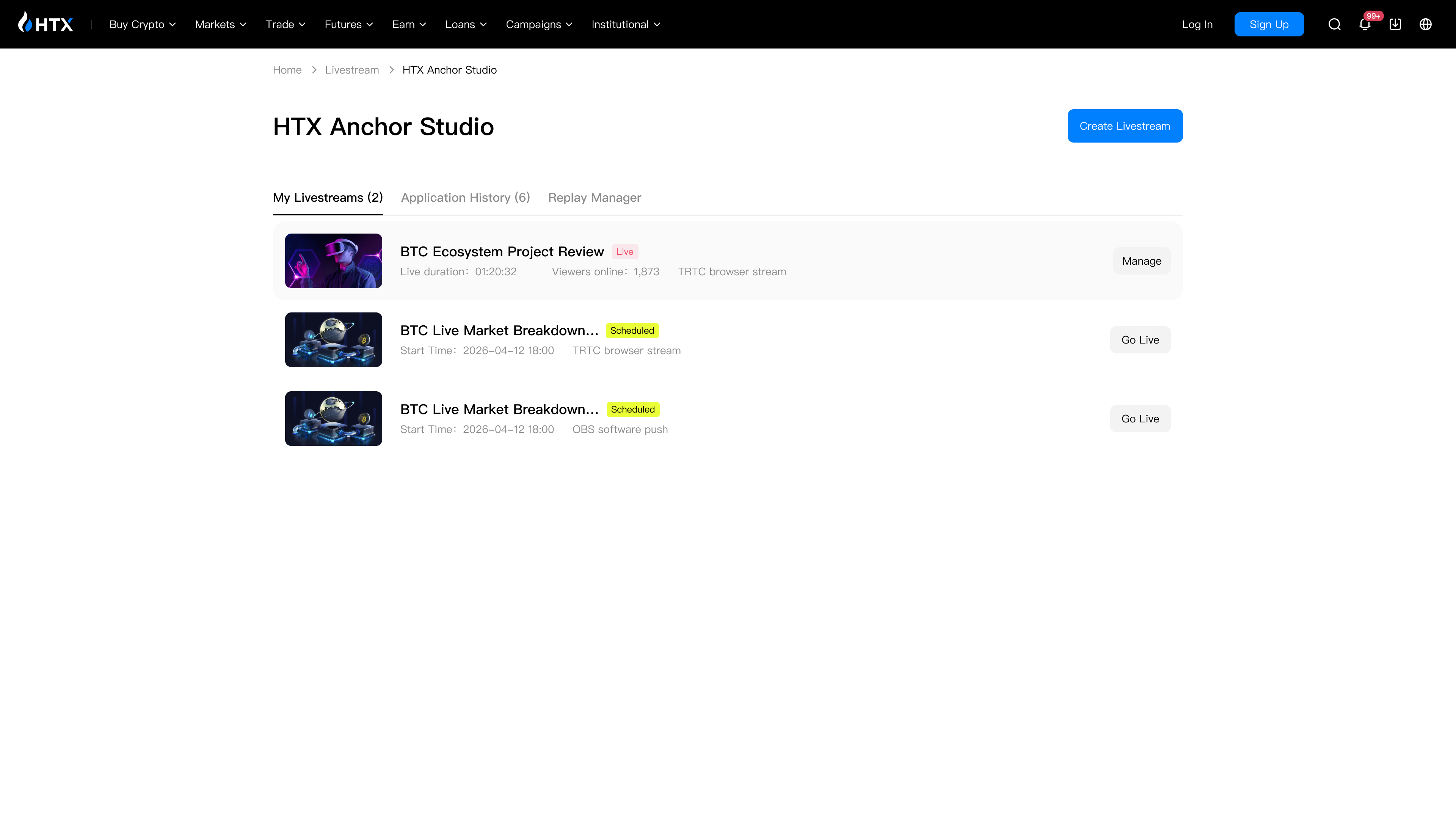
- Review the session list: each one shows its title, start time, and status (Upcoming / Live / Ended).
- For a session whose time has arrived, tap "Go Live"; open any session for its details.
| Mobile "My Livestreams" | Desktop "My Livestreams" |
|---|---|
|
|
|
What you'll see
You can see every session you've created and, by status, jump in to go live or view its details.
| You can't reopen the same room right after it ends — a short cooldown prevents duplicate streams. |
5. How to go live with a TRTC browser stream
TRTC browser streaming needs no software — open a web page and you're on air. It's the method most anchors are pointed to, and it's the only one that supports interactive plays like strategy cards and multi-guest co-streaming.
Before you start
- You've created a livestream (with TRTC browser stream selected) and reached go-live prep.
- You have a computer ready, ideally Chrome 90 or later.
Steps
- In "My Livestreams", tap "Go Live" to reach the go-live prep page.
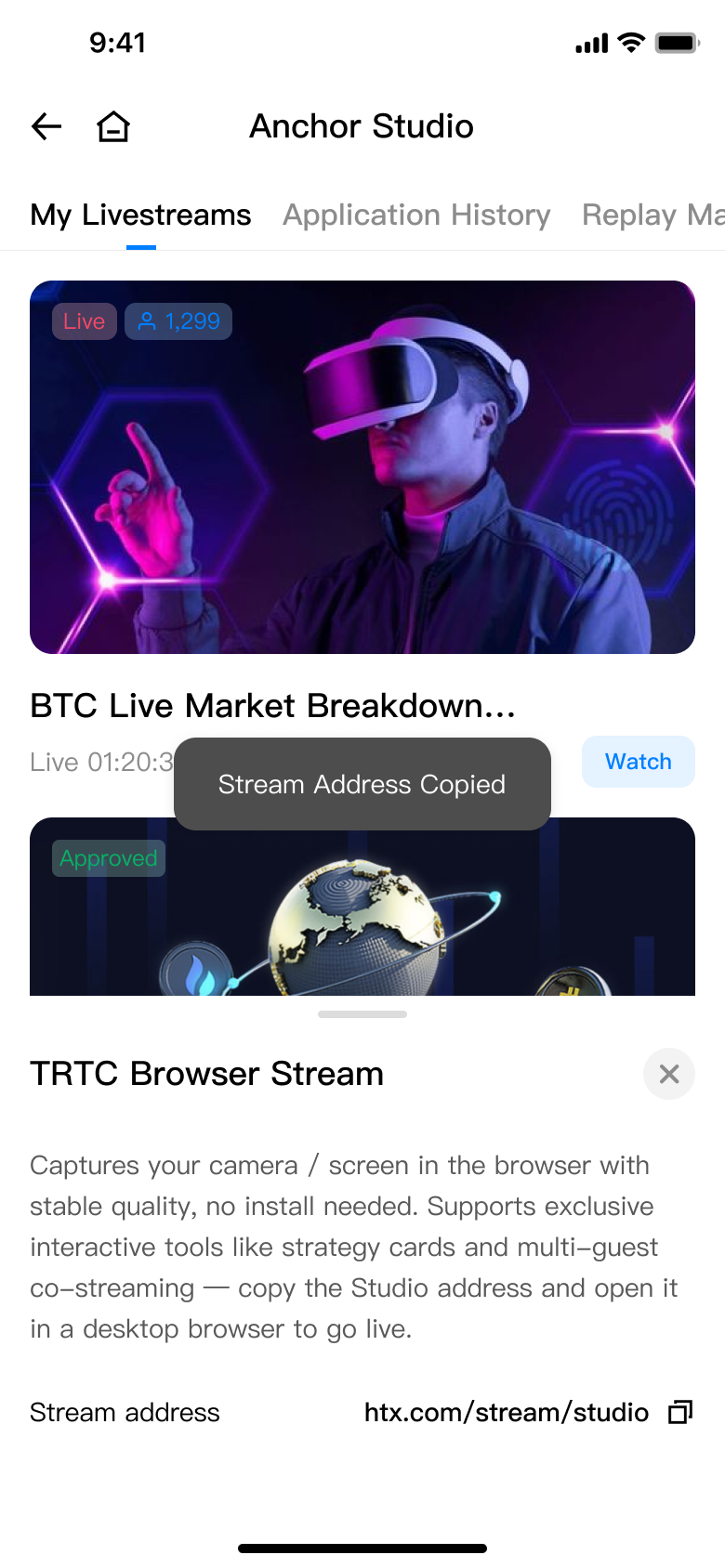
- Copy the desktop Studio address shown on the page.
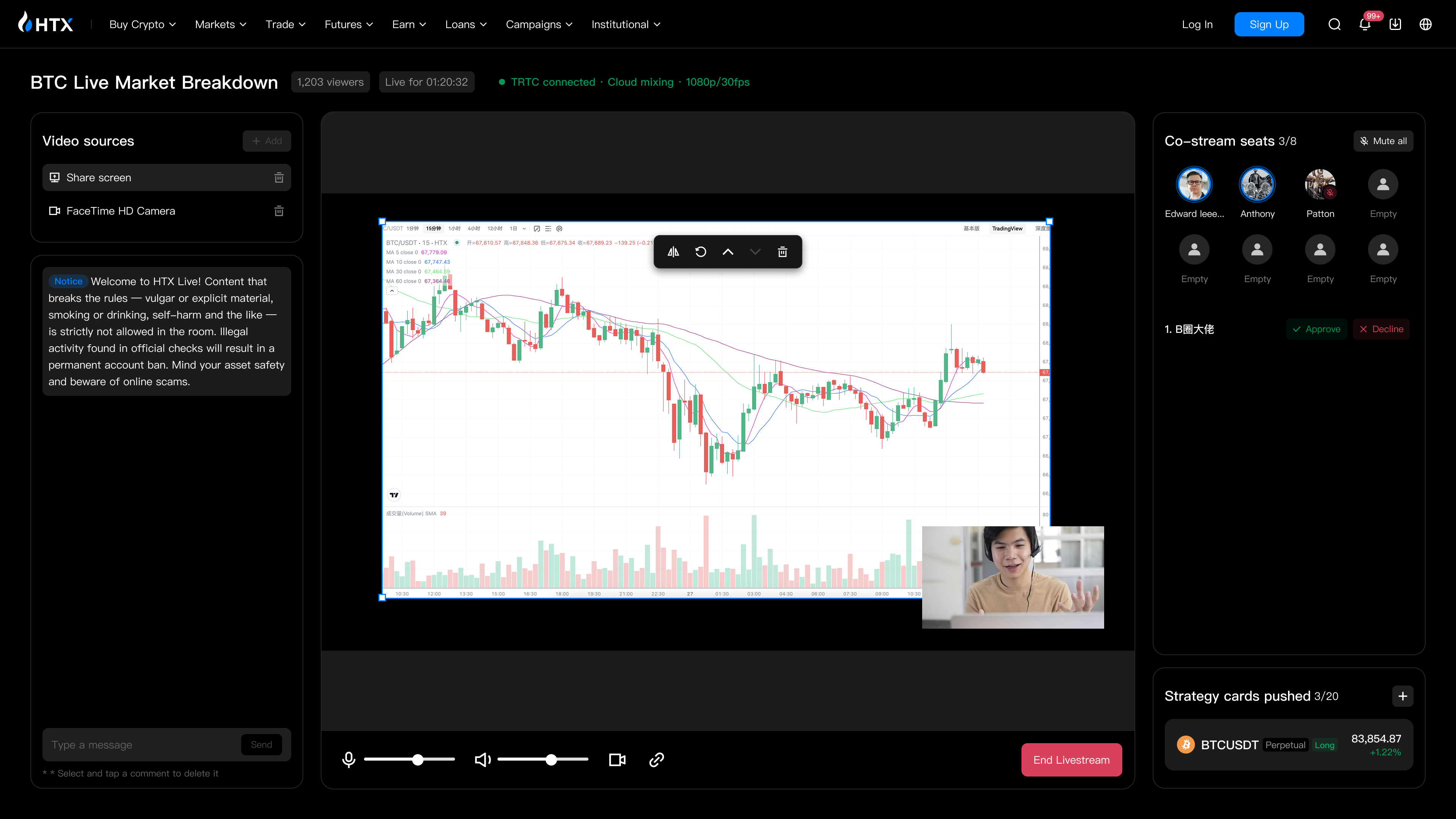
- Open that address in a desktop browser and allow camera and microphone access.
- In the Studio, add a video source on the left (share screen / camera). Once your picture looks right, you're live.
| Step 1: On mobile, copy the desktop Studio address | Step 2: Open it in a desktop browser, add a source, and you're live |
|---|---|
|
|
|
What you'll see
Once your picture shows correctly in the Studio, viewers can see your stream.
| Strategy cards and multi-guest co-streaming work only in TRTC rooms, not OBS — choose TRTC at creation. |
6. How to go live with OBS software push
If you're used to pushing with OBS or another third-party tool, choose "OBS software push" when you create the stream. This method doesn't support strategy cards or multi-guest co-streaming.
Before you start
- You've created a livestream (with OBS software push selected) and reached go-live prep.
- You've installed OBS or another streaming tool.
Steps
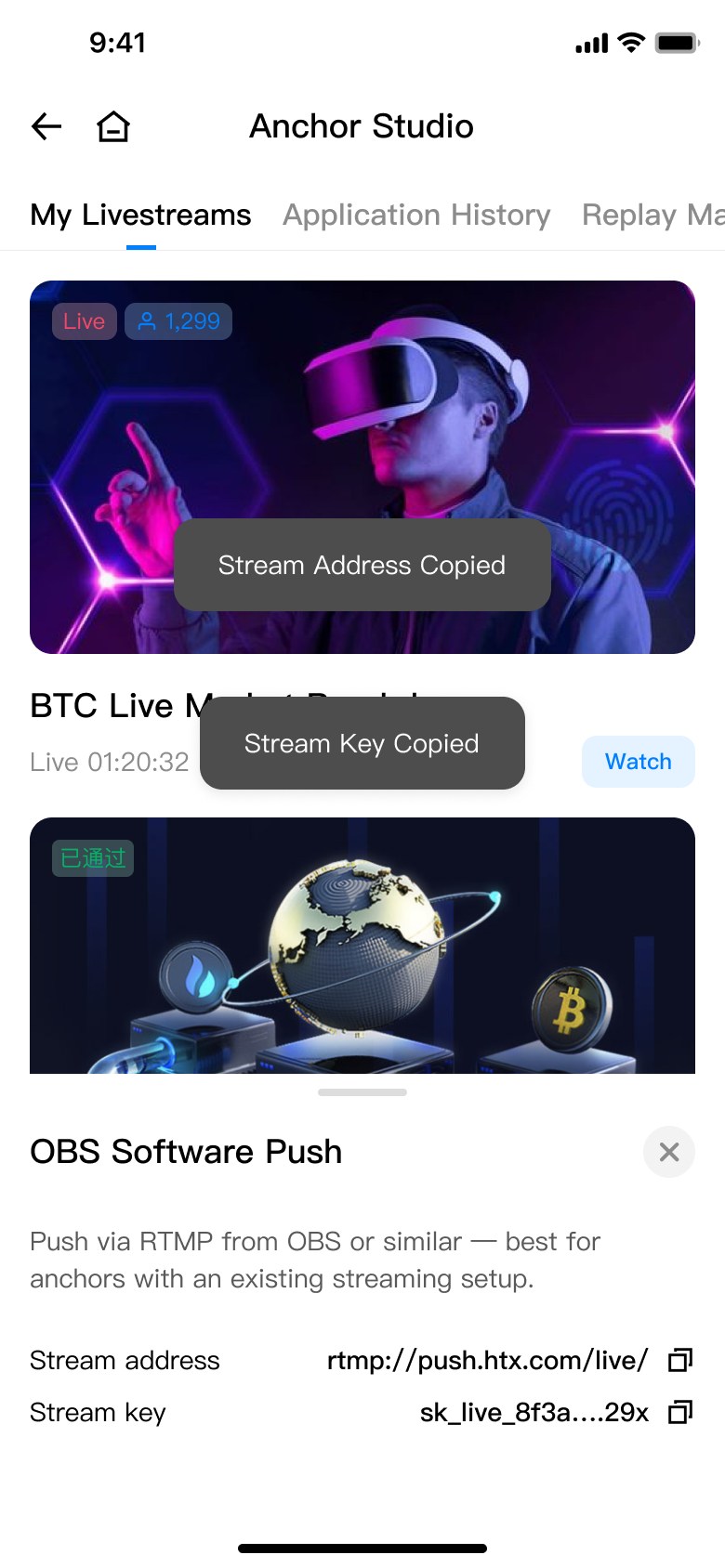
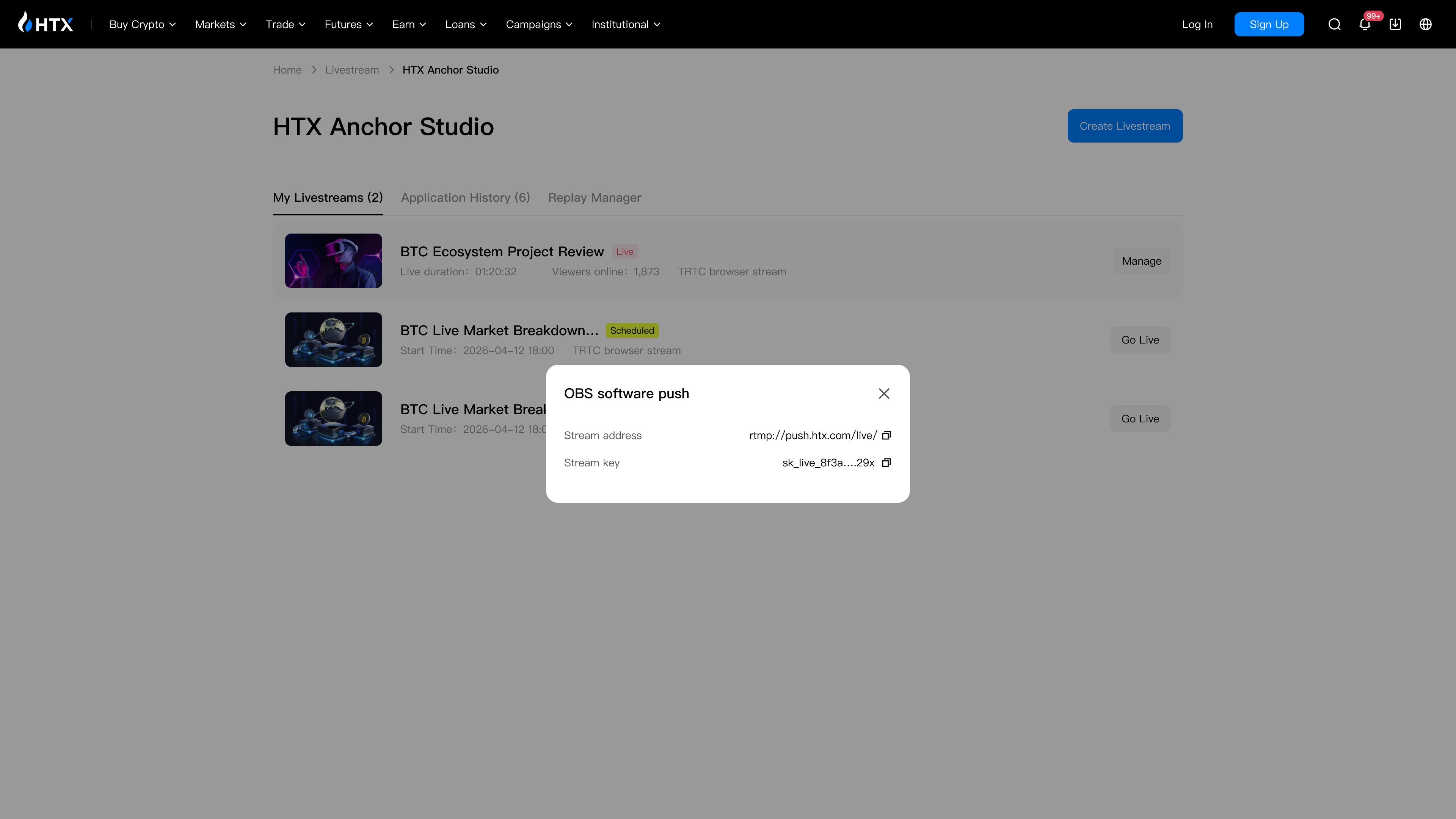
- On the go-live prep page, find this session's stream address and key.
- Copy the stream address and key into OBS.
- Start streaming in OBS, and the room goes live.
| Mobile: view the stream address and key | Desktop: view the stream address and key |
|---|---|
|
|
|
What you'll see
Once the push succeeds, viewers see your stream as normal.
| Treat your stream key like a password. If it leaks, someone could stream to your room. |
7. Prep and tips before going live
A few minutes of prep before you go live makes a clear difference to your stream's quality and how long viewers stay. None of the tips below block you from streaming, but following them makes your content look more professional and easier to hang onto viewers with.
Make your content look professional
- Screen-share live K-lines, market data, and news from your computer — talking while showing makes you more credible.
- Spell out "which coin, what view" in your title and use a clear, large cover, so viewers get it at a glance and want to click in.
- Plan your content ahead — a focused take on a hot topic of the moment beats winging it.
- Interact a lot: answer questions in the message area and steer the discussion. The livelier the room, the more people it reaches.
- Make good use of TRTC strategy cards to push your trade views right into the room — far clearer than describing them out loud.
What to avoid
- Showing the interface of another trading platform.
- Leaving personal contact details (WeChat, Telegram, QR codes, etc.) in the picture, your speech, or the backdrop.
- Long silences, music-only stretches, or idling.
- Vague titles like "test" that give no sense of the content.
| Don't promise returns or disclose rebate rates — it can get your room interrupted or penalized. |
8. How to check your application history
Before you start
- You've submitted a livestream application or created a livestream before.
Steps
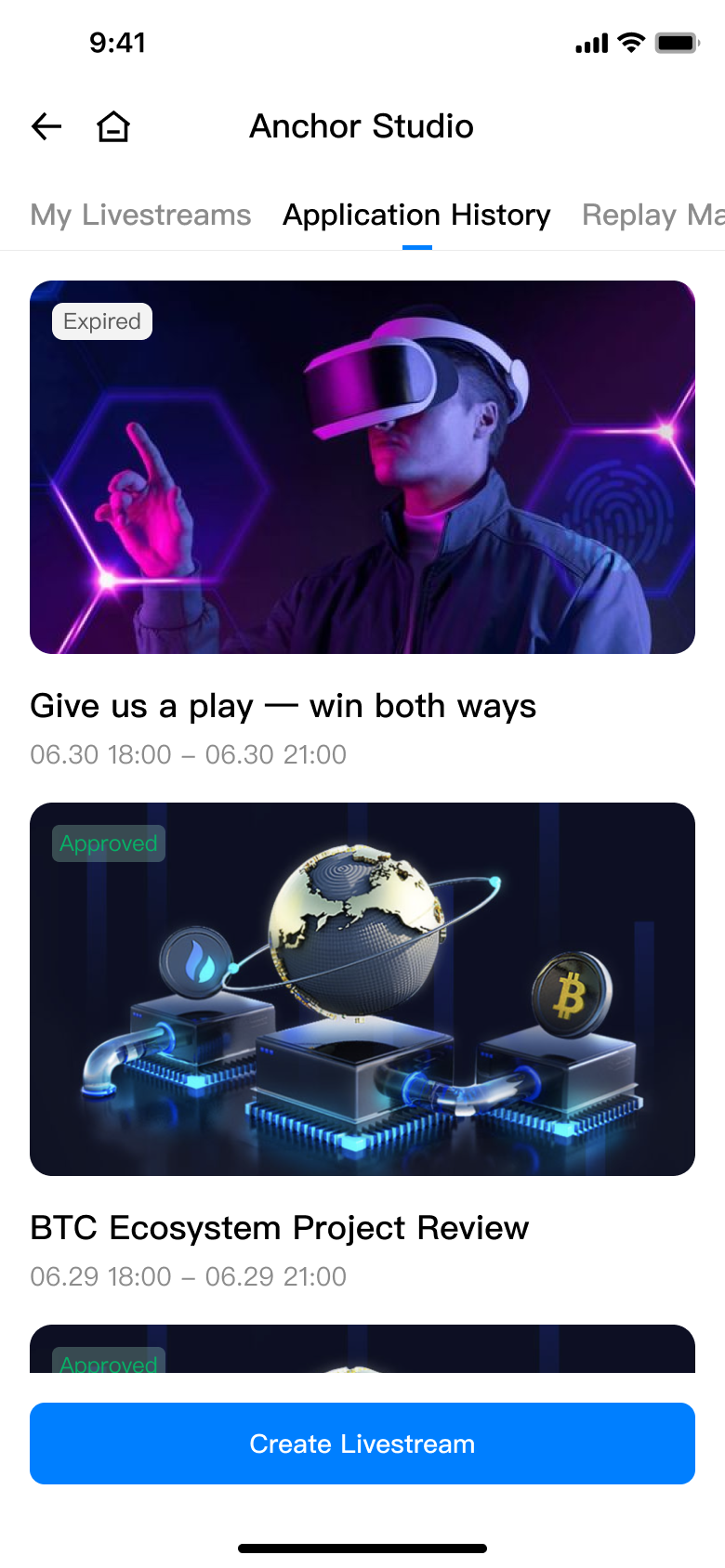
- Open "Application History" in Anchor Studio.
- Check the status of each record: Under review, Approved, Rejected, or Expired.
What you'll see
You can trace the review outcomes of past sessions; for a rejected record, view the reason and create again.
| Since you now choose your own streaming method, application history is just for reviewing past statuses. |
Part 2 · What viewers see
This part helps you understand what viewers see in the room, so you can guide the interaction.
1. How viewers find and enter your stream
- Livestream card: the stream you create appears as a card in the live channel, where viewers see the cover, title, and live status.
- Upcoming countdown: a scheduled session shows a countdown before it starts, and viewers can set a reminder in advance.
- Go-live alert: when you go on air, viewers who follow you get an alert.
2. What viewers can do in the room
- Live messages: viewers speak up in the message area, and you can respond and steer the discussion.
- Strategy cards (TRTC only): the trade views you push appear as strategy cards, so viewers see the pair, direction, and change at a glance.
- Multi-guest co-streaming (TRTC only): invited guests appear on screen together, and viewers see multiple parties talking side by side.
| A strategy card shows to the whole room the instant you push — verify the pair and direction first. |
FAQ
Q: What's the difference between going live now and scheduling?
A: "Go live now" lets you head straight to go-live prep after creating — good for spur-of-the-moment streams. "Schedule" needs a start time, and once it arrives you tap "Go Live" in "My Livestreams" — good for planned deep-dives.
Q: I've always used OBS — can I still?
A: Yes. When you create the stream, pick "OBS software push" under "Streaming method", and you'll get a stream address and key when you go live. But OBS can't use strategy cards or multi-guest co-streaming, so TRTC browser stream is the better bet.
Q: I picked TRTC on my phone — why can't I stream right from the phone?
A: TRTC's actual streaming happens on desktop. After you pick TRTC on mobile, the go-live prep page gives you a desktop Studio address; copy it into a desktop browser to go on air.
Q: I picked the wrong streaming method after creating — now what?
A: The streaming method locks at creation and can't be changed. To switch, create a new livestream.
Q: Can I reopen a stream right after it ends?
A: Not immediately. To prevent duplicate-stream glitches, there's a short cooldown after a stream ends — wait a moment and you can create again.
Q: Do I still need operations to unlock streaming for me?
A: No. Verified anchors have both streaming methods available by default — just pick one when you create.
Go live, starting now
That's every step of creating a livestream. All that's left is to open Anchor Studio and create your first one. Give the people who want to listen something professional, substantial, and human — we'll see you in the room.
Appendix · Glossary
| Term | Meaning |
|---|---|
| Anchor Studio | The workspace for managing livestreams — reachable from your profile on mobile or the top-right button on desktop. Create streams, view sessions and application history, and run TRTC browser streaming. |
| Go live now | A streaming method that heads straight to go-live prep after creating — good for spur-of-the-moment streams. |
| Schedule | A streaming method with a set start time; once it arrives, go live from "My Livestreams". |
| TRTC browser stream | Going live by capturing your camera and screen in a web page — no software to install, supports strategy cards and multi-guest co-streaming. |
| OBS software push | Going live by pushing through a stream address and key from OBS or another third-party tool. |
| My Livestreams | The list showing all the livestream sessions you've created and their statuses. |
| Application History | The record of past livestream applications and their review statuses. |
| Strategy card | An interactive card that pushes a trade view (pair / direction / change) into the room, TRTC only. |
| Multi-guest co-streaming | The ability for an anchor and invited guests to appear on screen together, TRTC only. |


