
B4Bit
2023/12/25 05:16
Connecting Your Wallet and Transfer Codes on
Gala Connect
Metamask Wallet — it should be active on your chrome browser.
Step 2: Click “Connect”
After clicking the “Connect Metamask Wallet” button, you’ll see a prompt asking you to connect your wallet. Click “Connect” to proceed.
Connect Wallet
Step 3: Click “Sign”
Now, you’ll be asked to sign a transaction. Don’t worry; this is a standard security measure in the Web3 world. Click “Sign.”
Welcome to Gala Music, where your journey into the world of Web3 begins! If you’ve signed up for a Gala Music account but haven’t delved into the intricacies of wallets and transfer codes, we’re here to provide you with a simple, step-by-step guide to get you started.
Connect a Web3 Wallet
Before we continue, please make sure you’ve signed up for a Gala Music account. If you haven’t done that yet, you may want to simply use your google account to sign up, and familiarize yourself with navigating our website. Once you’ve got that covered, it’s time to connect your Web3 wallet.
Assumption: You have a Gala Music account.
Step 1: Setting Up Metamask Wallet
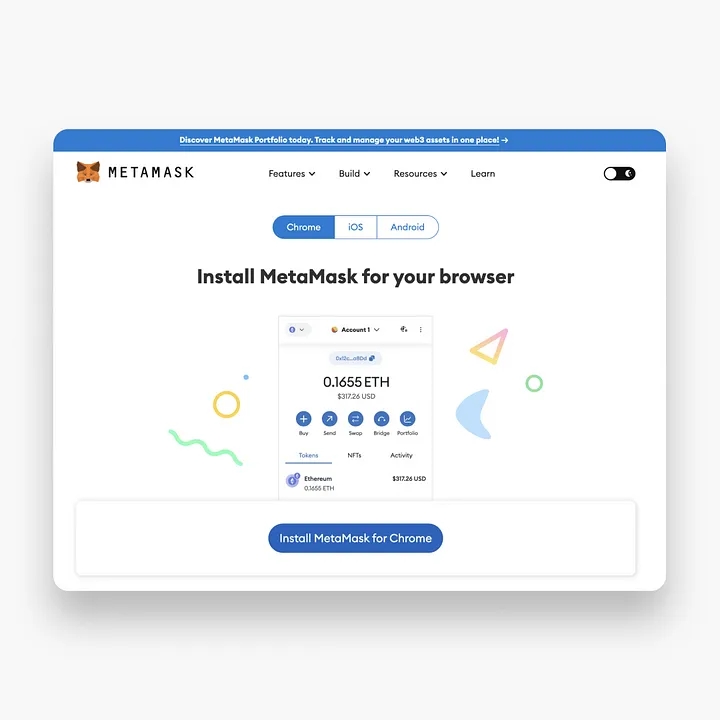
For this guide, we’ll use Metamask Wallet, a user-friendly option. If you’re new to Metamask Wallet, we recommend checking out their article series to learn more about setting up your wallet.
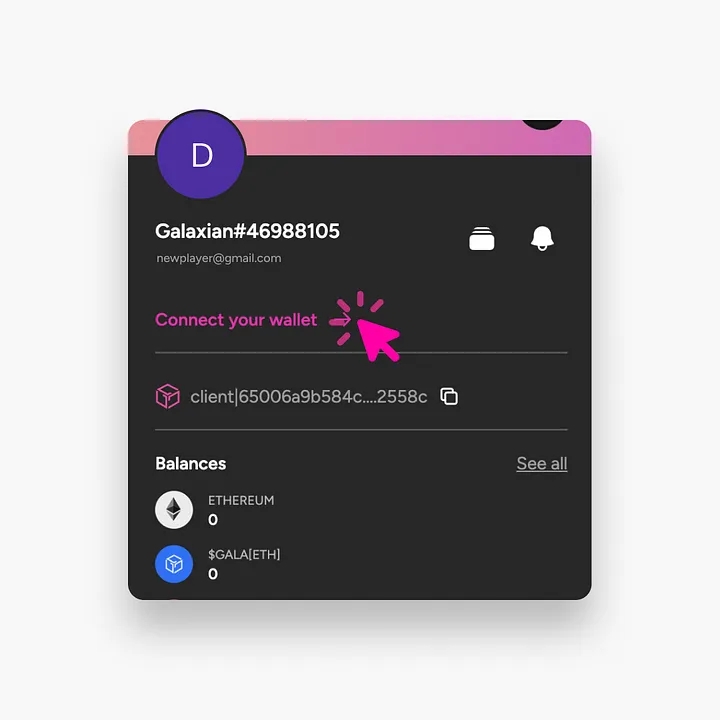
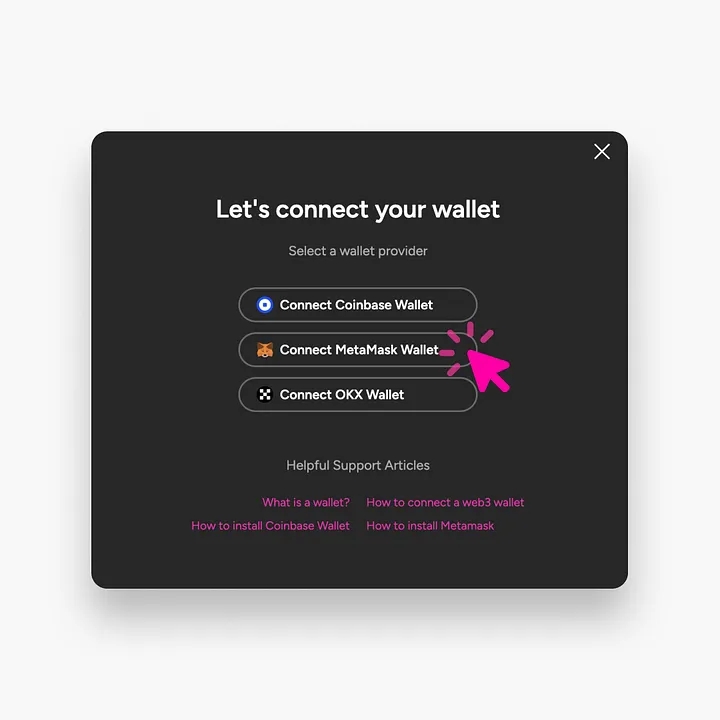
Once your Metamask Wallet is set up, you’re ready to connect it to your Gala Music account. Find the “Connect Metamask Wallet” option and click on it.
#MUSIC x HTX Year-end Creation#HTX Talks#Crypto Breaking News
89分享
全部评论0最新最热
暂无记录