Futures Copy Trading Guide for Followers (App)

- Copy Trading Guides

HTX Futures Copy Trading offers a simple and transparent way for users to easily copy the strategies of experienced traders. Whether you are a beginner or an investor looking for hands-off trading, you can efficiently participate in the market via copy trading and achieve a win-win outcome.
For App Users
- How to Access Copy Trading on HTX
- Tap Futures on the HTX App homepage to enter the futures trading page.
- Tap the … icon on the top right and select Copy Trading.

- How to Choose a Lead Trader
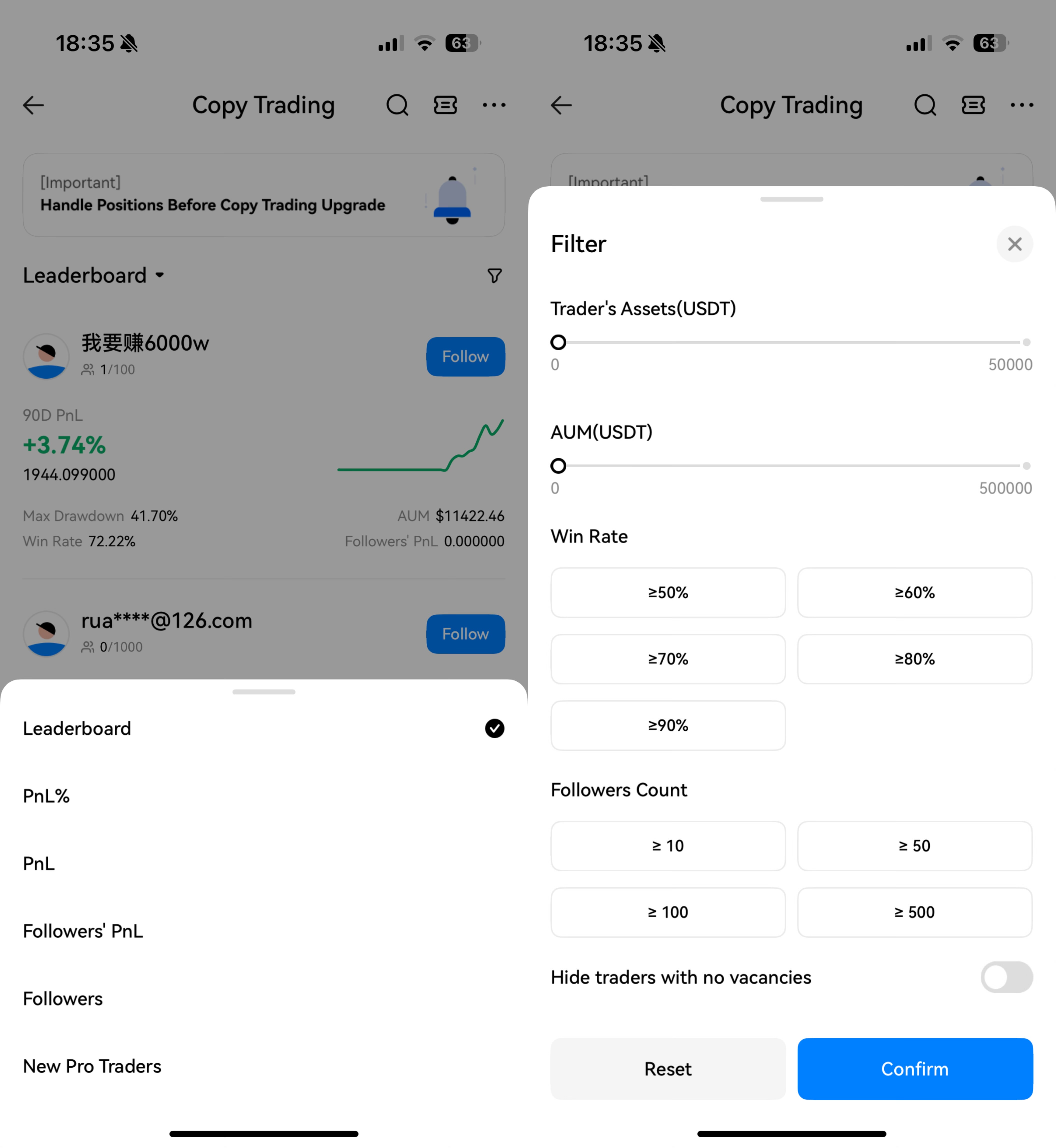
- Tap Leaderboard on the Copy Trading page to bring up the leaderboard-switch popup.
- In the popup window, you can select the ranking list you are interested in.
- Tap the Filter icon on the right to apply your custom filters and display traders that match your criteria.
- Trader "Performance" Data Explained
Note: Data is updated every 15 minutes.
- Today's PnL: Current account assets − Starting assets at 00:00 − Amount transferred in + Amount transferred out.
- Total PnL: The cumulative realized profit and loss.
- Available Balance: The margin balance available for opening positions (including trial bonus).
- Followers’ PnL: The total profits from all followers’ profitable orders.
- Total PnL% = PnL% in the current calculation period + Carryover PnL% (the previous PnL% at the time of transfer).
For more detailed calculation, please refer to the official announcement "New Rules Explanation for HTX Copy Trading Profits".
- Win Rate: (Number of profitable closed orders / Number of closed orders) * 100%.
- Maximum Drawdown: The maximum loss of the lead trader.
Drawdown Rate: (Historical highest PnL% - Current PnL%) / (Historical highest PnL% + 1).
- AUM: The total futures margin of the lead trader and their followers.
- Followers: The number of followers currently copying this trader.
- Cum. Followers: The cumulative number of followers of this trader.
- Total Trades: The total number of orders placed by this trader to open positions.
- Days Joined: The number of days since the user first became a lead trader.
- Avg. Profit: Total profits of profitable orders / Number of profitable orders.
- Avg. Loss: Total losses of unprofitable orders / Number of unprofitable orders.
- P/L Ratio: The ratio of average profit to average loss.
- Avg Holding Time: Cumulative holding time / Number of fully closed positions.
- Trade Frequency (weekly): Total order count / Number of weeks joined (days joined / 7).
- Preferred Pairs: The futures trading pair with the highest number of trades.
- Last Traded at: The time of the last order executed.

- How to Quickly Start Copy Trading
- Enter the Copy Trading homepage, select the target trader and tap Follow.
- In the popup window, enter your investment amount (minimum 10 USDT).
- Tick "I have read and agree to the Copy Trading User Agreement" and tap Confirm to begin copy trading.

- Notes on Copy Trading Settings
- Smart Copy Mode
Please refer to the announcement "Introduction to Smart Copy" for details.
- On the Copy Trading homepage, choose a trader you're interested in and tap Copy. The system will then pop up the Copy Trading Settings window.
- The page will default to Smart Copy mode — no additional operation needed.
- Enter the Investment Amount you intend to allocate for copying this trader, with a minimum of 10 USDT. You can flexibly transfer funds from your Futures account or Spot account.
- For more risk control, expand Advanced to customize parameters such as TP ratio, SL ratio, leverage, trading pairs to copy, slippage protection, and maximum loss per copy trade.
- Please read carefully and agree to the Copy Trading User Agreement.
- Tap Follow—you’ll begin automatically following that trader's strategies.

- Custom Copy Mode
Please refer to the announcement "Introduction to Custom Copy" for details.
- On the Copy Trading homepage, choose a trader you're interested in and tap Copy. The Copy Trading Settings popup will appear.
- The page defaults to Smart Copy mode. Tap More Settings to access the configuration page.
- Switch to Custom Copy on the top of the page.
- Enter the Investment Amount you intend to allocate for copying this trader, with a minimum of 10 USDT. You can transfer funds from your Futures or Spot account.
- Set your copy mode: Choose either Fixed Amount or Fixed Ratio.
- For more risk control, expand Advanced to customize parameters such as TP ratio, SL ratio, leverage, trading pairs to copy, slippage protection, and maximum loss per copy trade.
- Please read carefully and agree to the Copy Trading User Agreement.
- Tap Follow to begin automatically copying that trader.
- Copy Trading Parameters Explained
- You may choose between: "Copy Ongoing Positions at Market Price", "Copy Increased and New Positions", or "Copy New Positions Only".
Copy Ongoing Positions at Market Price: Copy existing positions held by the trader at the current market price.
Copy Increased and New Positions: Replicate future increases to the trader's existing positions, plus any new positions they open.
Copy New Positions Only: Copy only the new positions opened by the trader after you start following them.
Note: Limitations exist for different copy trading modes. "Copy Ongoing Positions at Market Price": This mode cannot guarantee an identical average entry price due to order execution time differences. "Copy Increased and New Positions": This mode does not copy the lead trader's principal as it skips all historical positions. "Copy New Positions Only": You need to select this mode, if you require your average entry price to be exactly the same as your trader's (excluding minor market slippage).
2) Advanced Settings
Choose a trading pair: All Pairs or Customized Pairs.
Leverage: Sync with Lead Trader or Custom.
- Position Risk Control
TP Ratio: The proportion of net profit relative to the amount invested.
SL Ratio: The proportion of net loss relative to the amount invested.
Slippage: The allowable deviation between the follower's entry price and the lead trader's entry price.
Stop Loss: Maximum loss.
Once the maximum loss is reached, you can choose: Close all at market price / Follow the trader to close / Manually close.
Close all at market price: Instantly close all positions you are following and stop copying any new positions.
Follow the trader to close: Stop copying new trades but continue copying the closing of existing positions.
Manually close: Stop copying entirely; any remaining positions must be handled manually by you.
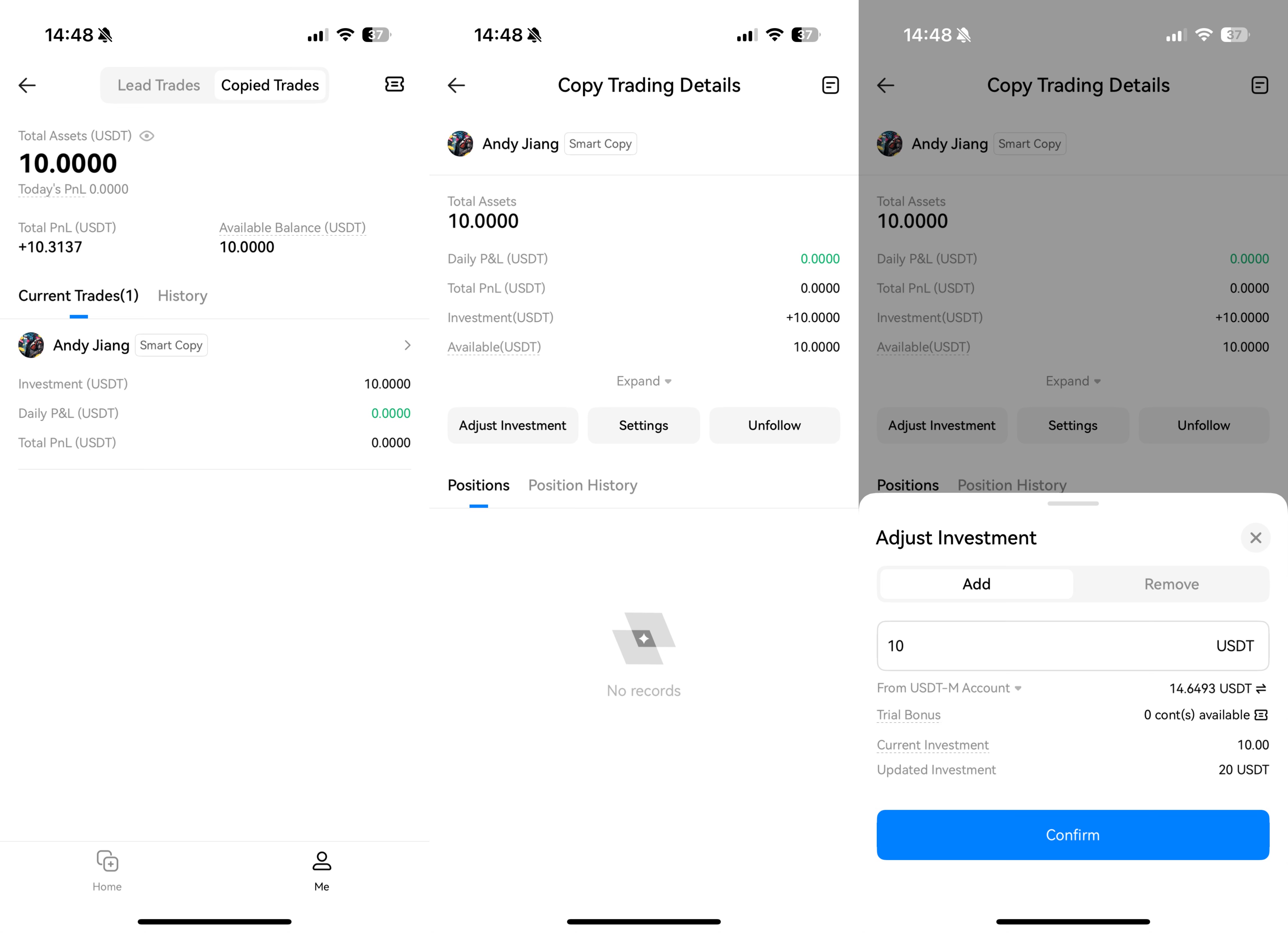
- How to Adjust Investment
- Enter the Me page of Copy Trading and view Current Trades.
- Tap Adjust Investment.
- Choose either Add or Remove.

- How to Edit Parameters
- Enter the Me page of Copy Trading and view Current Trades.
- Tap Edit Parameters to modify relevant settings.
- How to End Copy Trading
- Enter the Me page of Copy Trading and view Current Trades.
- Tap Unfollow.
- In the confirmation popup, tap Confirm to cancel copy trading.

- Look Up Announcements in Support
On the Copy Trading homepage, tap the … icon on the top right, then tap Tutorials to view related announcements.

- How to View Profit Share
- Enter the Me page of Copy Trading and view Current Trades or History.
- Tap the lead trader to enter Copy Trading Details.
- About Data Indicators:
Today's PnL: Current account's assets - Starting assets at 00:00 - Amount transferred in + Amount transferred out.
Total PnL: Realized P&L from following this lead trader.
Investment: Your principal allocated for following this lead trader.
Available Balance: Margin balance available for opening positions (including trial bonus).
Profit Sharing Ratio: The proportion of profits followers share with their lead trader.
Shared Profits (USDT): The total amount of profit share deducted from followers' profits and credited to the lead trader.
For detailed profit sharing rules, please refer to "HTX Futures Copy Trading Profit Sharing Rules".
- How to Redeem and Use the Trial Bonus Coupon
- In the Copy Trading Settings popup, you can choose to use a trial bonus coupon.
- In the Trial Bonus Coupon popup, browse and select the denomination and quantity of the coupon you want to use.
- Check the coupon and tap Confirm to return to the Copy Trading Settings popup.
- The system will automatically include the trial bonus in your Investment.
- If you redeem the coupon but exit the settings page without tapping Follow, the coupon will not take effect. You may redeem it again the next time you copy trade.
Please refer to the announcement "Futures Trial Bonus Rules" for detailed usage guidelines.


