Editor's Note: This article outlines three entry points for Codex to operate external environments: Computer Use, Chrome Extension, and In-App Browser. While all three appear to address the problem of "letting Codex use a computer," they correspond to different task scenarios, permission boundaries, and levels of trust.
Among them, Computer Use has the broadest coverage, allowing direct operation of authorized native apps, system settings, iOS simulators on macOS/Windows, and even workflows spanning multiple apps. It's suitable for GUI processes without API, plugin, or structured tool support, but the trade-offs are slower speed and the widest permission boundaries. The Chrome Extension is suitable for tasks reliant on login state, cookies, multiple tabs, and browser identity, such as Gmail, LinkedIn, Salesforce, internal dashboards, or logged-in research across multiple websites. The In-App Browser leans more towards development and debugging scenarios, especially for local services, visual bugs, responsive layouts, and design annotations; it does not inherit the login state from the user's normal browser, has narrower capabilities, but also stronger isolation.
The core judgment of the article is that Codex does not have only one way to "use a computer." What's truly important is choosing the narrowest, safest, most structured operational interface based on the task. If a plugin or MCP can be used, visual control shouldn't be the first resort. For tasks only involving web development, prioritize the In-App Browser. When user browser identity and login state are needed, then switch to Chrome. Only when structured tools cannot cover it, and the task must rely on the desktop graphical interface, is Computer Use the last mile.
Appshots, however, are not a fourth way to control the computer, but a tool to "point" the current screen context "for Codex to see." It solves the context input problem, while Browser, Chrome, and Computer Use solve the action problem. Viewed together, this layering actually reveals the key to AI Agent productization: not granting the model unlimited permissions, but continuously narrowing permissions, clarifying boundaries for specific tasks, and allowing users to retain review rights for critical actions.
The following is the original text:
Codex has three ways to use a computer: Computer Use, Chrome Extension, and In-App Browser.
There is some overlap between them, just enough to be confusing.
After reading this article, you'll know how to install and trigger these three methods, when to use each in different scenarios, how Appshots and Developer mode connect them, and what to write in AGENTS.md so Codex can choose the appropriate operational interface itself.
The simple version is:
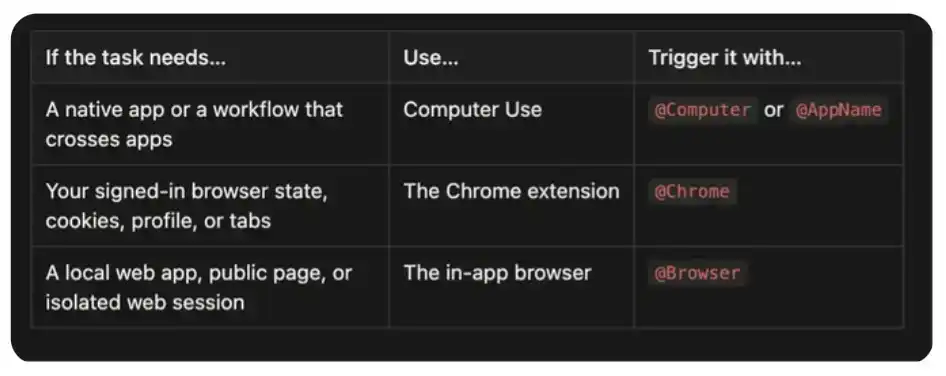
That said, whenever possible, prioritize using plugins or MCP. For example, a Slack plugin can more precisely search a thread than clicking around in Slack; operations generated by a GitHub plugin are also easier to check than letting Codex drive the webpage. Visual control is best used where the capabilities of structured tools reach their limits.
Everything Can Be @Computer
Computer Use is the broadest among these three operational interfaces. It allows Codex to view and operate the graphical interface on macOS and Windows, including windows, menus, keyboard input, and the clipboard within apps you authorize.
It's also usually the slowest. Structured plugins can directly call APIs; Computer Use needs to observe the interface, decide where to click, wait for the app to respond, and then check the next state. This visual loop consumes time but also means Codex can operate apps that have no available API at all.
On macOS, slow doesn't necessarily mean it will disturb you. Computer Use can operate your authorized apps in the background while you can still use other parts of the computer. Often, I open an app while using Codex only to find that Codex has already quietly completed a workflow in the background.
Depending on which apps you have installed and authorized on your computer, these operational targets can include Spotify, Xcode, System Settings, iOS Simulator, or even controlling your iPhone via iPhone Mirroring. It can also switch between multiple apps, handling workflows that span different applications.
Use it when a task relies on:
Native desktop applications, like Spotify or financial apps;
iOS Simulator, iPhone Mirroring, or other processes only operable via GUI;
System or application settings;
Data sources without plugins or APIs;
Workflows requiring switching between multiple apps;
The missing final step in a structured integration.
How to install: Open Codex's Settings > Computer Use, then click Install.
How to trigger: Mention @Computer, or explicitly ask Codex to use Computer Use. As model capabilities improve, it may also invoke it automatically when needed in the future.
Try a few examples first:
One of my favorite examples started when a package was stolen. Amazon told me it would take about 25 minutes to reach a customer service agent. I gave a Codex thread to Computer Use, telling it to check the chat window every five minutes, switch to checking every minute once an agent appeared, and try its best to get me a refund. When I returned from a shower, the refund was completed.
I also use Computer Use as the "last mile" in structured workflows. In one video launch, Codex could read feedback from Slack, modify code, and render a new video, but the Slack integration in that thread couldn't upload files. So Computer Use clicked Add file, filling in that missing step.
It also has the widest trust boundary among the three. Only give it one specific app or process at a time. Keep sensitive apps closed when they're not part of the task; carefully check permission prompts; for financial, account, payment, credential, privacy, and system security changes, it's best to supervise in person.
Use @Chrome for Multi-Tab and Login State Tasks
The Codex Chrome Extension gives Codex access to your already logged-in Chrome state. Use it when tasks depend on accounts, cookies, browser profiles, or tabs you have opened and authenticated.
This operational interface is suitable for work in tools like:
Gmail or LinkedIn;
Salesforce or customer service backends;
Internal dashboards;
Logged-in research across multiple websites;
Forms that rely on your account or browser extensions.
How to install: Open Codex's Plugins, add Chrome, and follow the setup process. Codex will guide you to install the Codex Chrome extension and approve Chrome permissions. When the extension shows Connected, start a new thread.
How to trigger: Mention @Chrome, or explicitly ask Codex to use your logged-in Chrome browser:
Chrome tasks run in tab groups, which helps keep tabs related to a specific Codex thread together. Unlike the In-App Browser, this interface carries your browser identity. This makes it more powerful and also more sensitive.
Another main advantage is multi-tab control. Chrome can associate multiple tabs with the same task, reading context in one page, cross-referencing information in another, and continuing the workflow in a third. Computer Use can also drive the browser visually, but Chrome treats the task as a browser workflow, not a series of screen coordinate operations.
Recently in a thread, I gave Codex an already open Strudel Composer tab and asked it to make the music more interesting. Chrome gave it the selected tab and the WebMCP tools exposed by that page. Codex examined the song structure, rewrote the harmony and the overall four-minute form, modified the tempo, saved the track, and let it play. It didn't need to visually hunt for every control in the interface because Chrome can combine tab context with the structured capabilities the page provides.
I also use it to run a long-term Twitter thread. The general instruction was:
The interesting part isn't that Codex can open Twitter, but that this thread can long-term return to the same logged-in working environment, connect discovered content to local files, and leave a result for me to review.
The trust boundary here is important. Websites may treat Codex's clicks, form submissions, and message sending as actions taken by you personally. Webpage content itself is also untrusted input. Clearly separate higher-consequence steps: research, navigation, and drafting can be automated; sending, posting, purchasing, or submitting require your review first.
If the entire task is completed within the browser, prioritize Chrome over Computer Use. Chrome has the browser-native context needed for this type of task without extending access to the entire desktop.
Use the In-App @Browser for the Website You're Developing
The In-App Browser is a browser that exists inside a Codex thread. You and Codex share the same rendered page, making it particularly suitable for building and debugging web applications.
I usually start here when dealing with:
Local development servers;
File-based preview pages;
Public pages that don't require login;
Reproducing visual bugs;
Checking responsive layouts;
Leaving design feedback on page elements.
Its most important constraint is isolation. The In-App Browser does not use your normal browser profile, cookies, extensions, login sessions, or existing tabs. When a task requires account identity, this is a limitation; but when a task doesn't need an account, this is a useful boundary.
How to set up: Open Codex's Plugins, add the Browser plugin and enable it.
How to trigger: Mention @Browser in the prompt, or explicitly ask Codex to use the In-App Browser:
This creates a tight feedback loop: Codex can edit code, operate the page, check rendering status, take screenshots, and then revalidate the same process after fixes.
My favorite part is annotation. When reviewing a local application, I can directly click on an element or select an area and leave a comment. Style controls also let me preview and give feedback on text, fonts, spacing, and color more precisely. I usually combine it with voice input and process guidance: I review the page, leave comments, and continue queuing more feedback while Codex processes the current batch. The page itself becomes the specification.
This is especially useful for design work. I often ask Codex to organize an idea, a research package, or a project status into a single-file index.html, then open it in the In-App Browser. Instead of trying to describe an entire design in another prompt, I can directly annotate on the real page: "This hierarchy is reversed," "Make this less card-like here," "These controls need more space," or "Use this font size ratio sitewide." Codex receives comments with relevant screenshots and element context, modifies the file, and reopens the same page for the next round.
This loop feels closer to working with a designer on the same canvas than exchanging screenshots and text descriptions.
The In-App Browser is also suitable as a starting point for hybrid workflows. In another thread, I opened an X post in the In-App Browser and asked Codex to investigate related discussions. The visible page helped it confirm which post I was referring to; then Codex switched to the Twitter CLI, retrieving 38 replies, including nested replies hidden from the browser view. This is the practice of the "use the narrowest operational interface" principle: use the browser to confirm on-screen context, then use structured tools for deeper retrieval.
There are trade-offs here too. The isolation of the In-App Browser makes it a great development interface, but also means it's not suitable for handling Google logins, passkeys, or websites that rely on browser extensions. When identity is important, switch to Chrome.
Appshots
Appshot is not a fourth way for Codex to control the computer. It's a method to point Codex at the context in front of you.
On Mac, press the CMD key twice to capture the frontmost window. Codex will attach an image with all available text to the thread. You can take an Appshot of an error, an email, a design, a settings panel, or an unfamiliar form, and then directly say:
This is the mental model I find easiest to remember: Appshots are how you point at something on your computer; Browser, Chrome, and Computer Use are how Codex takes action.
Appshots are currently created via the Codex app on macOS. They capture the frontmost window, not the entire desktop. This makes it a useful way to provide focused context without granting control over that application.
How to Follow These Developments
These operational interfaces change quickly. If you want practical details rather than waiting for a massive release summary:
Follow Ari Weinstein (@AriX) for Computer Use and Appshots;
Follow James Sun (@JamesZmSun) for Browser-related content;
Follow Andrew Ambrosino (@ajambrosino) for Codex app releases and the broader desktop product narrative;
Follow OpenAI Developers (@OpenAIDevs) for broader Codex and OpenAI Platform news.