How to Get Started with HTX P2P for Beginners

- Announcement
- Get Started with P2P

How to Buy USDT:
Method 1: Buy USDT via HTX P2P
Step 1: Open the HTX App > Tap Buy Crypto > Access the P2P page > Choose your desired ad > Tap Buy to enter the P2P order page.

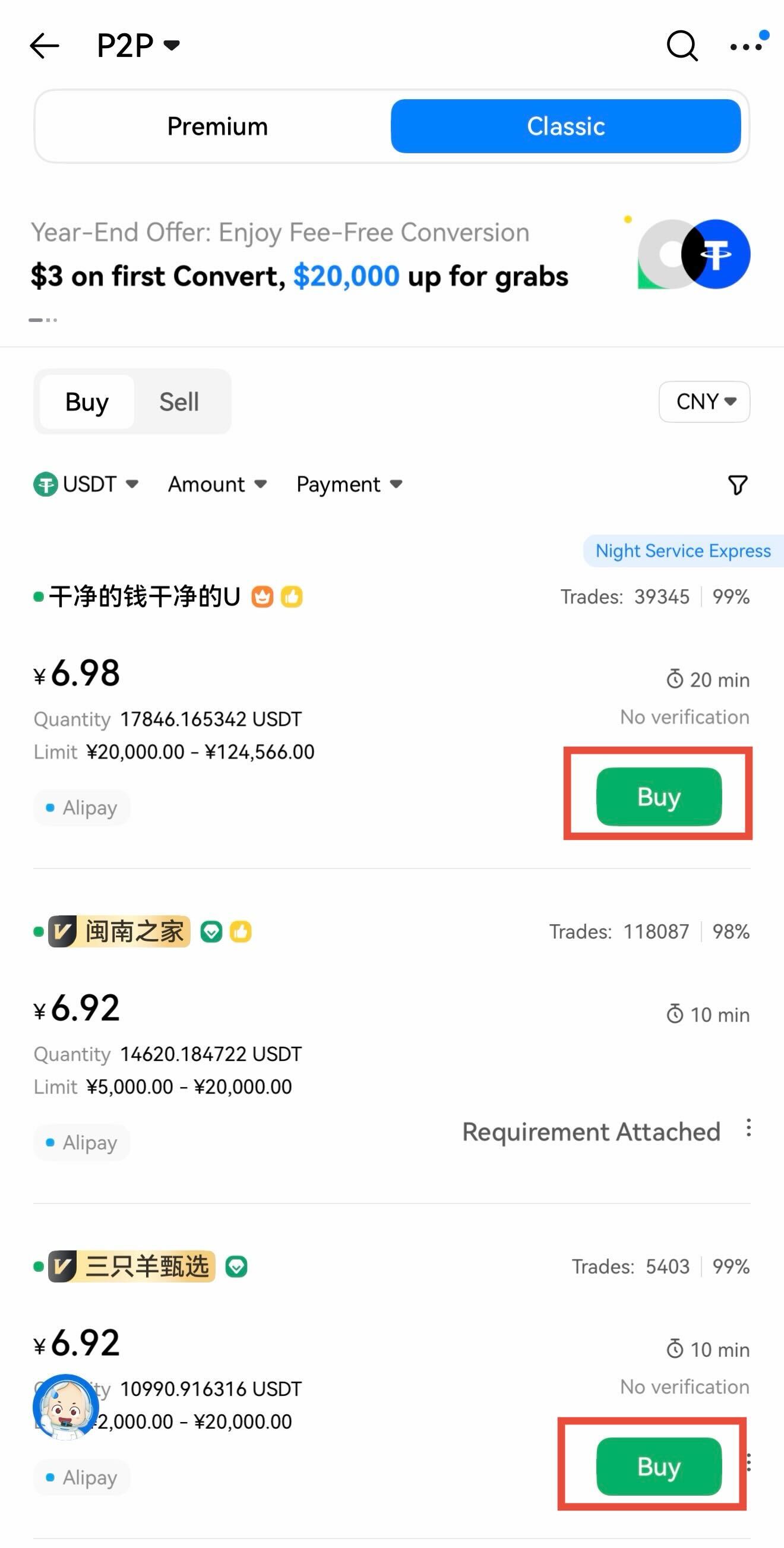
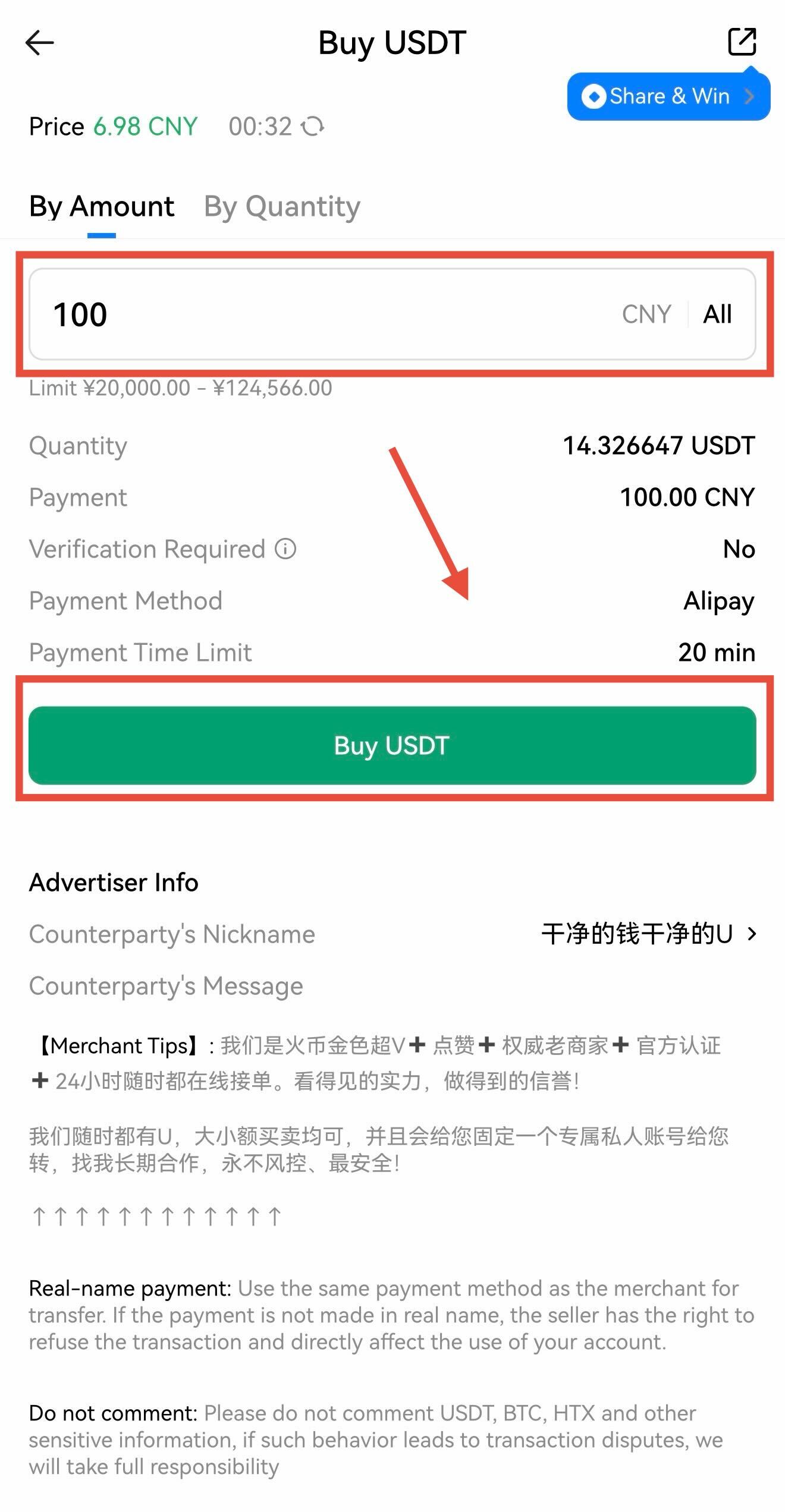
Step 2: Enter the amount or quantity you wish to buy > Tap Buy USDT.
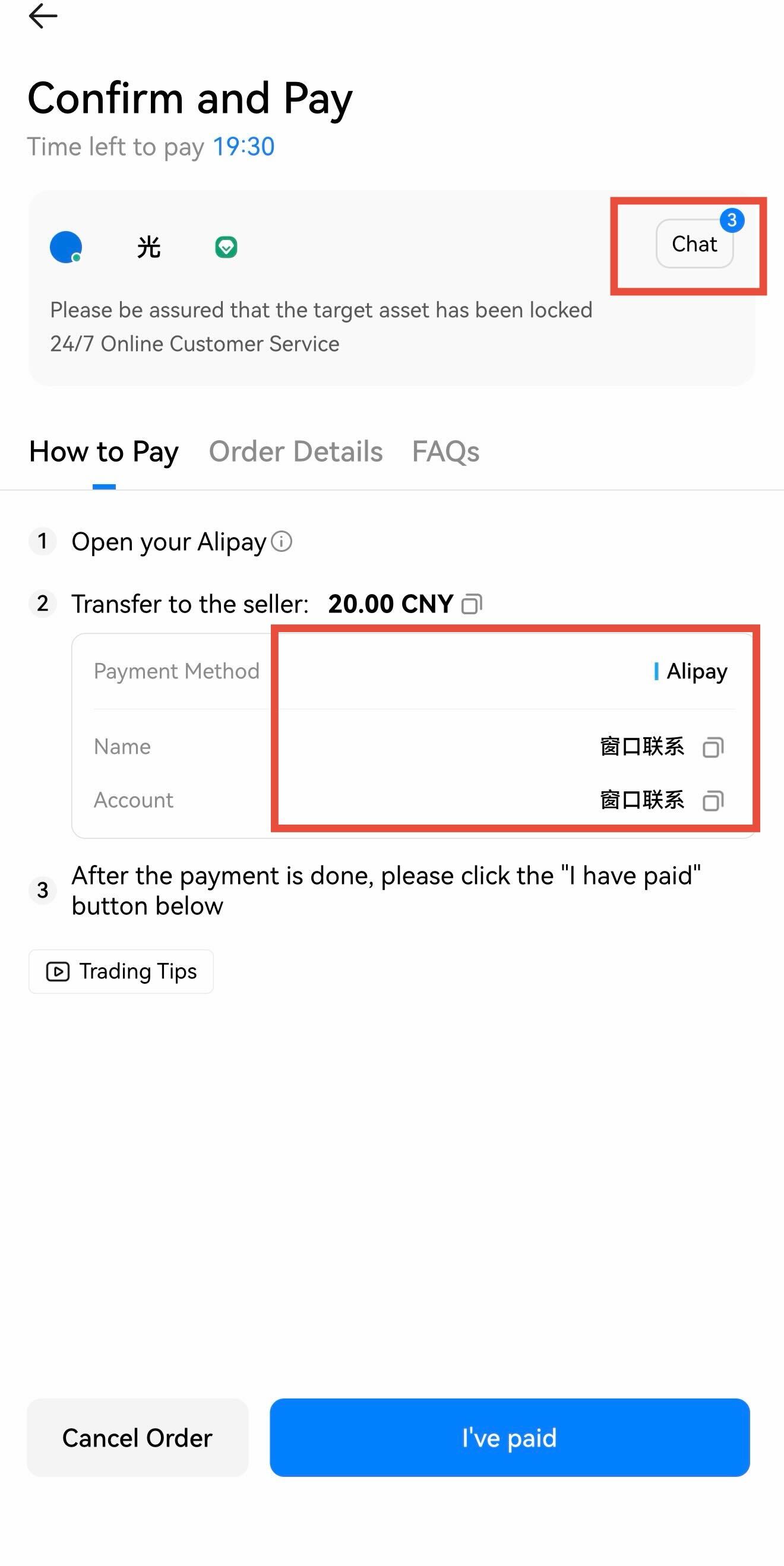
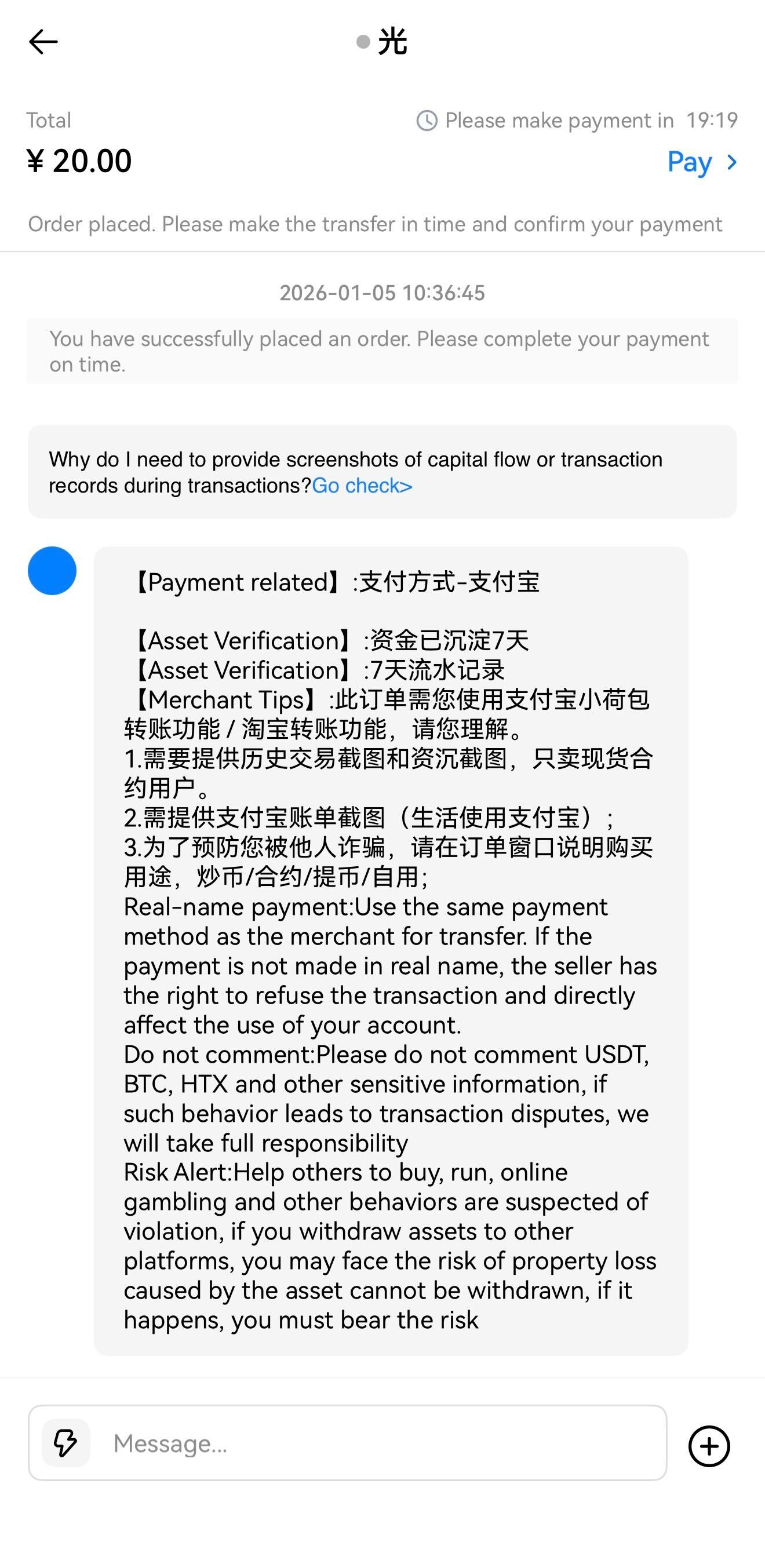
Step 3: Tap the Chat button to review the seller's specific requirements > Confirm the details with the seller, making sure the recipient's name matches their verified real name > Once confirmed, proceed with the payment using the displayed information > After the transfer is finished, tap "I have paid, notify seller." > The seller will then release the assets to complete the trade. Note: For delayed responses, use Voice Call (available in App version 10.9.0 and above).


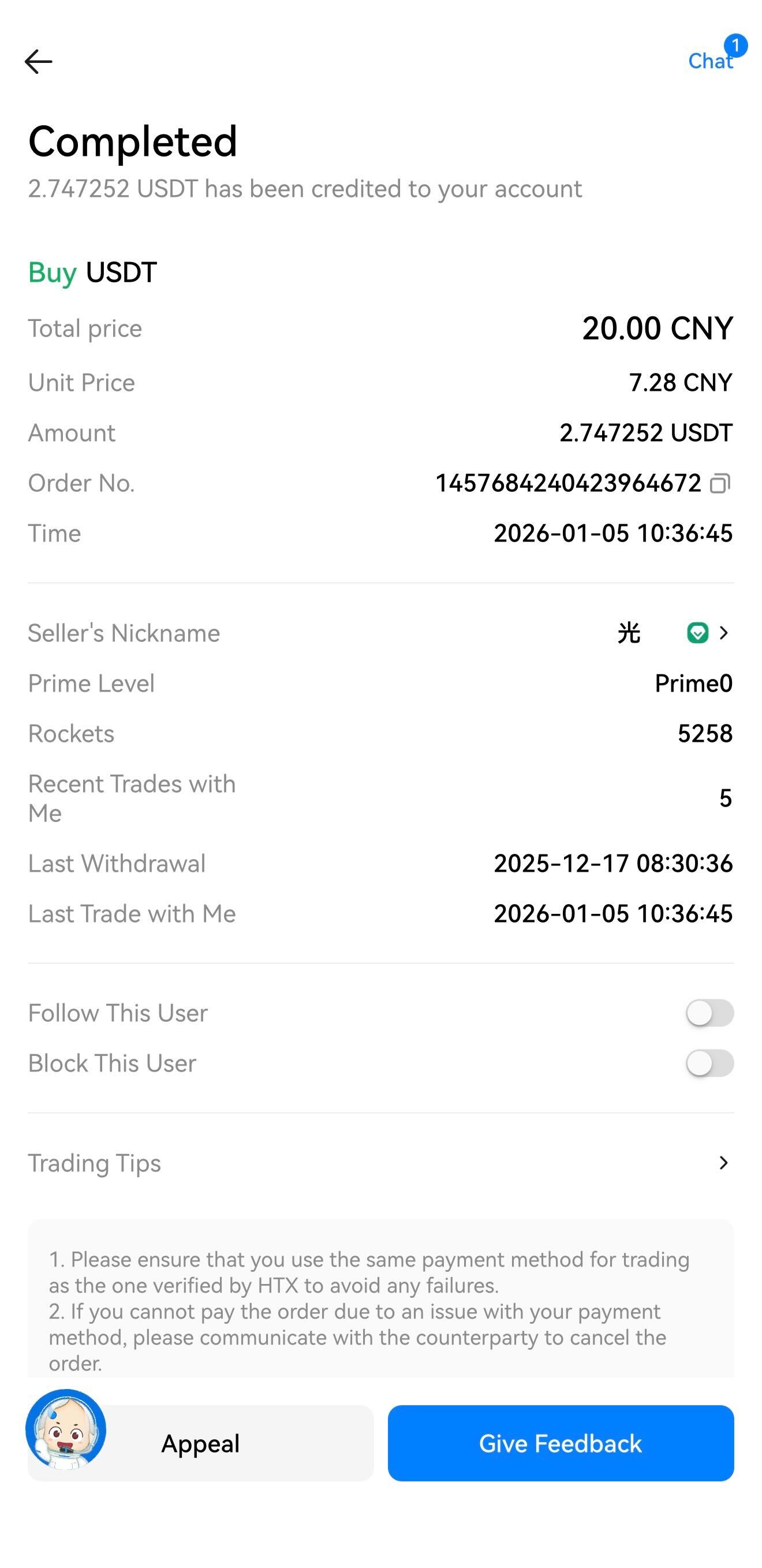
Method 2: Quick Buy Mode. Enter Quick Buy mode by tapping the Quick Trade button. Simply enter the purchase amount, choose a payment method, and the system will automatically match you with a verified seller.
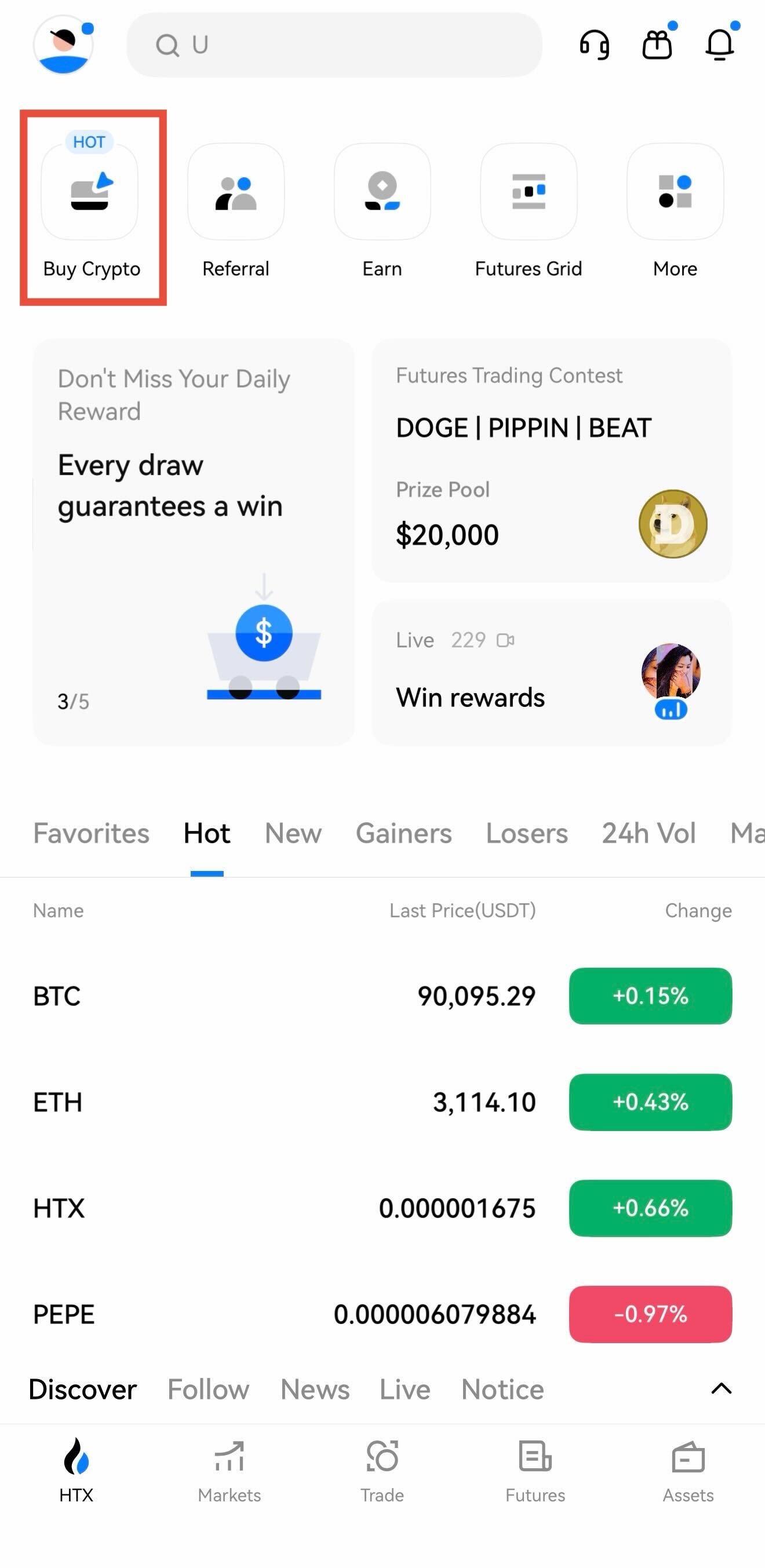
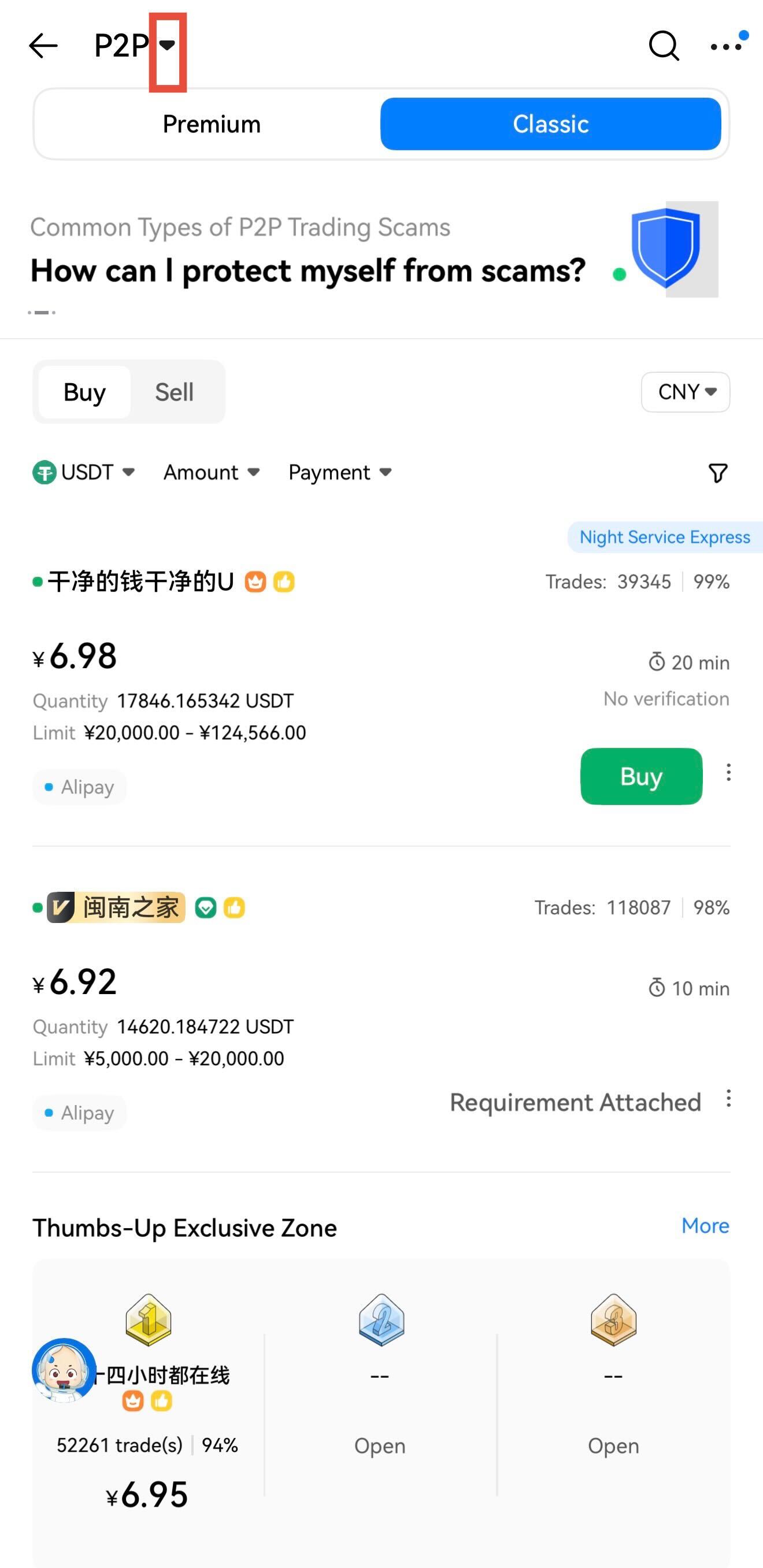
Step 1: Open the HTX App > Tap Buy Crypto > Access the P2P page > Tap the icon in the upper-left corner > Select Quick Trade mode.

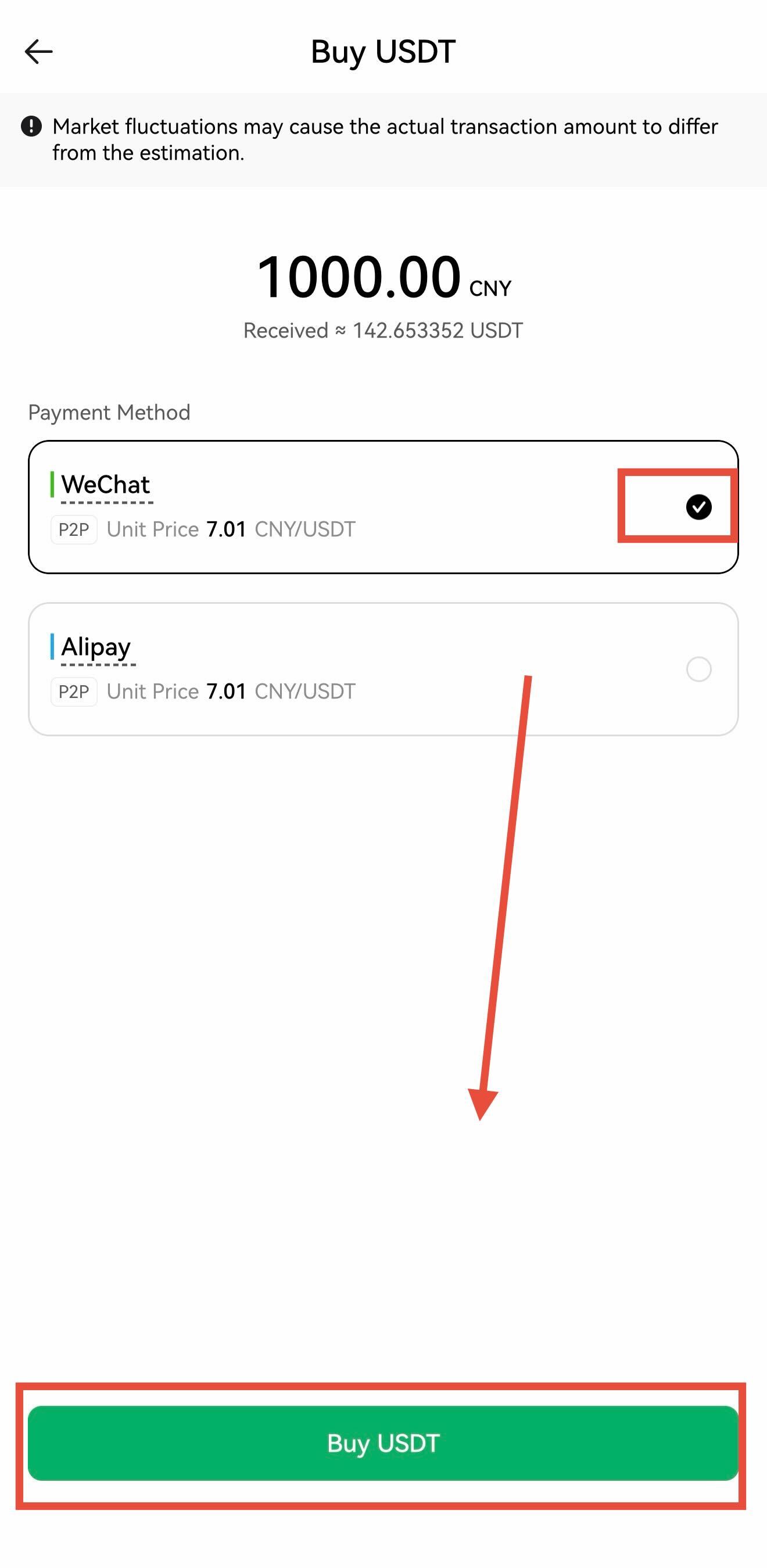
Step 2: Under Buy mode, enter the amount of USDT you want to buy > Select a payment method > Tap Buy USDT to place the order.

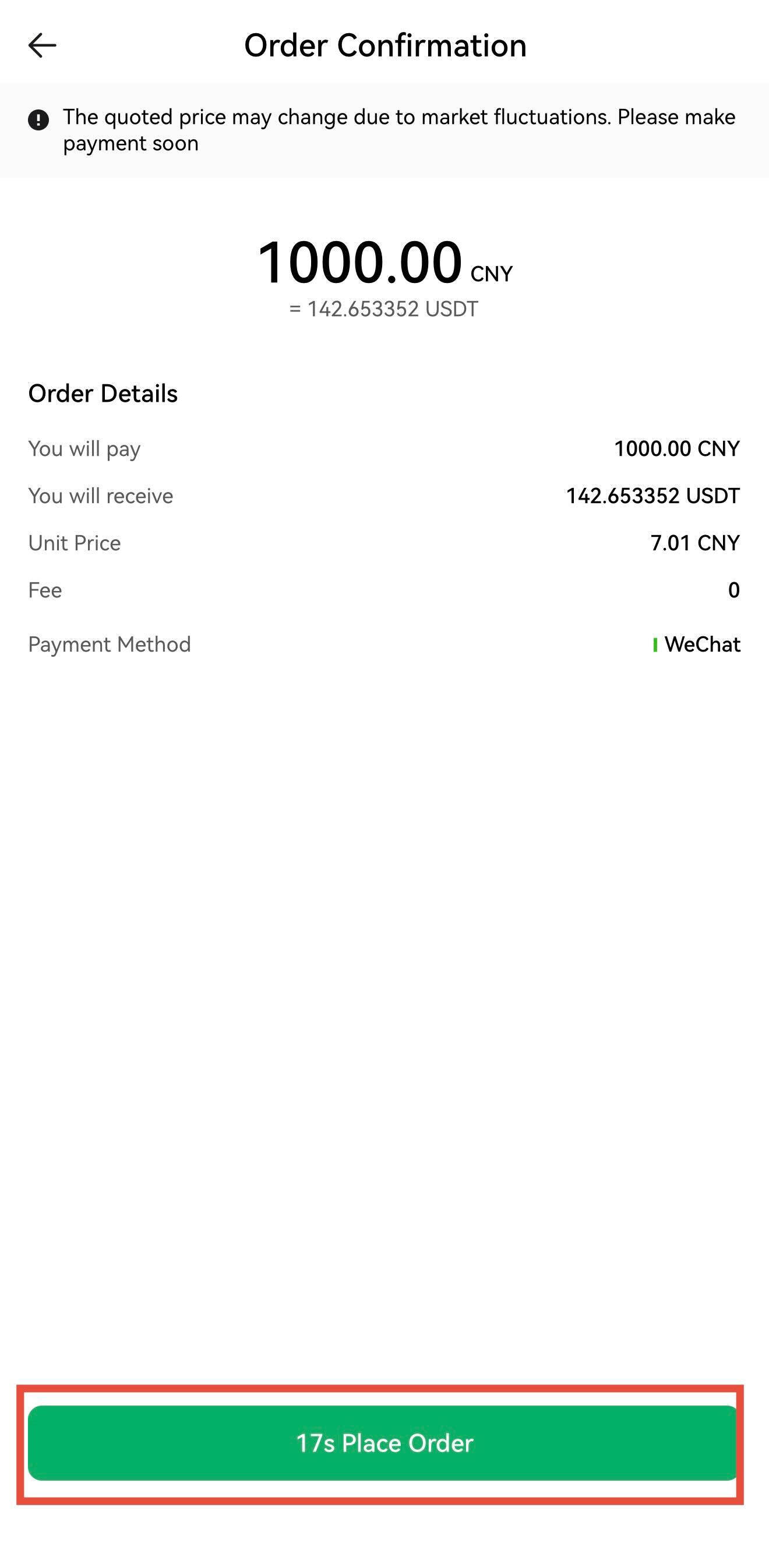
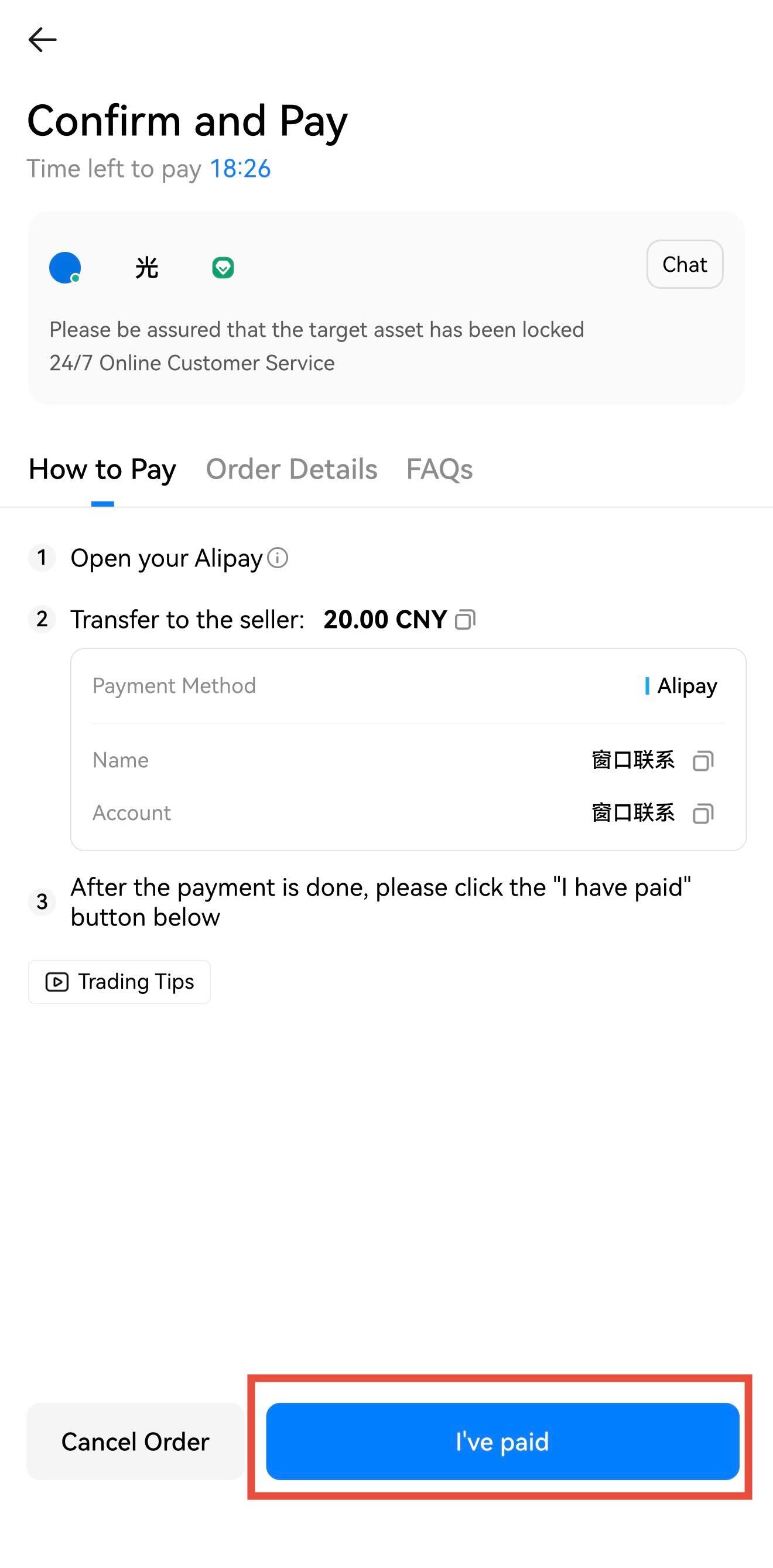
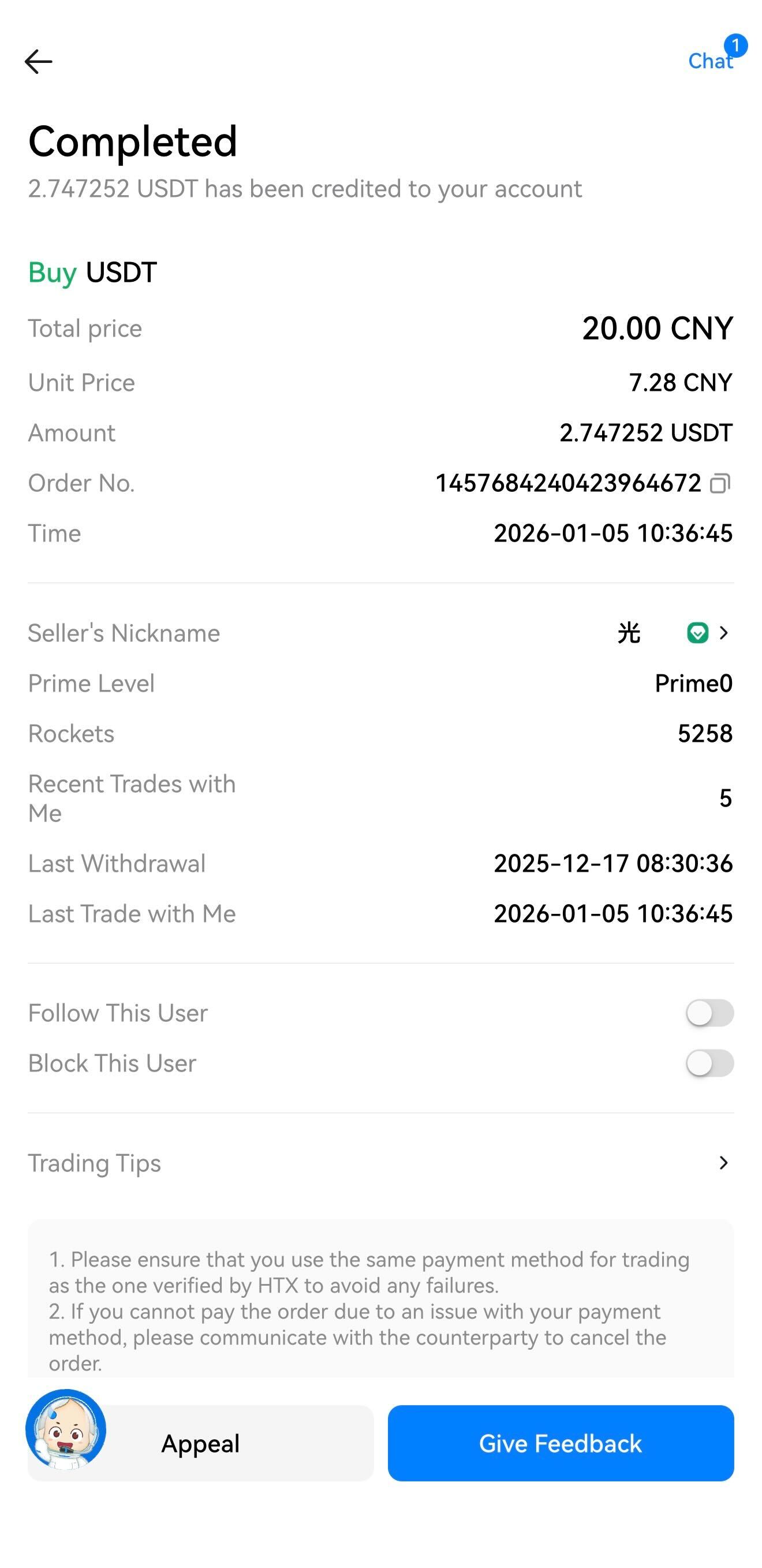
Step 3: Tap the Chat button to review the seller's specific requirements > Confirm the details with the seller> proceed with the payment using the displayed information > After the transfer is finished, tap "I have paid, notify seller." > The seller will then release the assets to complete the trade.



How to Sell USDT:
Method 1: Sell USDT via HTX P2P
Step 1: Open the HTX App > Tap Buy Crypto > Select Sell > Choose your desired ad > Tap Sell to enter the P2P order page.

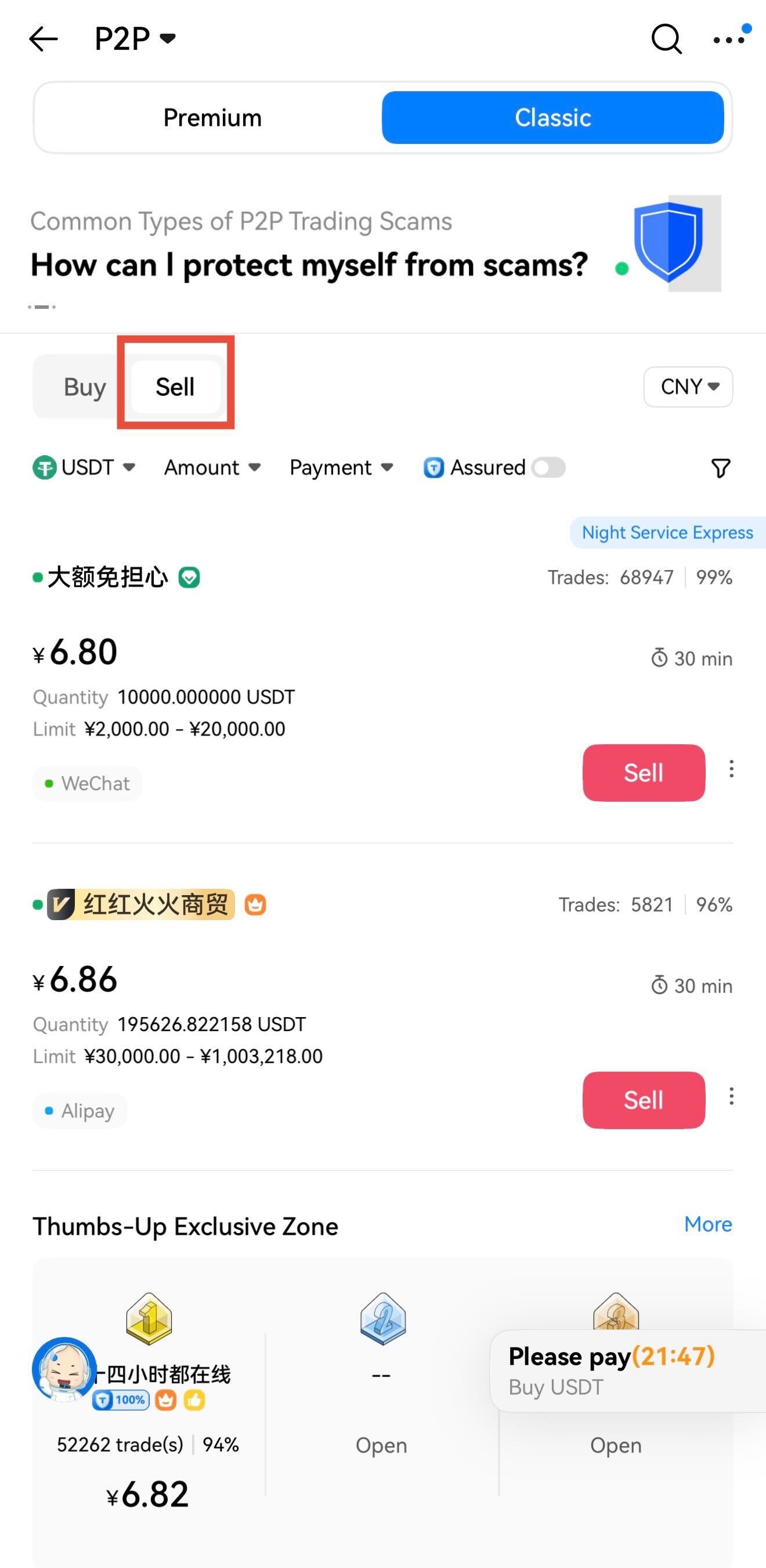

Step 2: Enter the amount or quantity you wish to sell > Tap Sell USDT > Input your GA code > Confirm the order. Add a payment method if needed (see Tip ⑤).

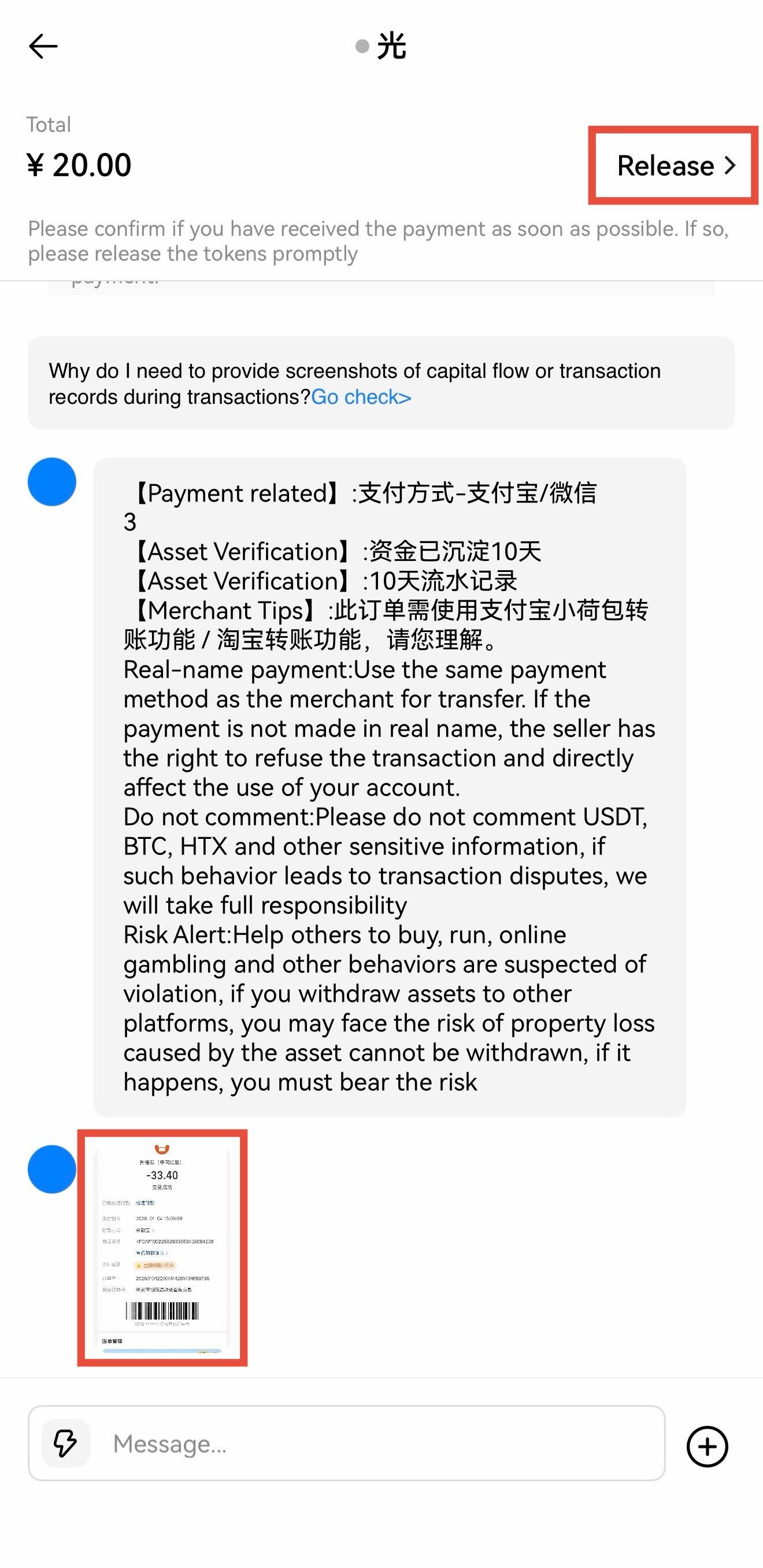
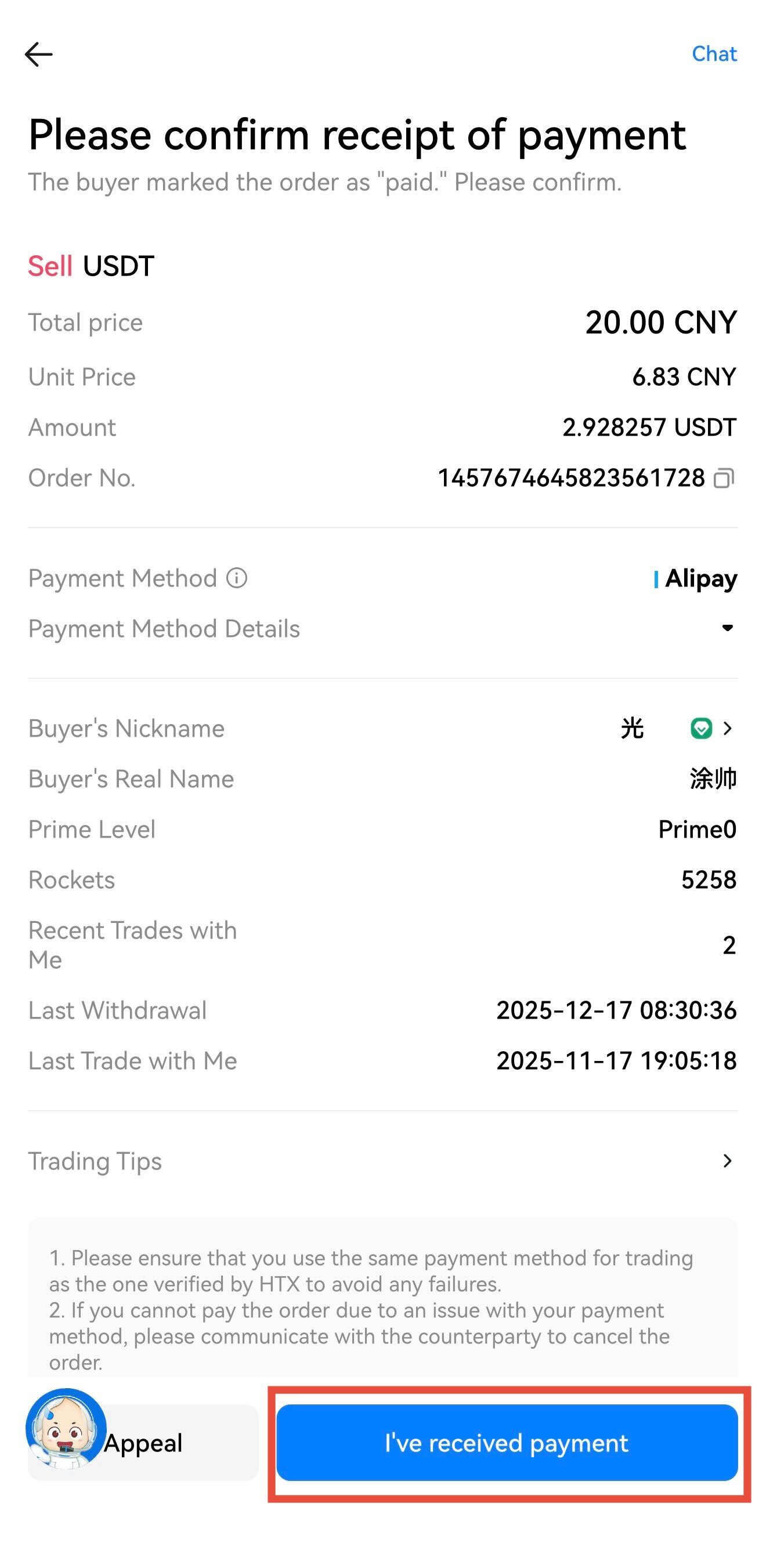
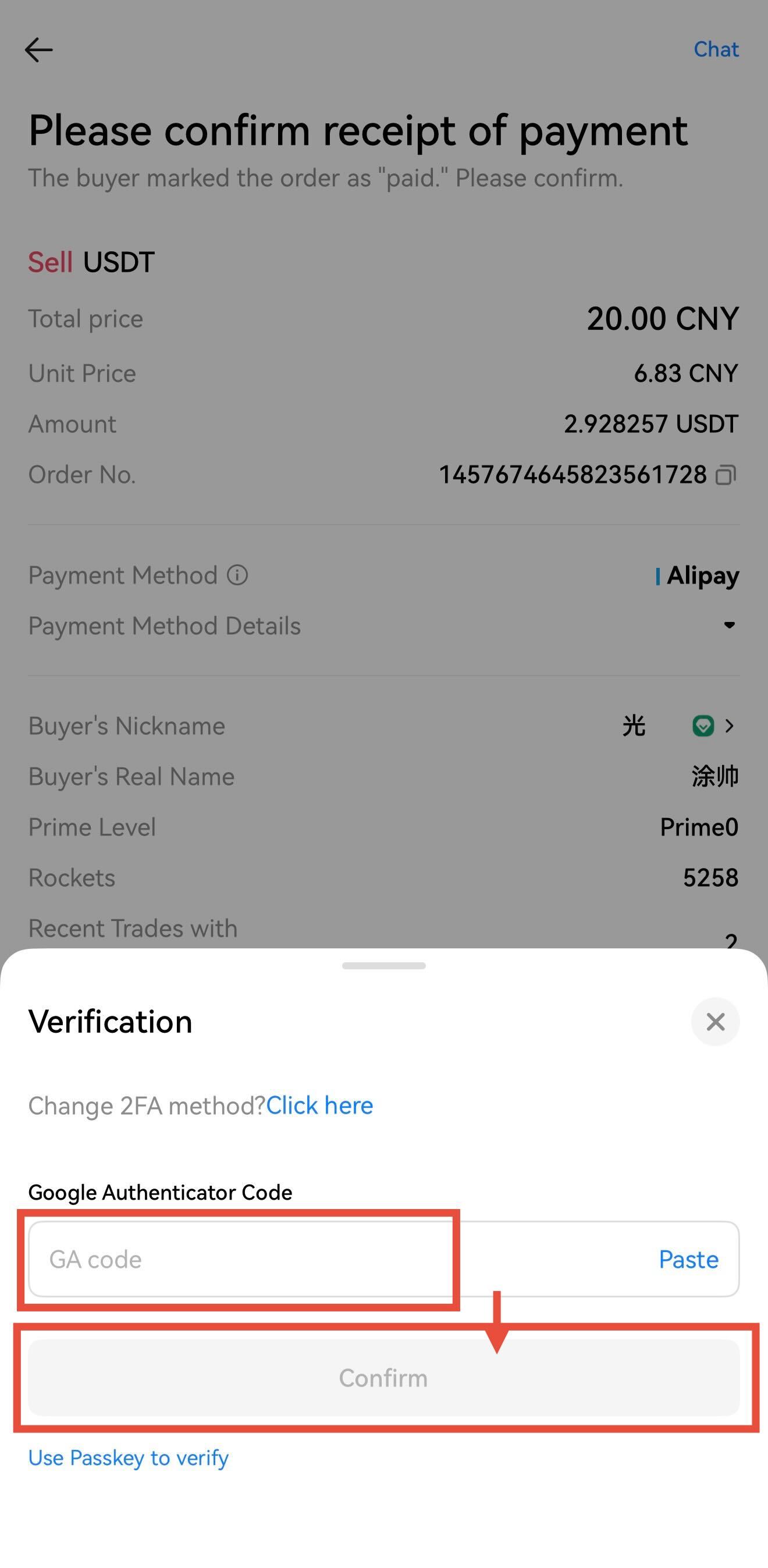
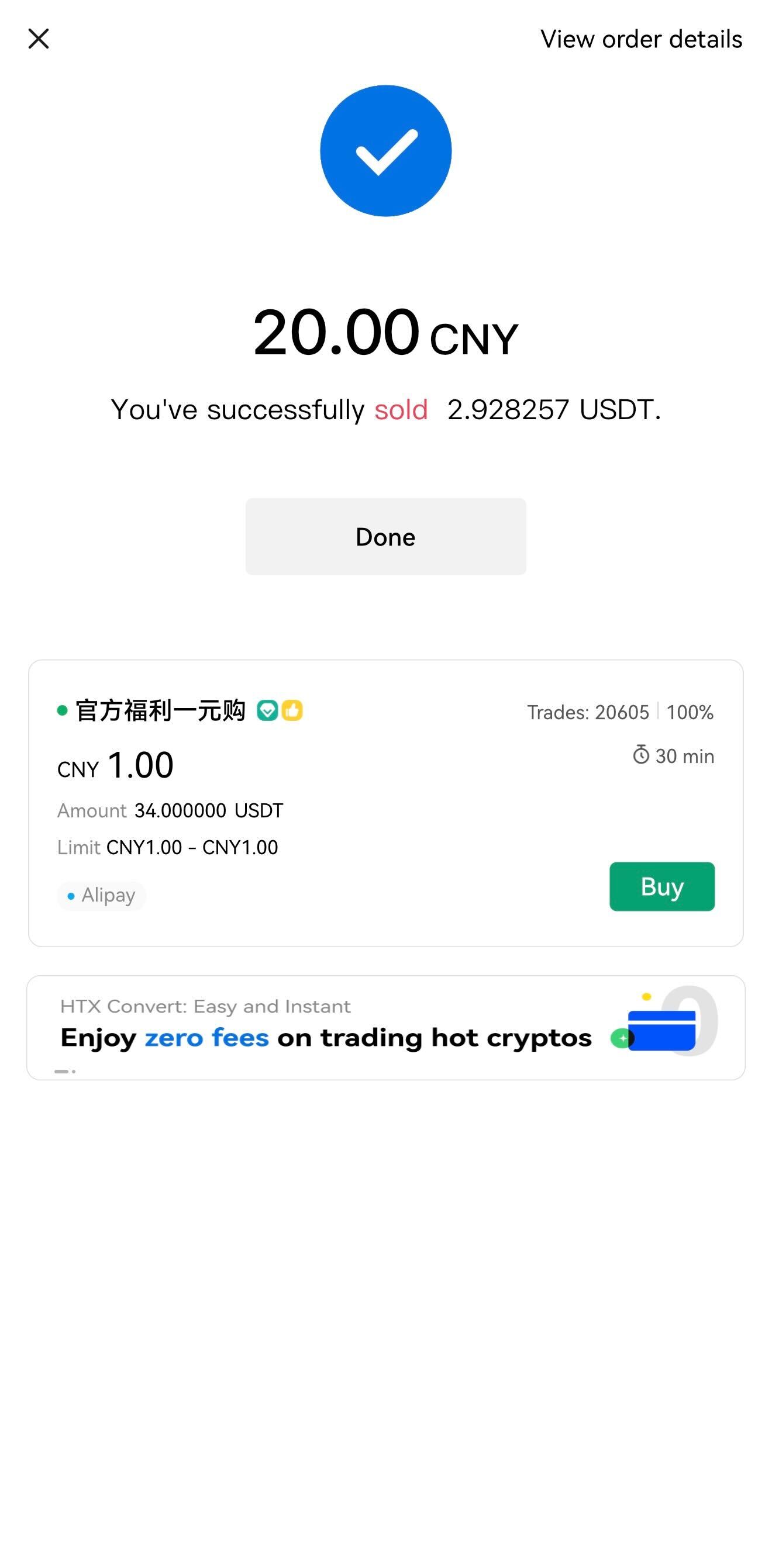
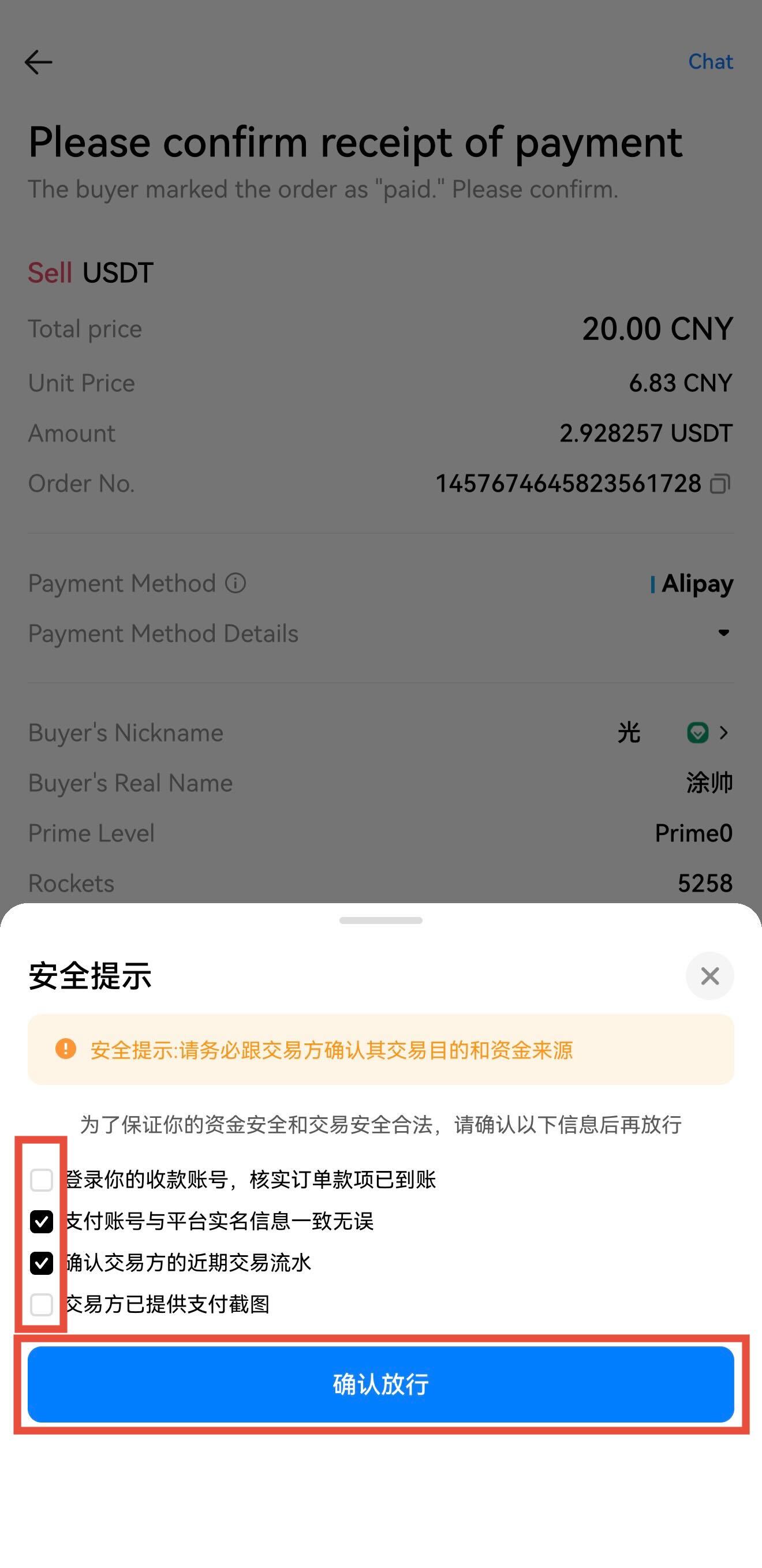
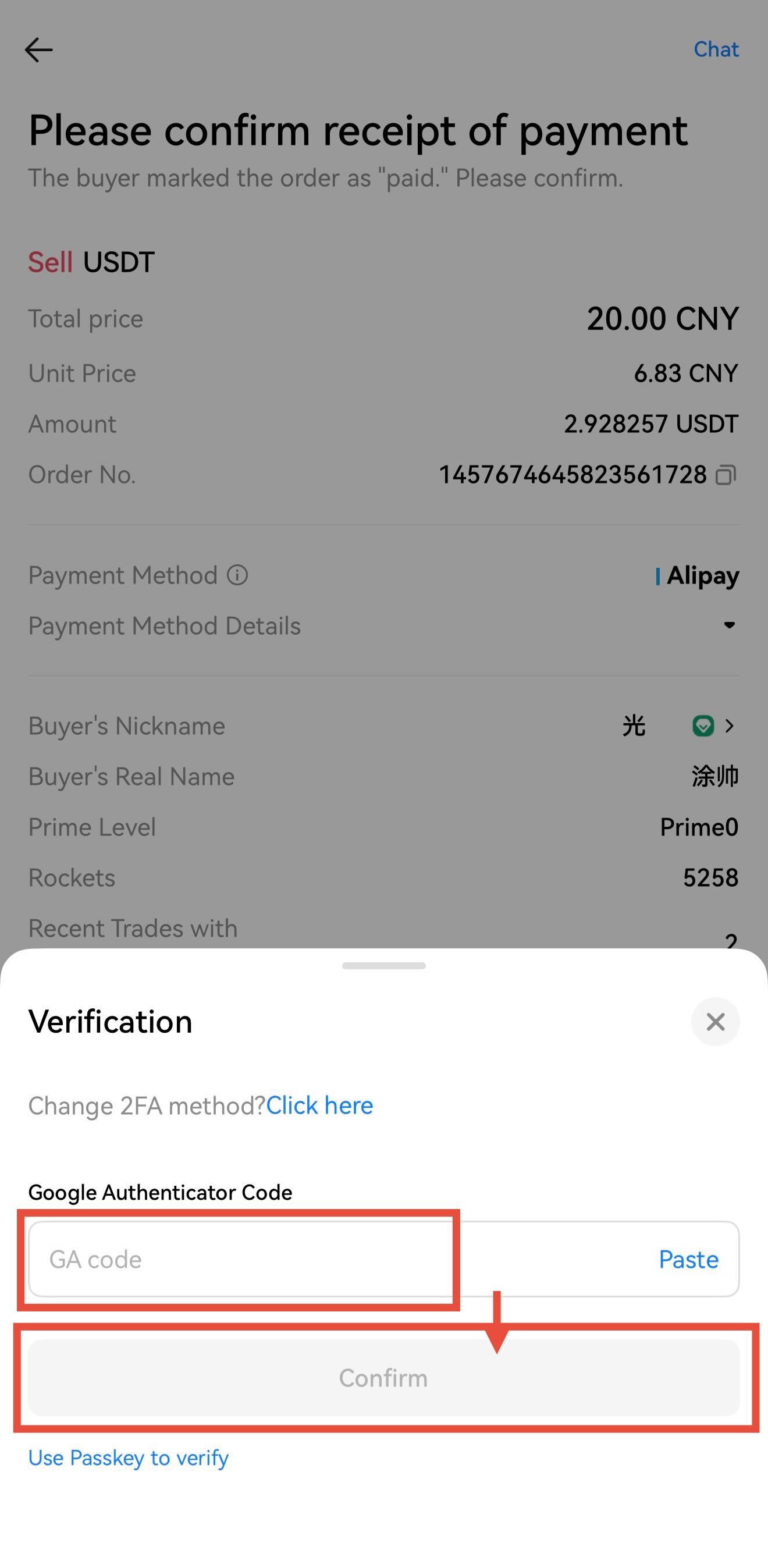
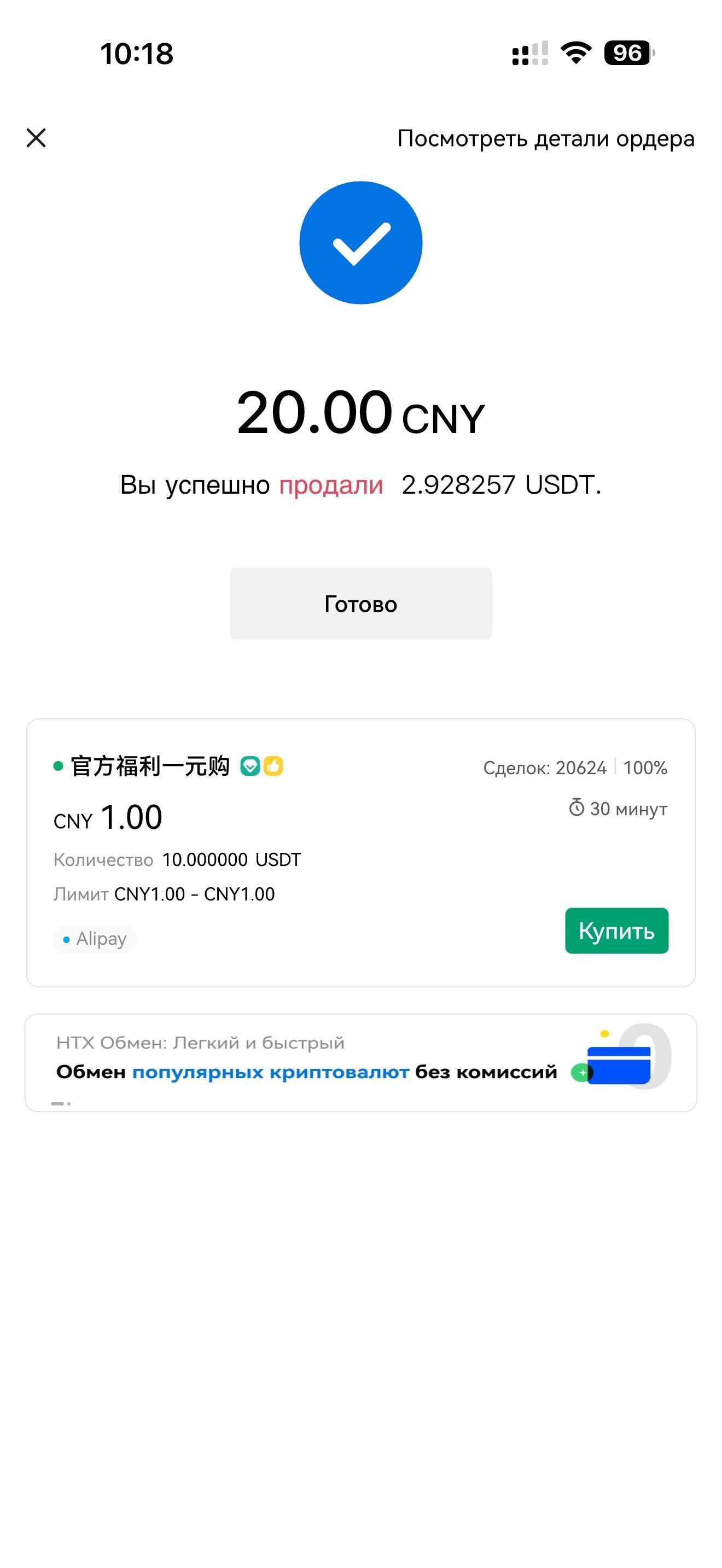
Step 3: Wait for the buyer to make the payment. You can tap the Chat button to communicate regarding the payment status > Once the buyer marks the order as paid, you must log in to your receiving account to verify that the funds have arrived and check that the sender's name matches their verified platform identity, reviewing any provided payment screenshots or recent transaction records > After confirming everything is correct, tap Confirm Release and enter your GA code > The USDT will then be sent to the buyer, completing the transaction.



Method 2: Quick Sell Mode
Step 1: Open the HTX App > Tap Buy Crypto > Access the P2P page > Tap the icon in the upper left corner > Select Quick Trade > Enter the Sell mode.


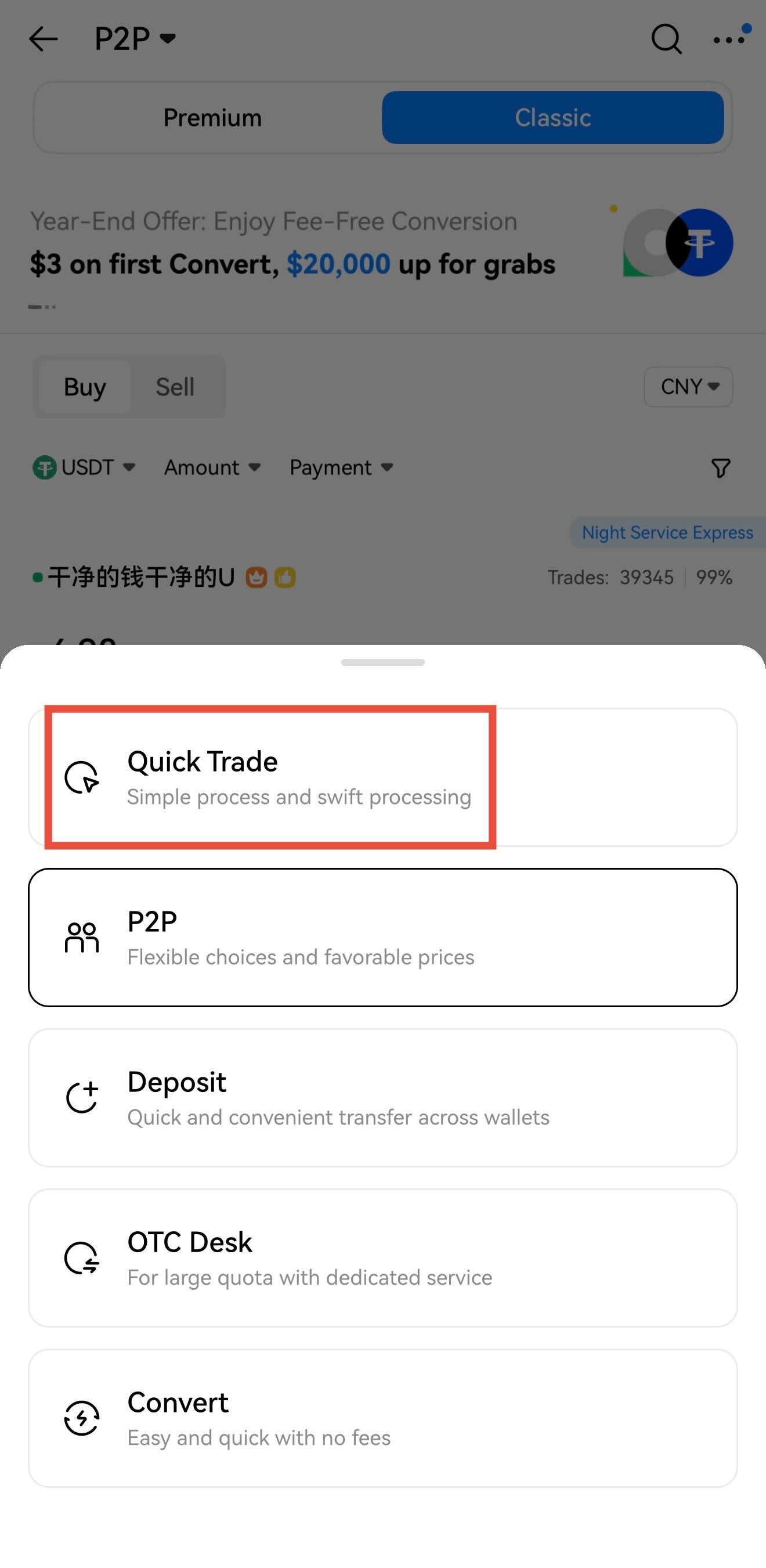

Step 2: Enter the sell amount > Tap Sell USDT > Select a payment method > Tap Sell USDT > Place the order > Fill in the GA code > The system automatically matches you with a verified buyer.
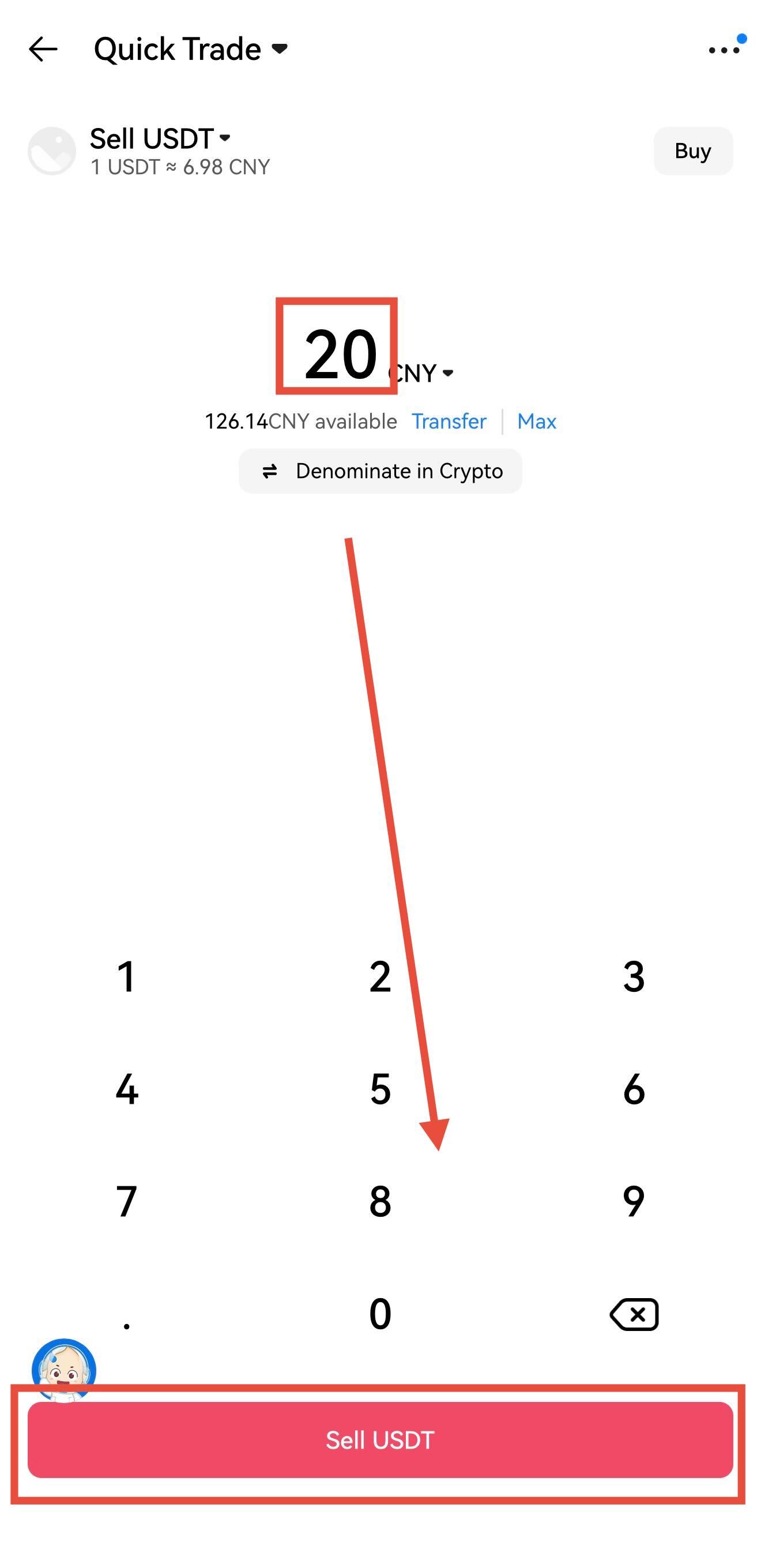


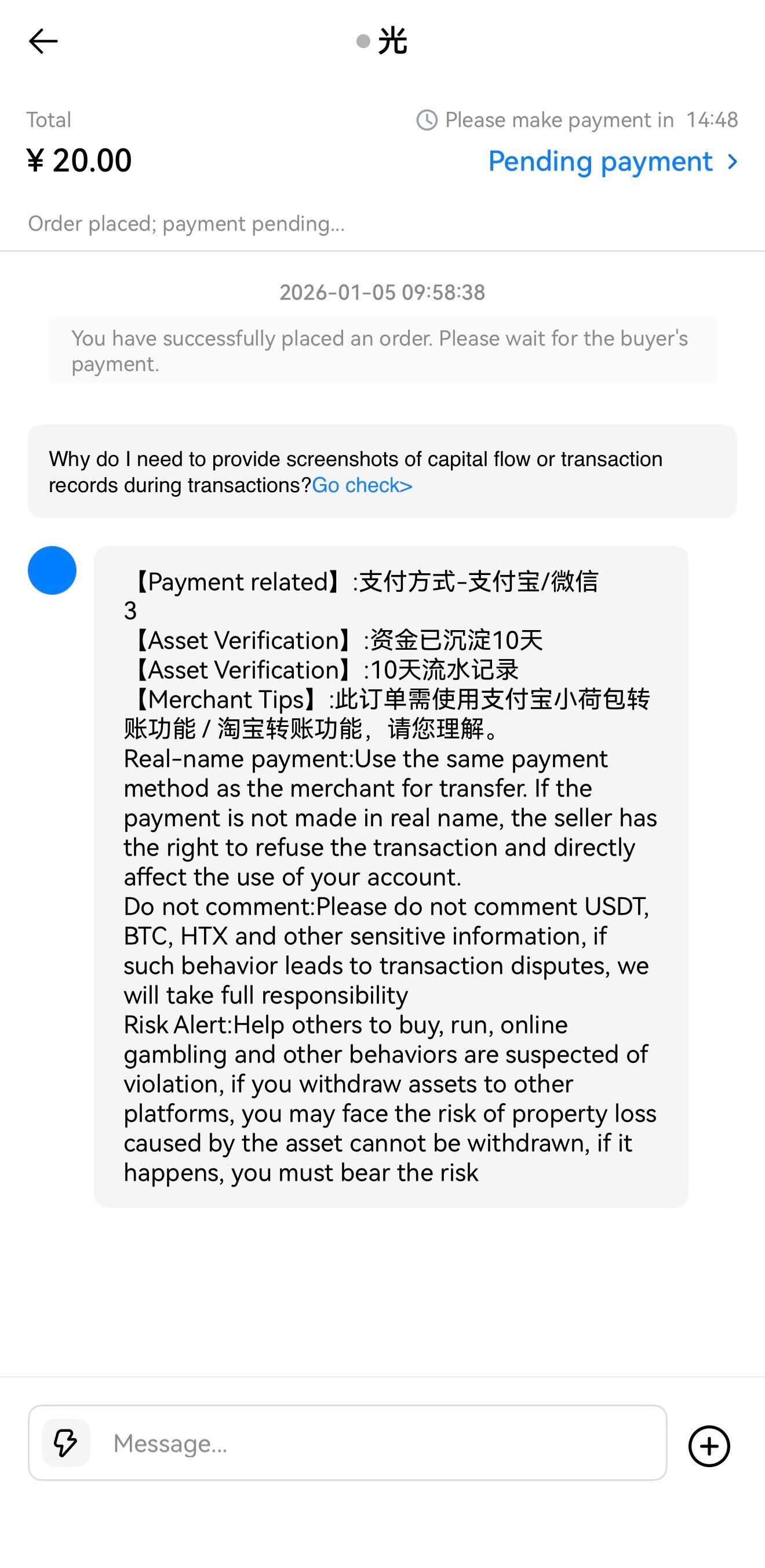
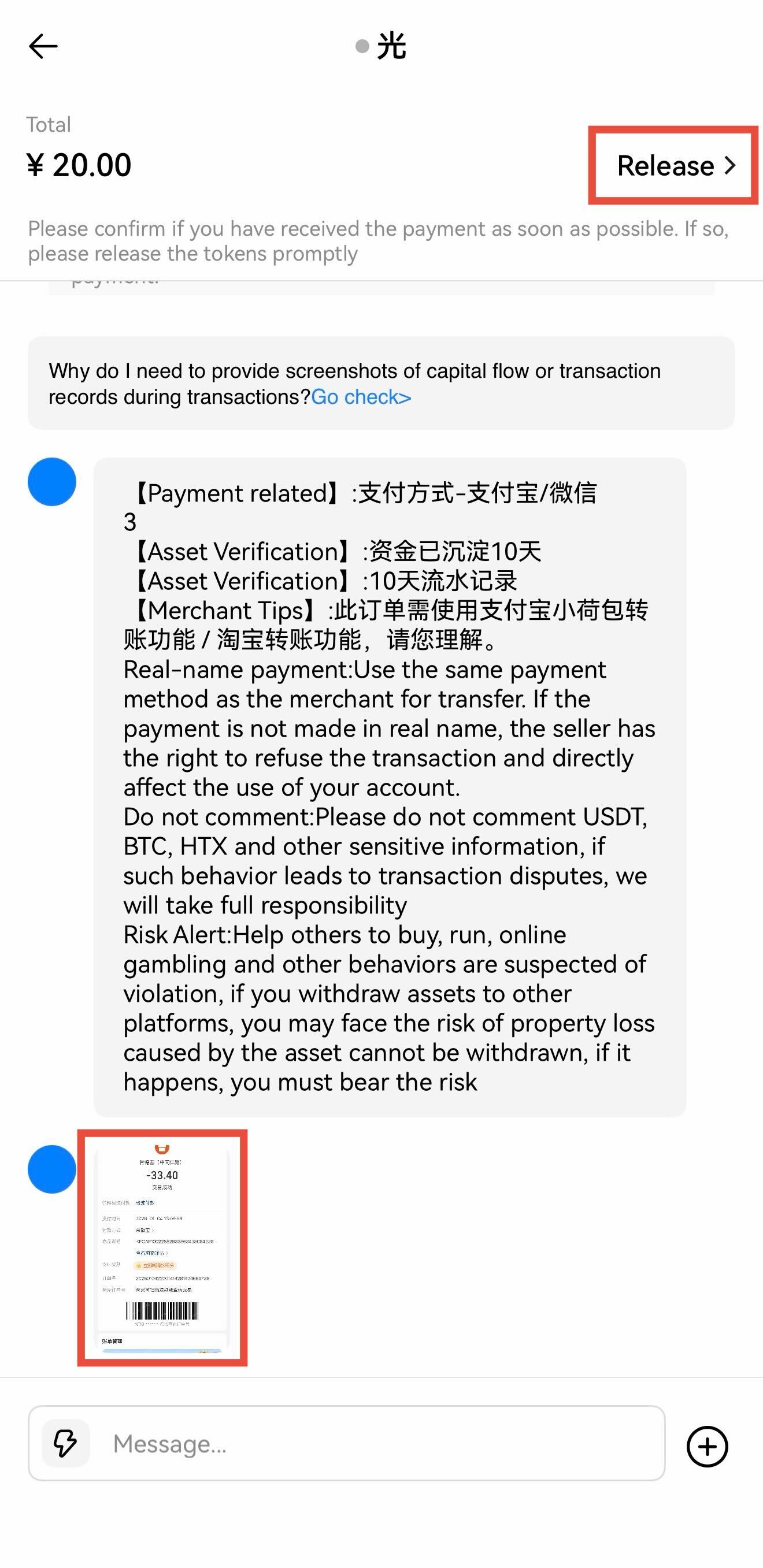
Step 3: Wait for the buyer to make the payment. You can tap the Chat button to communicate regarding the payment status > Once the buyer marks the order as paid, you must log in to your receiving account to verify that the funds have arrived and check that the sender's name matches their verified platform identity, reviewing any provided payment screenshots or recent transaction records > After confirming everything is correct, tap Confirm Release and enter your GA code > The USDT will then be sent to the buyer, completing the transaction.


Tips and FAQs on P2P Trading:
① Benefits of Completing L3 KYC Verification:
By completing level 3 KYC verification, you can access ads from more verified advertisers and unlock more competitive price offers.
How to Verify: Log in to the HTX App, tap the profile icon in the top-left corner, and select Unverified. Follow the prompts to complete Level 1 through Level 3 KYC verification.
② How to perform trades via P2P ad sharing code?
You can copy the P2P ad sharing code from advertisers, events, or chat groups. Then, tap Buy Crypto on the HTX App. Once the system automatically identifies the ad, you can place P2P trading orders directly on the ad page.
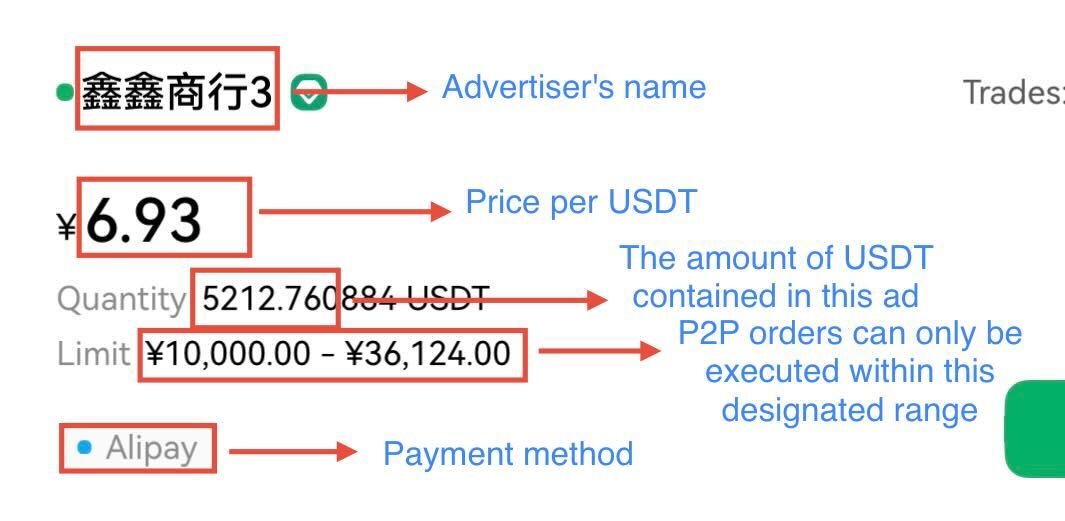
③ Explanation of Information on the Ad List:
④ I've Paid, But the Advertiser Is Not Responding Promptly. What Should I Do?
Option 1: Contacting the Advertiser via Voice Call: HTX has introduced a voice feature that enables you to make direct calls to advertisers. This feature ensures convenient, swift, and efficient communication. (Please note that this functionality requires the installation of the HTX mobile app client version 10.9.0 or above.)
Option 2: Customer Service Feedback - For assistance, contact our customer service and send a message to our support team. Please include your order ID and provide details about the issue you are facing. Our customer service representatives will promptly address your order-related concerns. We appreciate your patience while awaiting a resolution.
Option 3: Access the official HTX P2P Telegram group to connect with dedicated customer support and report your issue.
⑤ Why Can't I Sell the Assets in My Account? Why Am I Unable to Withdraw the Purchased USDT?
To sell crypto via P2P, your assets must first be transferred from your Spot or Futures account to your Fiat account. Similarly, USDT purchased through P2P is deposited into your Fiat account. To withdraw these funds or use them for trading, you must first transfer the USDT from your Fiat account to the corresponding account.
How to Transfer Assets Between Accounts: Access the HTX App, navigate to Assets at the bottom right, then choose Transfer. Select the source account, input the transfer amount, and complete the process by tapping Transfer.
⑥ How to Add Payment Methods on HTX P2P
Access Buy Crypto on the HTX App. Next, tap the "..." icon in the top right corner and select Payment Methods to add your preferred payment method.
⑦ How to Quickly Filter Ads?
Option 1: Easily locate your target ads by entering the desired trading amount into the search box.
Option 2: Tapping the filter button allows you to select advertisers based on various criteria. For example, you can filter advertisers by selecting “Verified”, “Recently traded with", "Followed", or "Thumbs Up".
⑧ How to Link Google Authenticator on HTX?
Linking Google Authenticator on HTX involves two steps. Start by searching for "Authenticator" in the app store, downloading and installing the app. After installation, open it, tap the "+" icon in the bottom right corner, and select either to scan a QR code or manually enter the secret key to complete the linking process.
If using GA is inconvenient, you can enable Passkeys (such as Face ID) for your transactions.
How to Enable: Open the HTX App > Go to Buy Crypto to enter the P2P page > Tap the "..." in the top-right corner > Select Trading Settings > Tap Passkeys to enter the setup page and toggle the feature on.
⑨ What Can I Do If I Cannot Access the P2P Page?
You may try the following steps:
First, please update the HTX App to the latest version.
Second, close and restart the app.
⑩ How to Become an HTX P2P Advertiser
Click here to submit your application>>
⑪ Support & Feedback Channels:
If you encounter any issues while using P2P, feel free to join the official HTX P2P Telegram group to provide feedback and seek assistance. You can join the group by clicking on the following link:
https://t.me/htxglobalofficial


