Editor's Note: As AI capabilities approach the boundaries of "general-purpose tools," the meaning of cybersecurity is also changing. It is no longer just a defense issue against hackers, viruses, or data breaches; it is evolving into a game of "asymmetric capabilities."
With Anthropic's release of Claude Mythos demonstrating vulnerability discovery capabilities close to those of top experts, cyber attacks are entering a new, more covert and automated phase. Personal security is shifting from an "option" to a "necessity." On one hand, the barrier to attack is being lowered; on the other, attack efficiency is increasing exponentially. This means "passive security" will become increasingly difficult to sustain.
Against this backdrop, the "digital hygiene" checklist proposed by OpenAI co-founder Andrej Karpathy offers an actionable path forward. In the AI era, security is no longer about "remedies after an incident" but rather "part of daily behavior." Identity verification, permission isolation, information minimization, and the restructuring of behavioral habits. These seemingly trivial 15 steps essentially rebuild a security boundary that an average user can control.
The real risk is not whether you become a target, but whether you are completely unprepared when an attack occurs.
The original text follows:
One thing is certain: when it comes to cybersecurity, you no longer have room to be lazy.
Anthropic's landmark release of Mythos yesterday marks a point of no return.
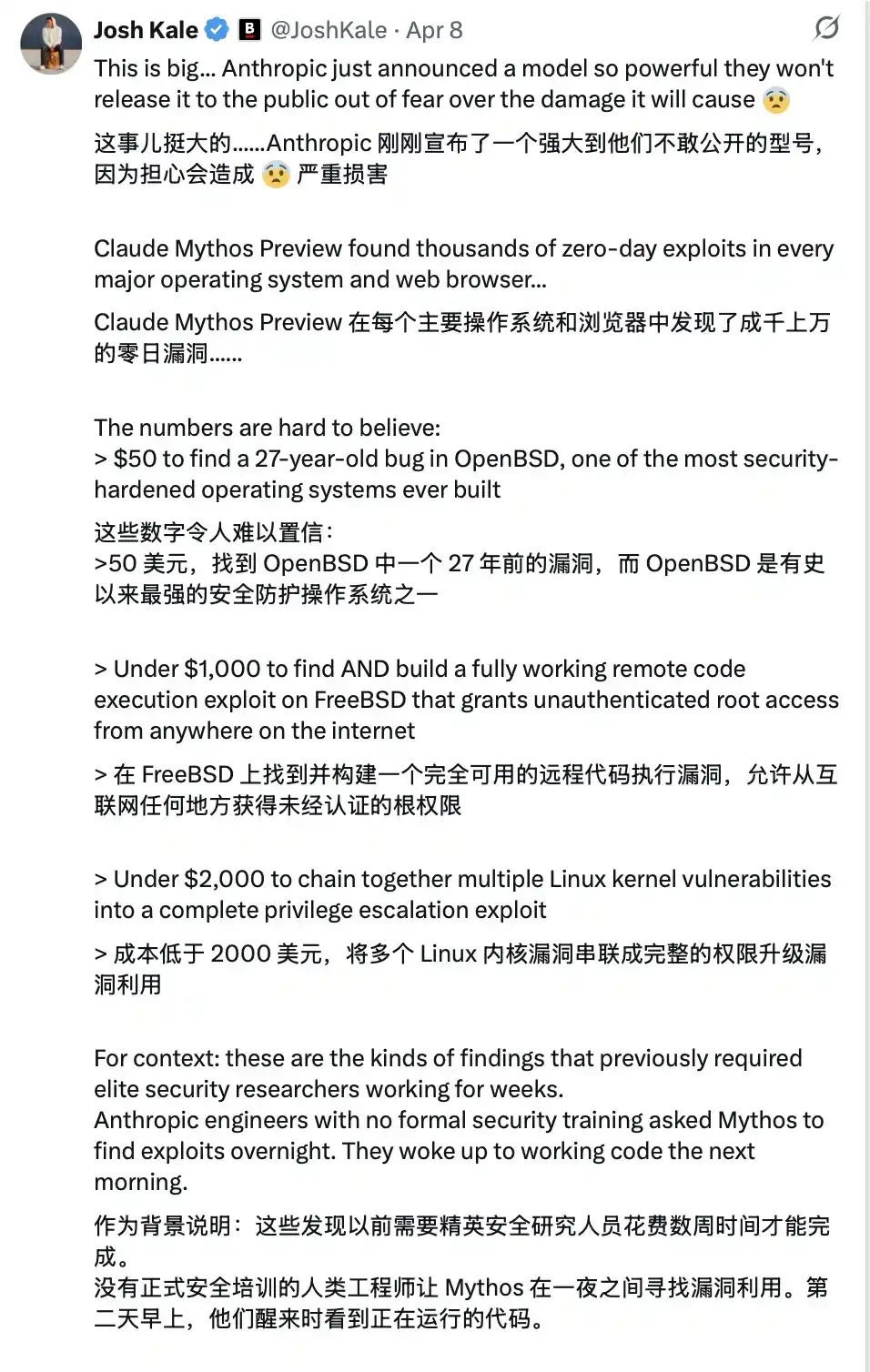

This technology is not yet public, but once it falls into the hands of malicious actors (which is almost inevitable)... you will be facing an extremely advanced cyber attack. Most people will find it's too late even before they realize they have been compromised.
It's like the "COVID-19" of the software world.
And precisely because of this, from now on, your cybersecurity must be watertight.
Karpathy's Digital Hygiene Guide
Last year, Andrej Karpathy (@karpathy, OpenAI co-founder) compiled a "Digital Hygiene Guide," systematically outlining the fundamental methods for protecting oneself in the AI era.
This is one of the most worthwhile introductory guides I have seen.
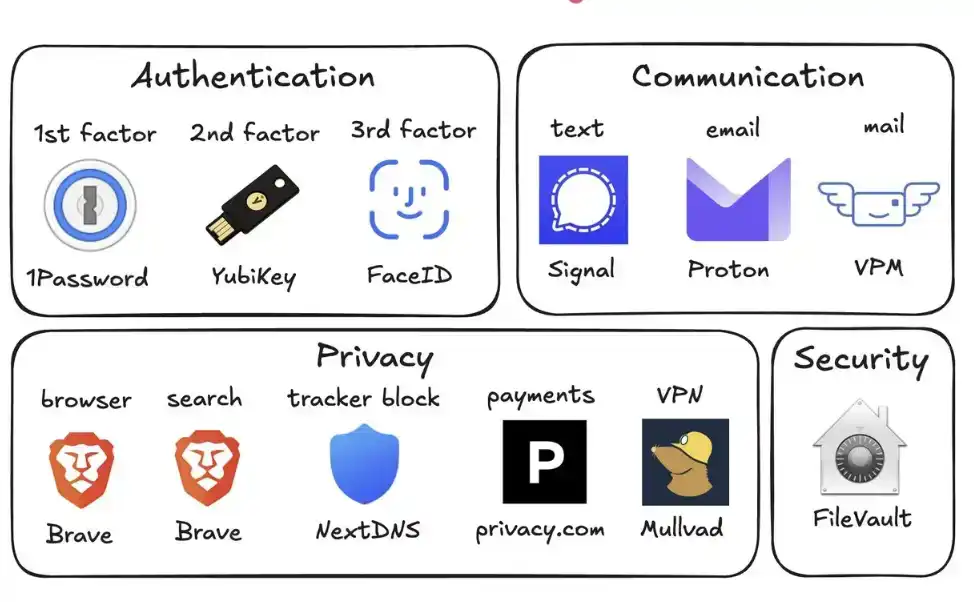
Here are all the security measures you should take in this era of uncertainty:
1. Use a Password Manager (e.g., 1Password)
Generate a unique, random password for every account you own. Once a service is breached, attackers often use these credentials for "credential stuffing" attacks. A password manager completely eliminates this risk and even auto-fills, making it faster to use than reusing passwords.
2. Configure Hardware Security Keys (e.g., YubiKey)
This is a physical device that serves as a second factor for login. An attacker must "physically possess it" to access your account. In contrast, SMS codes are easily stolen via SIM swap attacks (where someone impersonates you to your carrier to transfer your number to their phone).
It's recommended to buy 2–3 YubiKeys and store them separately to avoid being locked out if one is lost.
3. Enable Biometrics Fully
Such as Face ID, fingerprint recognition, etc. Enable it in your password manager, banking apps, and important applications. This is the third layer of verification: you "yourself." No one can steal your face from a database.
4. Treat Security Questions Like Passwords
Questions like "What is your mother's maiden name?" can be found online in 10 seconds. Generate random answers and store them in your password manager. Never provide real information.
5. Enable Disk Encryption
Called FileVault on Mac and BitLocker on Windows. If your computer is stolen, encryption turns it into a "brick" rather than giving the thief all your data. Enabling it takes 2 minutes and runs automatically in the background.
6. Reduce Smart Home Devices
Every "smart device" is essentially an internet-connected computer, often with a microphone. They continuously collect data, frequently connect to the internet, and are often breached. Your connected air quality monitor doesn't need to know your precise location. Fewer devices mean fewer attack vectors.
7. Use Signal for Communication
Signal provides end-to-end encryption. No one (including the platform itself, carriers, or eavesdroppers) can read the content. Regular SMS and even iMessage retain metadata (who, when, frequency of contact). Enable "disappearing messages" (e.g., 90 days) to prevent historical records from becoming a risk.
8. Use a Privacy-Focused Browser (e.g., Brave)
Based on Chromium, compatible with Chrome extensions, the user experience is almost identical.
9. Switch Your Default Search Engine to Brave Search
It has an independent index (unlike DuckDuckGo, which relies on Bing). If a search result is poor, you can add "!g" to jump to Google. The paid version is about $3 per month and is worth it—you become the customer, not the "product being sold."
10. Use Virtual Credit Cards (e.g., Privacy.com)
Generate a unique card number for each merchant and set spending limits. You can even use random names and addresses. If a merchant is breached, only a disposable card number is leaked, not your real financial information.
11. Use a Virtual Mailing Address
Services like Virtual Post Mail receive your physical mail, scan the contents, and let you view it online.
You can decide what to shred and what to forward. This way, you don't have to hand over your real home address to various unfamiliar merchants every time you shop online.
12. Don't Click Links in Emails
Email addresses are extremely easy to spoof. With the help of AI, phishing emails are now almost indistinguishable from real ones. Instead of clicking links, manually type the website address and log in yourself.
Also, disable automatic image loading in your email client, as embedded images are often used to track whether you've opened the email.
13. Use a VPN Selectively (e.g., Mullvad)
A VPN (Virtual Private Network) hides your IP address (the unique number identifying your device and location) from the services you access. You don't need to have it on all the time, but definitely enable it when using public Wi-Fi or accessing less trusted services.
14. Set Up DNS-Level Ad Blocking (e.g., NextDNS)
Think of DNS as the phonebook your device uses to "look up websites." Blocking at this layer means ads and trackers are stopped before they even load.
And it works for all apps and browsers on your device.
15. Install a Network Monitoring Tool (e.g., Little Snitch)
It shows you which applications on your computer are connecting to the internet, how much data they're sending, and where it's going. Any app that "phones home with abnormally high frequency" should be treated with suspicion and likely uninstalled.
Currently, Mythos remains only in the hands of the defense side of Project Glasswing (like Anthropic, Apple, Google, etc.). But models with similar capabilities will soon fall into the hands of malicious actors (perhaps in less than 6 months, or even sooner).
This is why you must strengthen your security now. Spending 15 minutes on these settings now can help you avoid a series of serious problems in the future.
Stay safe, and all the best.